Bulk Importing from a Spreadsheet
Instead of creating catalog and CRM records one at a time, you can import them in bulk from a CSV or XLSX spreadsheet. This is the fastest way to load an existing catalog exported from your CRM, ERP, or a previous tool.
What You'll Accomplish
By the end of this guide, you will have:
- 📤 Uploaded a CSV or XLSX file to a TurboQuote import dialog
- 🔗 Mapped your spreadsheet columns to TurboQuote fields
- ✅ Reviewed validation results and imported your records
- 📥 Downloaded an error report for any rows that need fixing
Already have your data in a spreadsheet? You can be importing in under a minute. Start by downloading the template so your columns line up automatically. 🚀
How Records Link Together
Related records connect using the names and codes you already use, so you can build your spreadsheet straight from data you already have:
- Products point at a category by its name. If the category doesn't exist yet, TurboQuote creates it for you.
- Bundles and price books point at products by their SKU.
- Companies carry their contacts inline, on the same rows.
- Contacts are added to the company whose page you opened the importer from, so there is no company column to fill in.
What You Can Import
Bulk import is available for each of these record types, from its own list page:
| Record type | Where to find it | Button |
|---|---|---|
| Products | TurboQuote → Products | Import from Spreadsheet |
| Companies (with their contacts) | TurboQuote → Companies | Import from Spreadsheet |
| Contacts | A company's Contacts page | Import from Spreadsheet |
| Bundles | TurboQuote → Bundles | Import from Spreadsheet |
| Price Books | TurboQuote → Price Books | Bulk Create |
| Categories | TurboQuote → Categories | Bulk Create |
The button to open the importer sits next to New … on each page.
Step 1: Upload Your File
This walkthrough uses Products as the example. Companies, contacts, bundles, price books, and categories follow the same three steps; only the column names differ (see the Column Reference). For price books and categories, the button is labeled Bulk Create instead of Import from Spreadsheet.
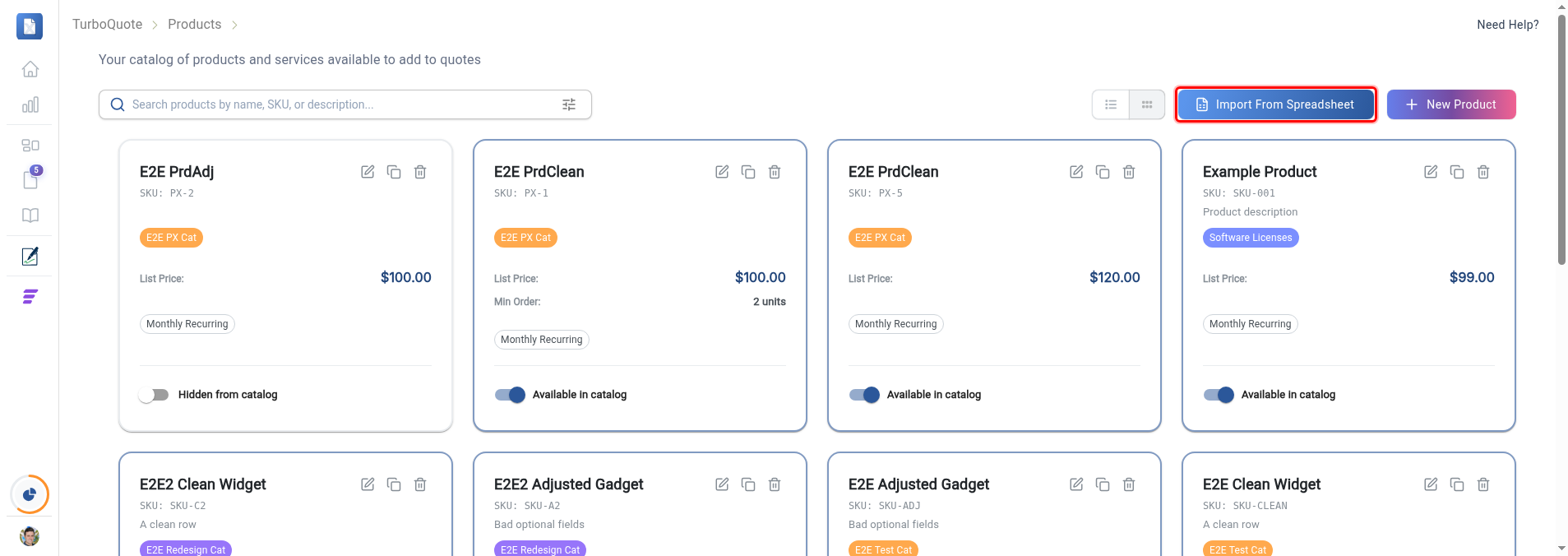
- Click Import from Spreadsheet (or Bulk Create, for price books and categories) to open the import dialog.
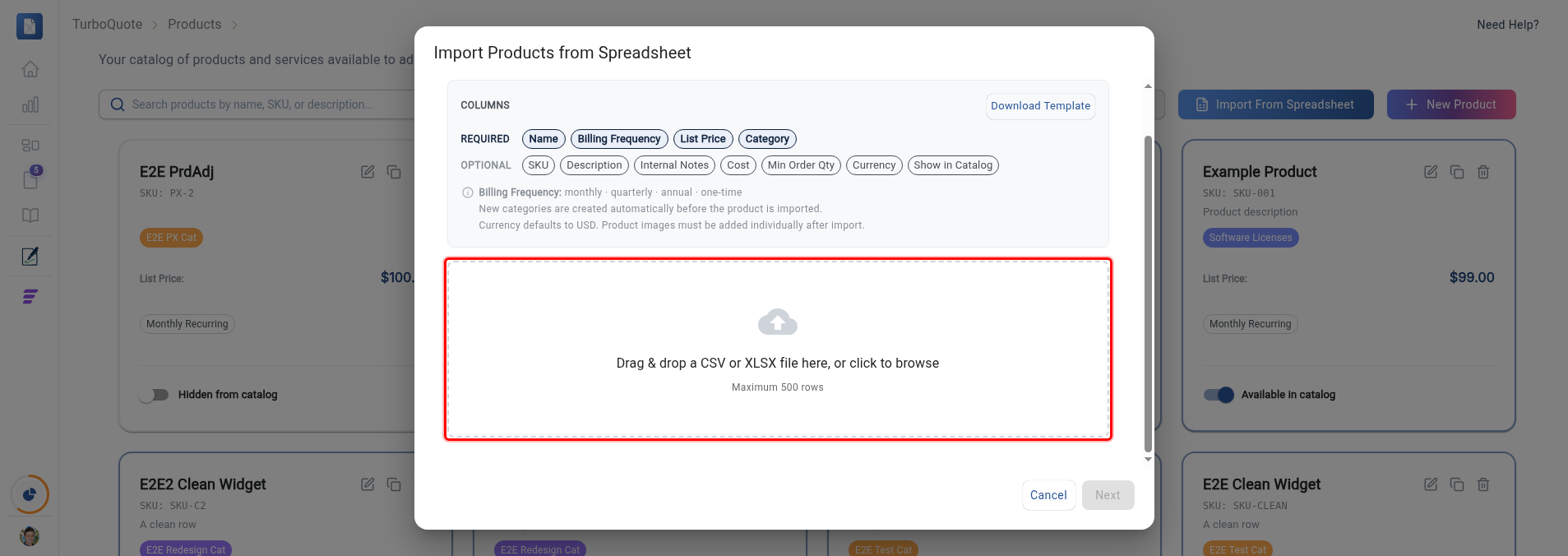
- (Recommended) Click Download template in the top-right of the Columns box to get a correctly formatted CSV with the right column headers and an example row.
- Drag and drop your CSV or XLSX file onto the upload area, or click to browse.
The dialog parses your file and shows the row and column counts plus a preview.
- 📦 Maximum 500 rows per import. A larger file is rejected before anything is created, with a message like "Spreadsheet contains 750 rows, which exceeds the maximum of 500. Please reduce the number of rows." Split the file into batches and import each one.
- 📅 Date columns (for example, a price book's valid-from and valid-to) are read in
YYYY-MM-DDformat.
Step 2: Map Your Columns
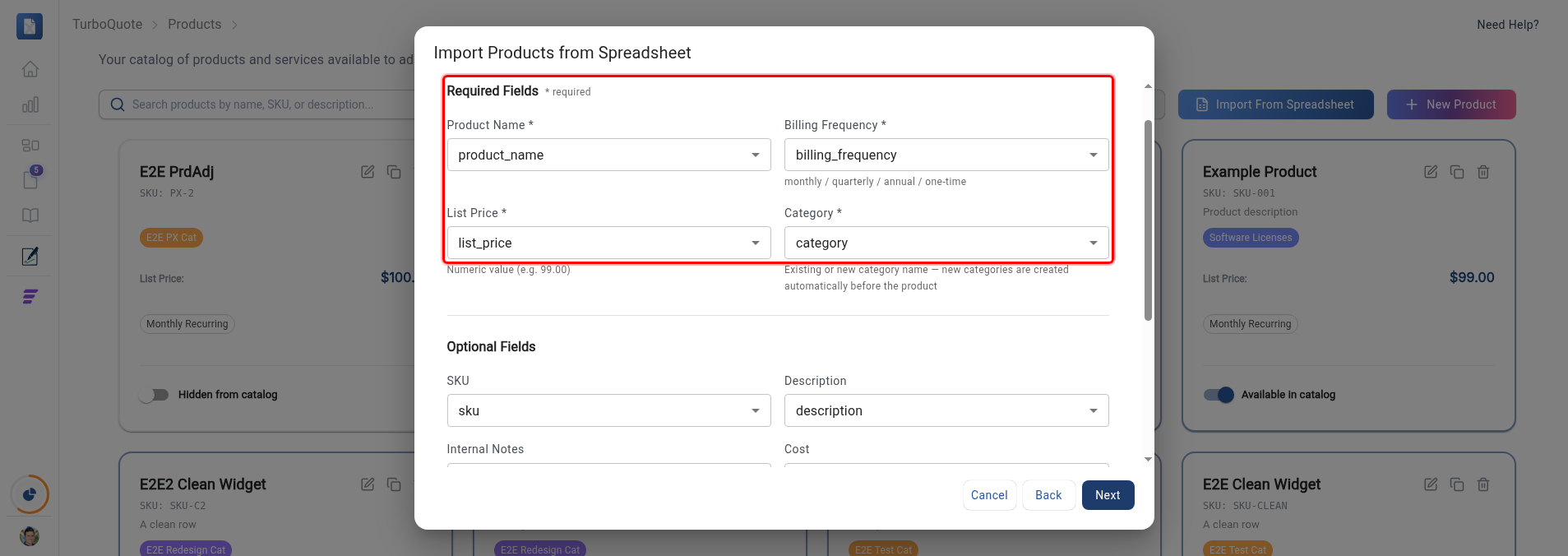
TurboQuote auto-detects common column names (for example, product_name maps to Product Name). Header matching ignores case, spaces, and underscores, so Product Name, product_name, and PRODUCTNAME are all recognized. On the Map Columns step you can confirm or change each mapping:
- Required fields are marked with an asterisk and must be mapped before you can continue.
- Optional fields can be left unmapped. Sensible defaults are applied (for example, currency defaults to USD).
If you used the downloaded template, every column maps automatically.
Step 3: Review and Import
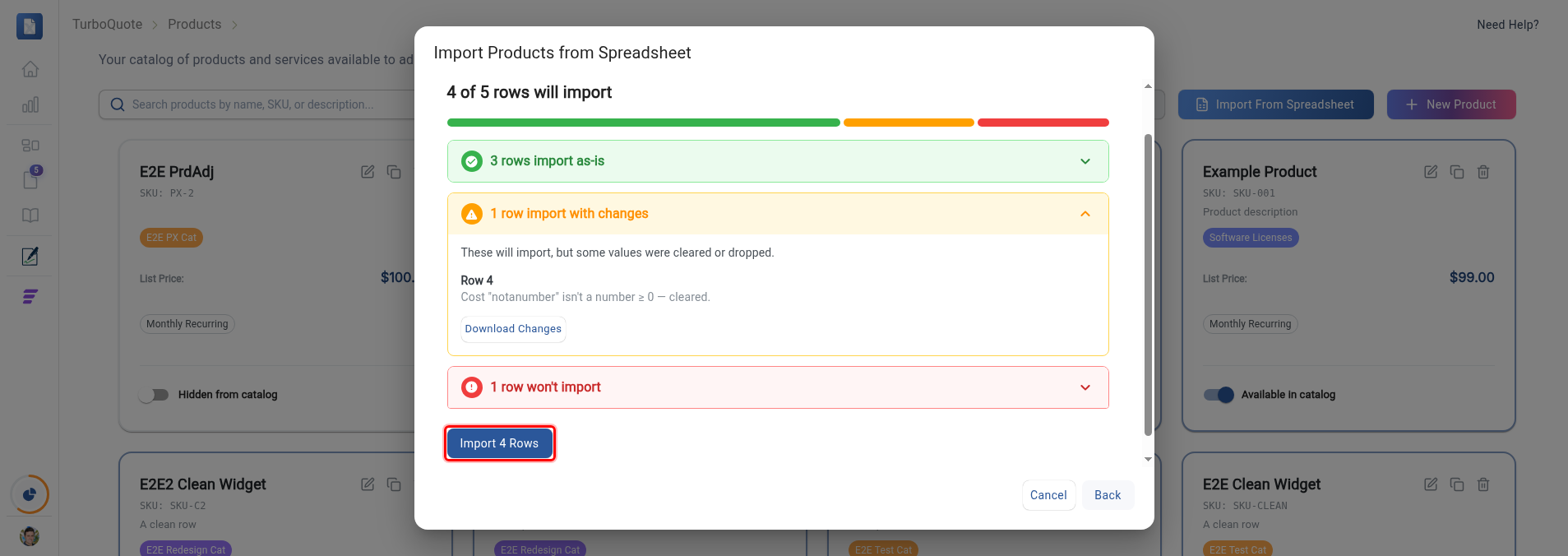
The Review & Import step checks every row before anything is created, then sorts your rows into three groups, shown as a colored bar and a summary headline (for example, "4 of 5 rows will import"):
- ✅ Import as-is. The row is clean and imports unchanged.
- ⚠️ Import with changes. The row still imports, but a bad optional value was cleared. For example, a non-numeric
cost, an unrecognizedcurrency, or an out-of-range minimum order quantity is dropped and the rest of the row is kept (currency falls back to the default, USD). - ❌ Won't import. A required value is missing or invalid, so the whole row is skipped. For example, a product with no name or an invalid billing frequency, or a bundle row missing its unit price.
Expand any group to see the affected rows with their row number and the exact reason.
When you're happy with the split, click Import N rows. The button shows how many will import. TurboQuote creates any missing categories or price-book types first, then imports the eligible rows.
A company can span several rows, one per contact, so it works a little differently. See the worked example below.
Adjustments and Error Reports
After importing, the headline updates to something like "4 of 5 rows imported", keeping the same three groups. Two downloads help you follow up:
- Download changes. A report of every row that imported with changes (which value was cleared, and why), so you can fill them back in later.
- Download errors. A report of every row that didn't import. Fix those rows in your spreadsheet and re-upload just them.
A bad optional value never blocks a row. TurboQuote clears just that value and keeps the rest. Only a missing or invalid required value skips a row. So even a messy export gets most of your data in, and the change and error reports tell you exactly what to clean up.
Example: Importing Companies and Contacts
The companies importer works the same way as the products importer, but with one key difference: a company can span several rows, one per contact. You open it from TurboQuote → Companies with the Import From Spreadsheet button.
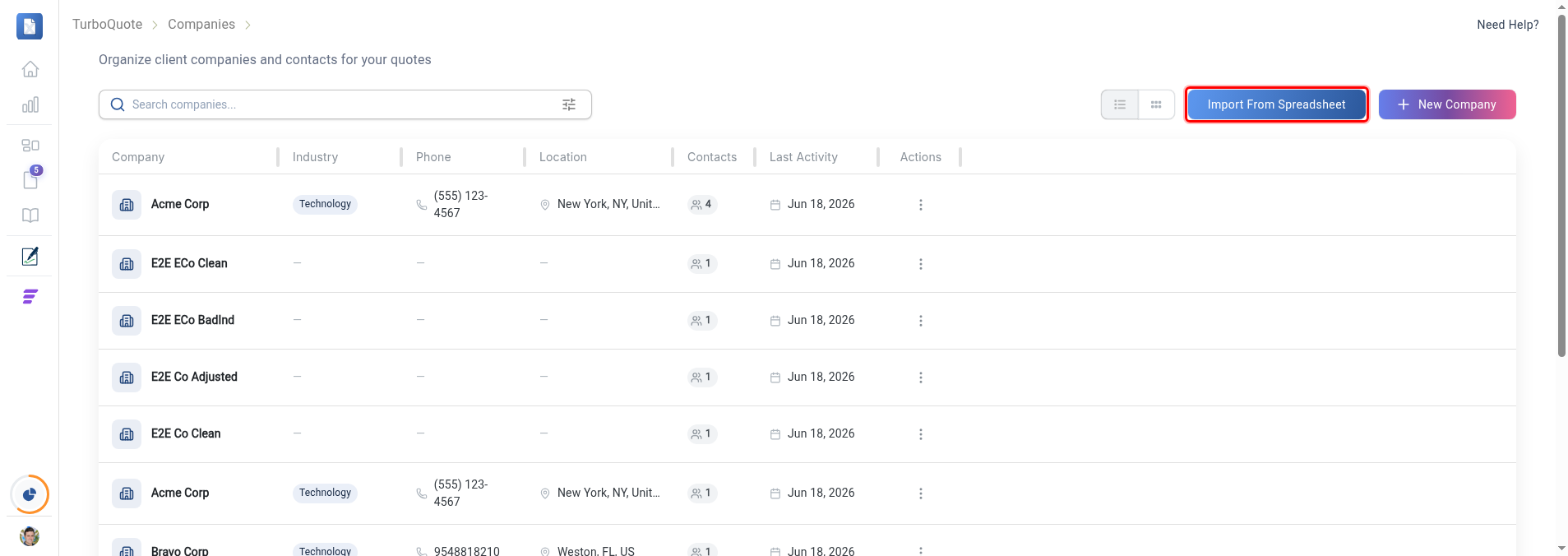
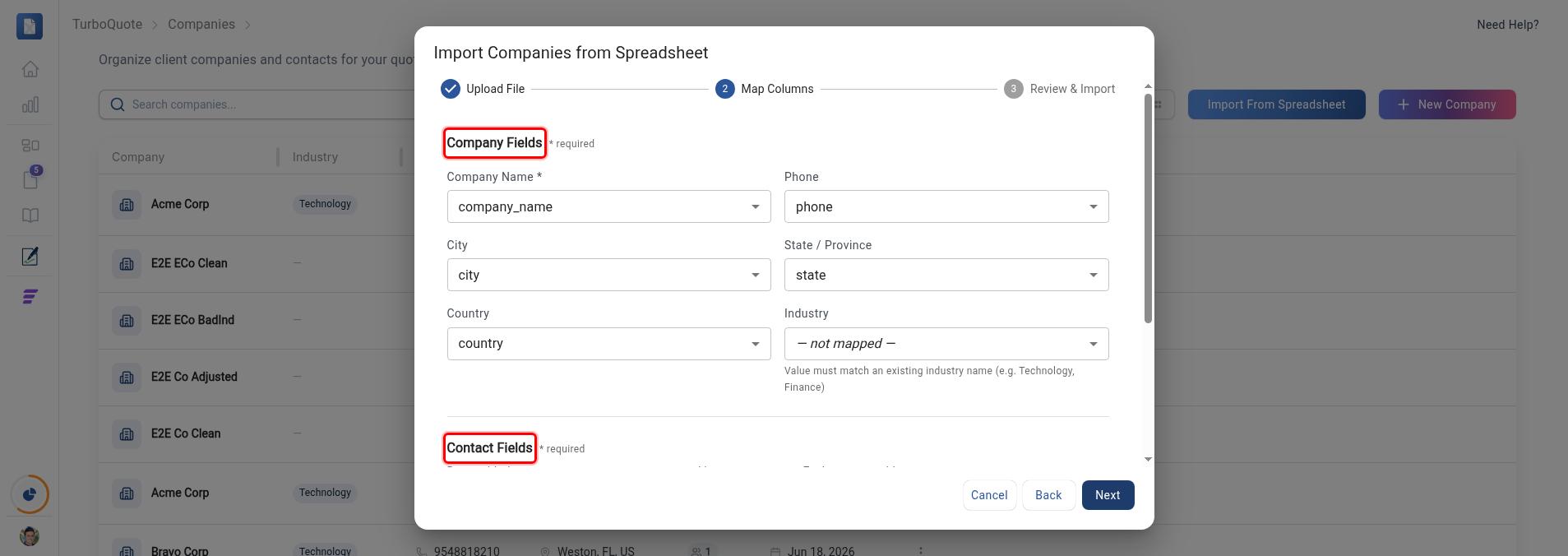
On the Map Columns step, the fields are split into two groups: Company Fields (the company-level columns like name, phone, and city) and Contact Fields (the per-contact columns like contact name and email). Rows that share the same company name are grouped into one company, and each row adds one contact.
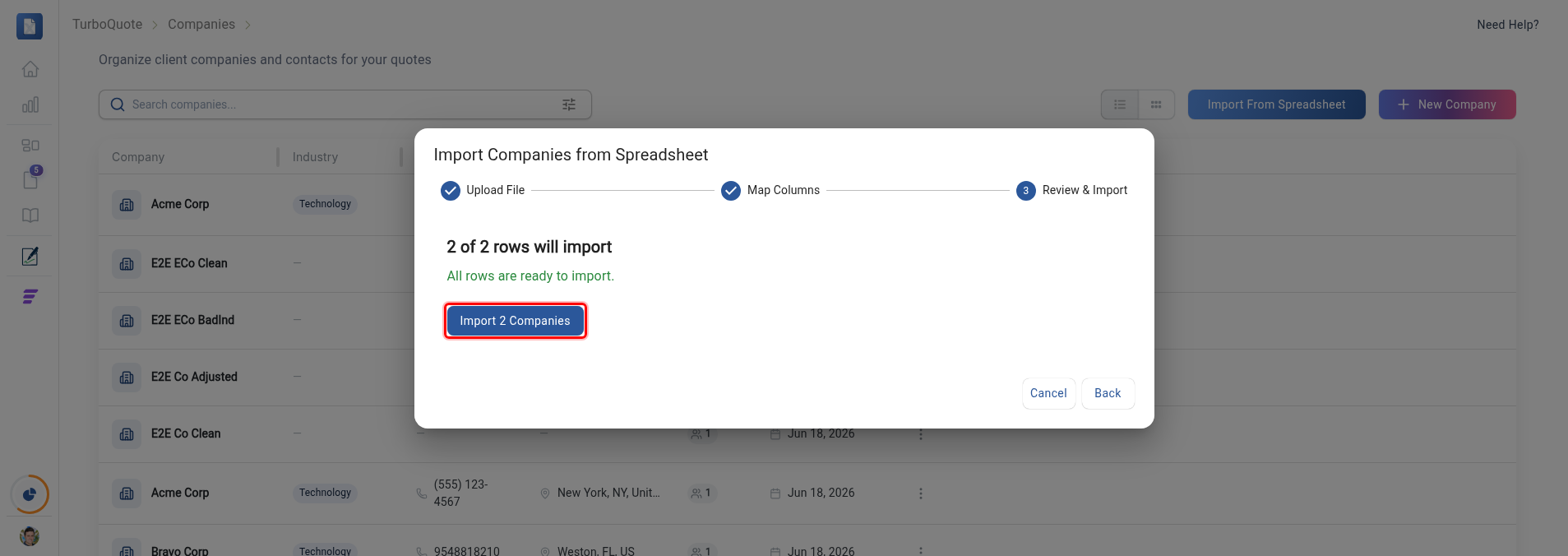
The Review & Import step groups the rows by company before counting, so the headline counts companies, not spreadsheet rows. In this example, three spreadsheet rows (two contacts for one company, one for another) become two companies — the review reads "2 of 2 rows will import" (one per company), and the Import 2 Companies button confirms the count before anything is created.
Column Reference
You only need this section if you're building a spreadsheet by hand. If you started from Download template, your headers already match and every column maps automatically, so you can skip ahead to Tips and Limits.
The columns below match what Download template produces, so the safest path is always to start from the template. Header names are matched flexibly (case, spaces, and underscores are ignored), and a few common alternates are noted. Anything marked optional can be left out entirely.
Products (TurboQuote → Products)
| Column | Required? | Example | Notes |
|---|---|---|---|
product_name | Required | Example Product | Also accepts product, name. |
billing_frequency | Required | monthly | One of monthly, quarterly, annual, one-time. |
list_price | Required | 99.00 | Number, 0 or greater. |
category | Required | Software Licenses | Category name. Created automatically if it does not exist. |
sku | Optional | SKU-001 | |
description | Optional | Product description | |
internal_notes | Optional | Internal note | Not shown to customers. |
cost | Optional | 50.00 | Number, 0 or greater. Cleared if invalid. |
min_order_qty | Optional | 1 | Whole number, 1 or greater. Defaults to 1. |
currency | Optional | USD | One of USD, EUR, GBP, CAD, INR, AUD. Defaults to USD. |
show_in_catalog | Optional | true | true or false. Defaults to true. |
Bundles (TurboQuote → Bundles)
Bundle-level columns (repeat the same values on every row of the bundle):
| Column | Required? | Example | Notes |
|---|---|---|---|
bundle_name | Required | Starter Pack | Also accepts bundle, name. Groups the rows of one bundle. |
category | Required | Bundles | Created automatically if it does not exist. |
description | Optional | Everything to get started | |
bundle_sku | Optional | BNDL-01 | |
bundle_discount_type | Optional | percent | percent or amount. |
bundle_discount_percent | Optional | 10 | Used when the type is percent. |
bundle_discount_amount | Optional | 50 | Used when the type is amount. |
currency | Optional | USD | One of USD, EUR, GBP, CAD, INR, AUD. Defaults to USD. |
show_items_to_end_user | Optional | false | Defaults to false. |
show_in_catalog | Optional | true | Defaults to true. |
sync_with_products | Optional | false | Defaults to false. |
Per-item columns (one row per bundle item):
| Column | Required? | Example | Notes |
|---|---|---|---|
product_sku | Required | SKU-001 | SKU of an existing product. Also accepts product. |
item_unit_price | Required | 99.00 | Number, 0 or greater. |
item_billing_frequency | Required | monthly | One of monthly, quarterly, annual, one-time. |
item_quantity | Optional | 1 | Whole number. Defaults to 1. |
item_discount_type | Optional | percent | percent or amount. |
item_discount_percent | Optional | 5 | |
item_discount_amount | Optional | 10 | |
item_cost | Optional | 40.00 |
Price Books (TurboQuote → Price Books)
Price-book-level columns (repeat the same values on every row of the price book):
| Column | Required? | Example | Notes |
|---|---|---|---|
price_book_name | Required | Q1 Enterprise | Also accepts price_book, name. Groups the rows of one price book. |
type | Required | Enterprise | Price book type. Created automatically if it does not exist. |
valid_from | Required | 2026-01-01 | YYYY-MM-DD. |
description | Optional | First quarter rates | |
discount_percent | Optional | 10 | 0 to 100. Defaults to 0. |
valid_to | Optional | 2026-12-31 | YYYY-MM-DD. Must be after valid_from. |
is_default | Optional | false | Defaults to false. |
show_in_quote_builder | Optional | true | Defaults to true. |
Per-product override columns (one row per product):
| Column | Required? | Example | Notes |
|---|---|---|---|
product_sku | Required | SKU-001 | SKU of an existing product. Also accepts product. |
product_discount_type | Optional | percent | percent or amount. |
product_discount_percent | Optional | 15 | |
product_discount_amount | Optional | 20 |
Categories (TurboQuote → Categories)
| Column | Required? | Example | Notes |
|---|---|---|---|
category_name | Required | Software Licenses | Also accepts name, category. |
The category type (Product, Bundle, Price Book, or Industry) comes from which Bulk Create button you click on the Categories page, not from a column. Open the importer under the heading you want, and every row is created as that type.
Companies (TurboQuote → Companies)
Company-level columns (repeat the same values on every row of the company):
| Column | Required? | Example | Notes |
|---|---|---|---|
company_name | Required | Acme Corp | Also accepts company, name. Groups the rows of one company. |
phone | Optional | +1 555-123-4567 | |
city | Optional | New York | |
state | Optional | NY | Also accepts province. |
country | Optional | United States | |
industry | Optional | Technology | Must be an existing industry name. See the note below. |
Per-contact columns (one row per contact; each company needs at least one):
| Column | Required? | Example | Notes |
|---|---|---|---|
contact_name | Required | Jane Smith | |
contact_email | Required | jane.smith@acme.com | |
contact_phone | Optional | +1 555-987-6543 | |
contact_title | Optional | VP of Sales | Also accepts role, position. |
Contacts (a company's Contacts page)
| Column | Required? | Example | Notes |
|---|---|---|---|
contact_name | Required | Jane Smith | Also accepts name. |
contact_email | Required | jane.smith@example.com | |
contact_phone | Optional | +1 555-123-4567 | Also accepts tel. |
contact_title | Optional | VP of Sales | Also accepts role, position. |
The contact importer opens from one company's Contacts page, and every row is added to that company. Do not include a company name or ID column. TurboQuote supplies the company for you.
Grouped Records (Companies, Bundles, Price Books)
Some records span multiple rows in your spreadsheet:
- A company with several contacts: repeat the company on one row per contact.
- A bundle with several items, or a price book with several product overrides: repeat the record on one row per item.
For these, all rows that share the same record name must repeat the same record-level values (company industry, bundle discount, price book type, and so on). Only the per-item columns may differ between rows. If two rows disagree on a record-level value, the import flags a conflict so nothing is created with the wrong value.
When you import products, bundles, or price books, any category or price-book type that doesn't exist yet is created automatically before the records are imported. Company industries are the exception: they must already exist, so use a recognized industry name. You can pre-create industries in bulk from the Industry Categories section of the Categories page.
Referencing Products by SKU (Bundles and Price Books)
Bundle items and price-book overrides each point at a product by its SKU, the code shown on each product in your catalog. Put that SKU in the product_sku column.
TurboQuote resolves the reference for you:
- One match. That product is used.
- Several products share the SKU. The earliest-created one is used, and the row is flagged under import with changes so you can confirm it's the right product.
- No match. Just that one item or override is dropped (also logged under import with changes); the rest of the bundle or price book still imports.
Import your products first, then reference them by SKU in your bundle and price-book sheets. The downloaded template's product column is already named product_sku.
Tips and Limits
- 📦 500 rows per import. Split a larger file into batches.
- 🖼️ Product images aren't supported during bulk import. Add them to individual products afterward.
- 🔖 Bundles and price books reference products by SKU in the
product_skucolumn. See Referencing Products by SKU. Import your products first. - 🧾 Start from Download template whenever possible. It guarantees your headers match and every column maps automatically.