How to Track Your Documents from the Dashboard
Your Dashboard is the first place to look when you want to know what your documents are doing right now.
The most common reason to open it is simple: you sent some documents out for signature, and you want to know which ones have not come back yet. This guide walks you through exactly that, from opening the Dashboard to sending a reminder.
What You'll Learn
- 📊 Open the Dashboard and pick the time period you care about
- ✍️ Read the signature flow to see how far your documents got
- ⏰ Find the documents that have stalled and are waiting on someone
- 📧 Send a reminder to the people who still need to sign
- 🌍 See where in the world your documents are being signed
Step 1: Open the Dashboard
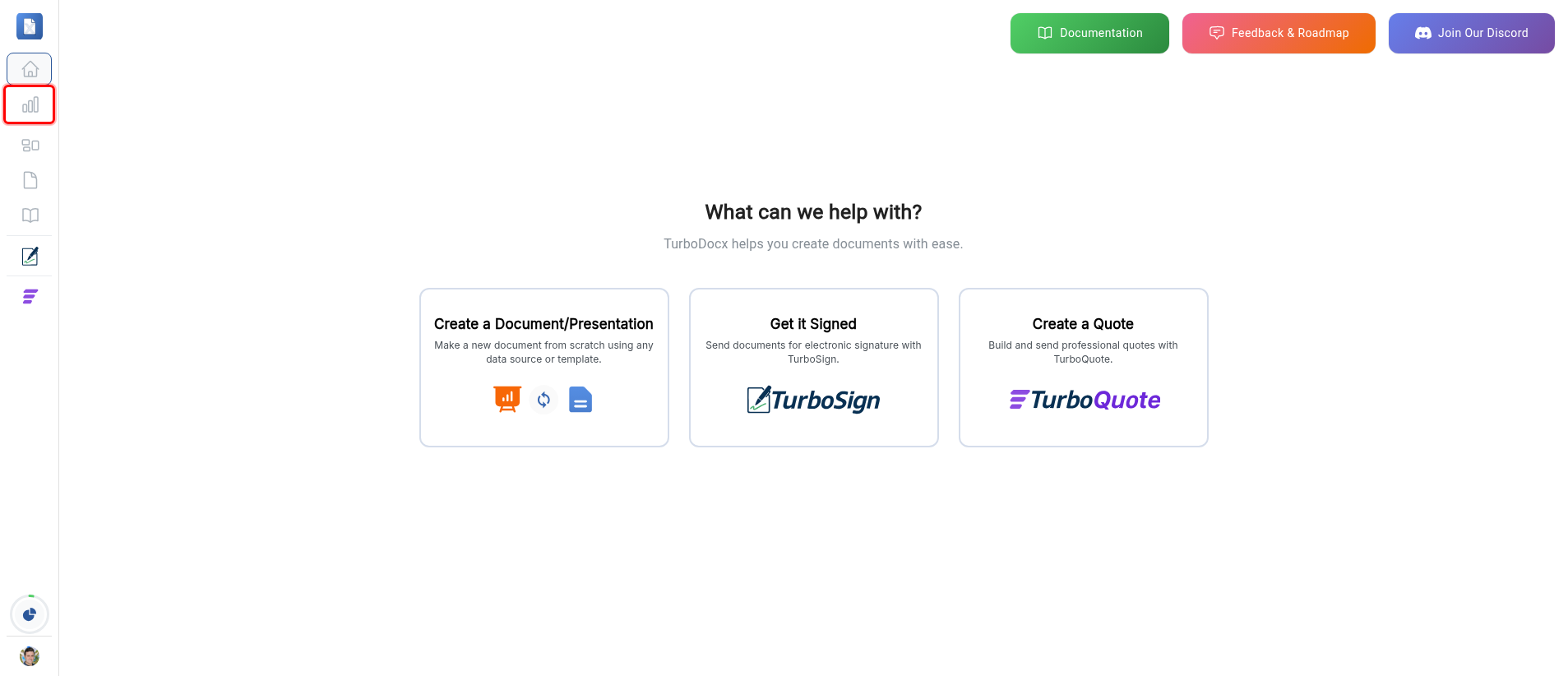
- Look at the narrow sidebar running down the far left of the screen.
- Click the bar chart icon. It is the second icon from the top, directly below the house icon.
The Dashboard opens and shows everything at a glance.
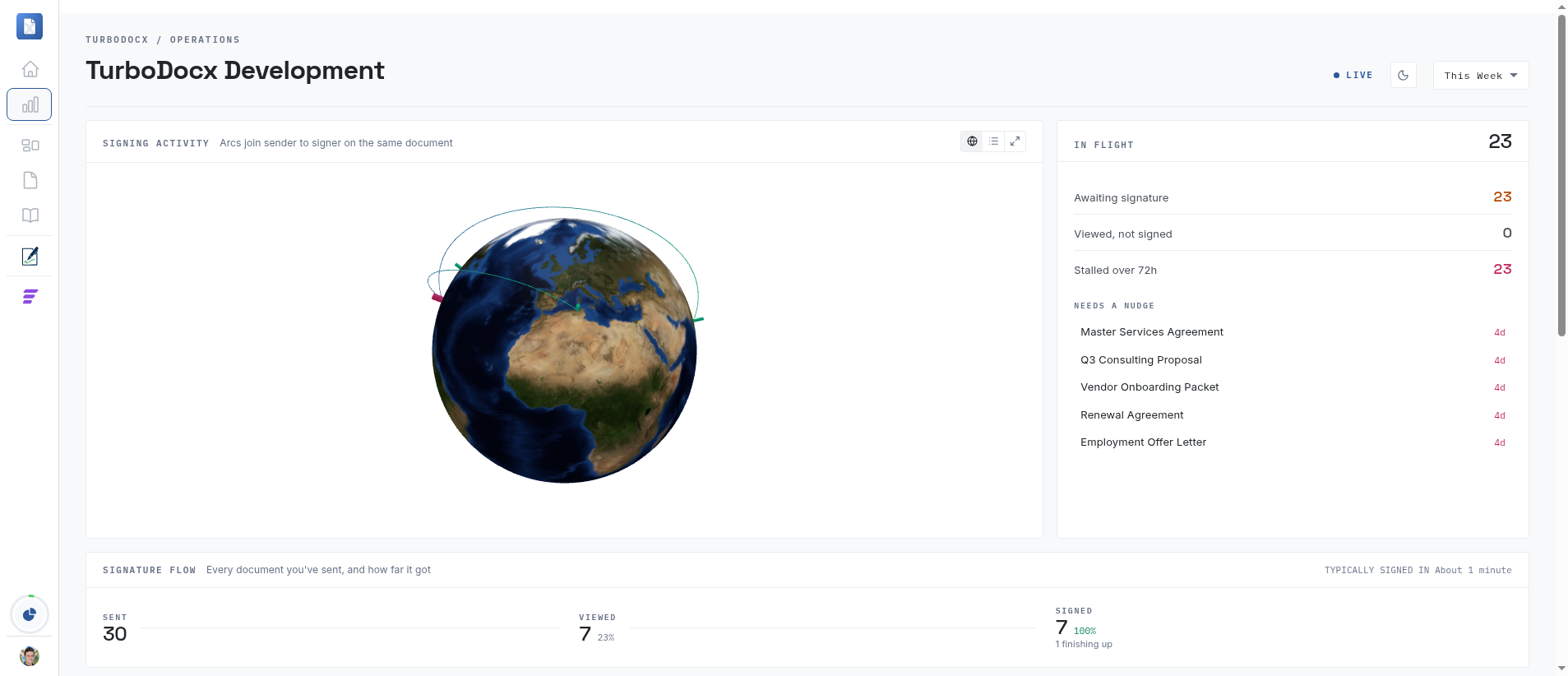
Your Dashboard will look different from the pictures here. It only ever shows your own organization's documents, so the numbers, names and places are yours.
Step 2: Choose the time period
Everything on the Dashboard is filtered to one time period. Before you read any number, check that the period is the one you want.
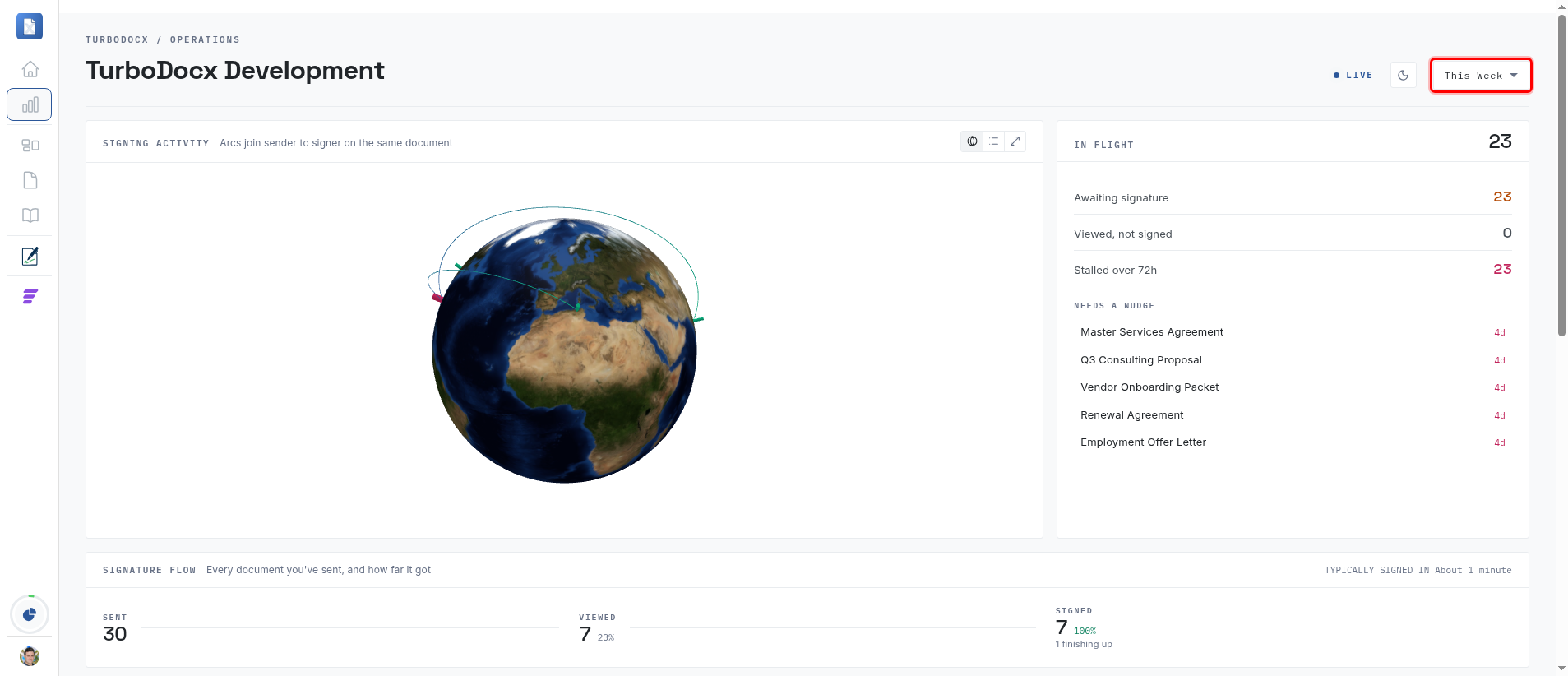
- Find the dropdown in the top right corner of the page. It says This Week when you first arrive.
- Click it.
- Pick the period you want from the list: This Week, This Month, Last 6 Months, or This Year.
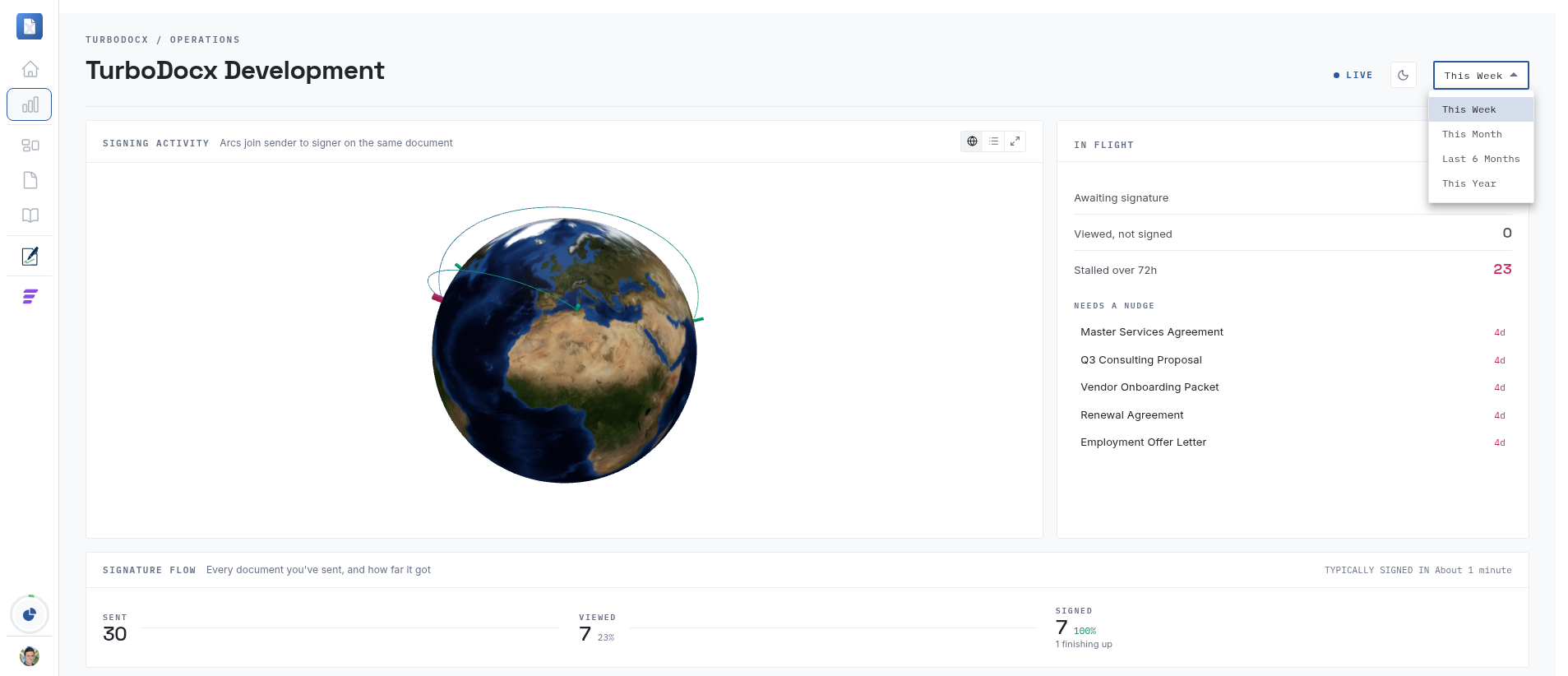
The whole page updates to match your choice.
Step 3: Read the signature flow
The Signature Flow panel is the wide strip across the middle of the page. It answers one question: of everything you sent out, how far did it get?
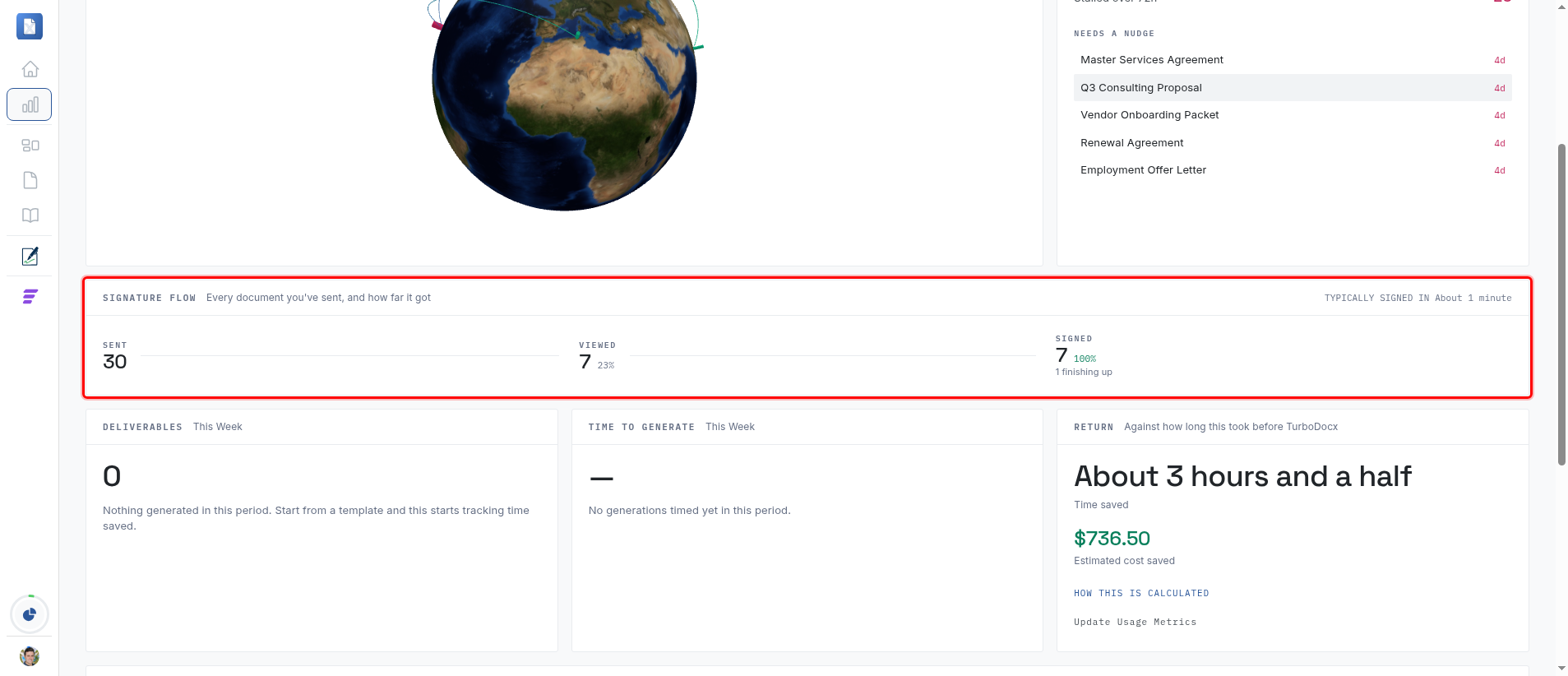
It reads left to right, and each step is a stage a document passes through:
| Stage | What it means |
|---|---|
| Sent | You sent the document out. It is now with your signers. |
| Viewed | A signer opened it. The small percentage tells you how many of your sent documents got that far. |
| Signed | Everybody signed. The document is finished. |
On the far right of the panel, Typically signed in tells you how long your documents usually take to come back. That is your realistic answer when somebody asks "how long will this take?"
A big gap between Sent and Viewed usually means your emails are not reaching people. A big gap between Viewed and Signed means they are reaching people who are not finishing. The two problems have very different fixes, so it is worth knowing which one you have.
You may also see a small line under Signed such as 1 finishing up. Some documents take a moment to be certified after the last person signs. They are already signed, and they need no action from you. The line disappears on its own.
Step 4: Find the documents that have stalled
Now for the part you came for. Look at the In Flight panel on the right hand side. This is everything that is still out there, waiting.
The three numbers at the top break it down:
- Awaiting signature: sent, but nobody has signed yet.
- Viewed, not signed: somebody opened it and then stopped. These are your warmest leads for a nudge.
- Stalled over 72h: nothing has happened for three days.
Underneath them is Needs a Nudge, a short list of the specific documents that have been sitting the longest.
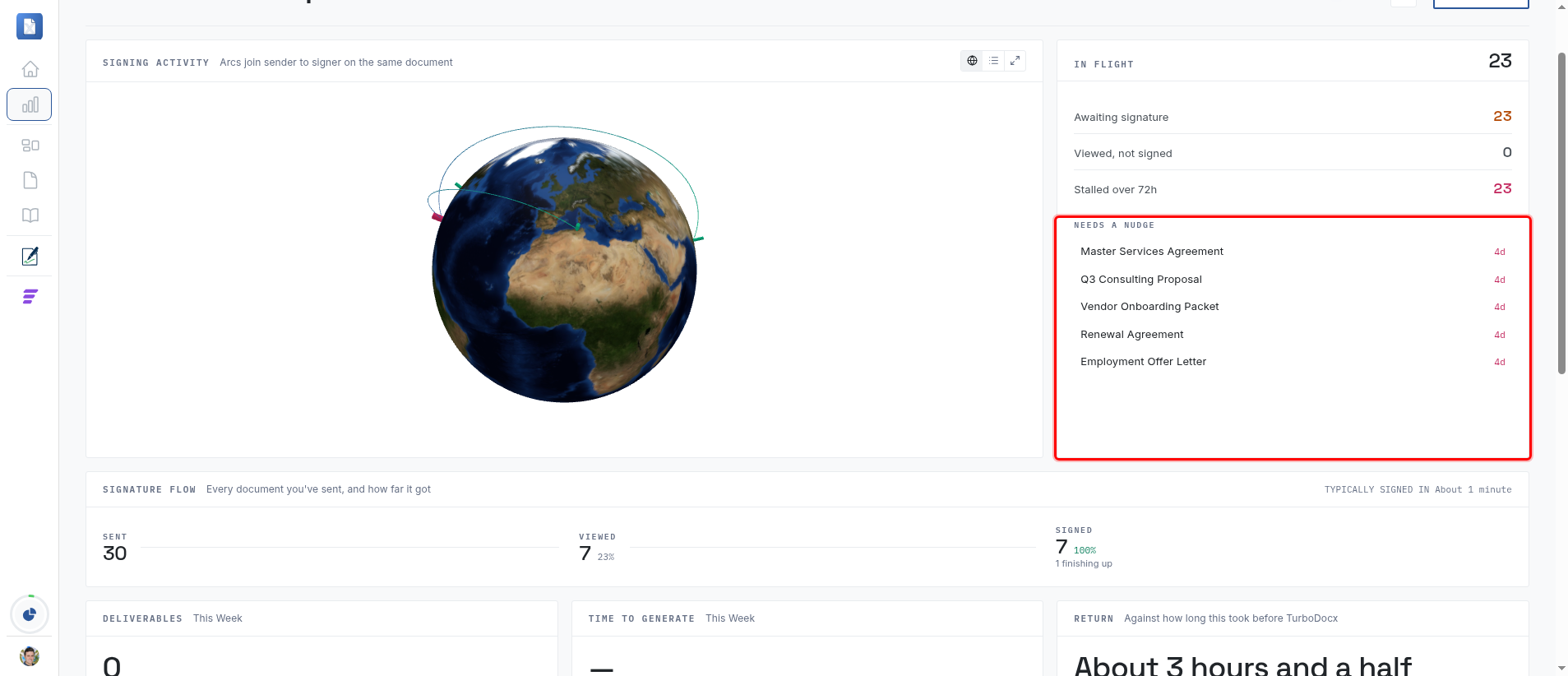
Each row shows the document name on the left, and how long it has been waiting on the right. A value like 4d means four days.
Step 5: Send a reminder
- Click any document in the Needs a Nudge list.
- TurboDocx takes you to your TurboSign documents, where that document is listed.
- Find the document in the list and click the ⋮ (three dots) button at the end of its row.
- Choose Send Reminder.
Everyone who still has to sign gets a reminder email. People who already signed are not emailed again.
If Send Reminder is greyed out, that document is not waiting on a signer any more. The most common reason is that everybody has now signed and TurboDocx is finishing the document off, in which case there is nobody left to remind.
Send Reminder works on its own, separately from any automatic reminder schedule you have set up. You can use it even if automatic reminders are switched off, and even if a document has already had all the automatic reminders it was allowed. For the full set of things you can do to a document after sending it, including resending the original email and voiding a document, see Managing Your Signatures.
Step 6: See where your documents are being signed
The large panel at the top left is Signing Activity. It plots the places your documents were sent from and signed in, with a line joining the sender to each signer on the same document.
Three small buttons sit in the top right corner of that panel.
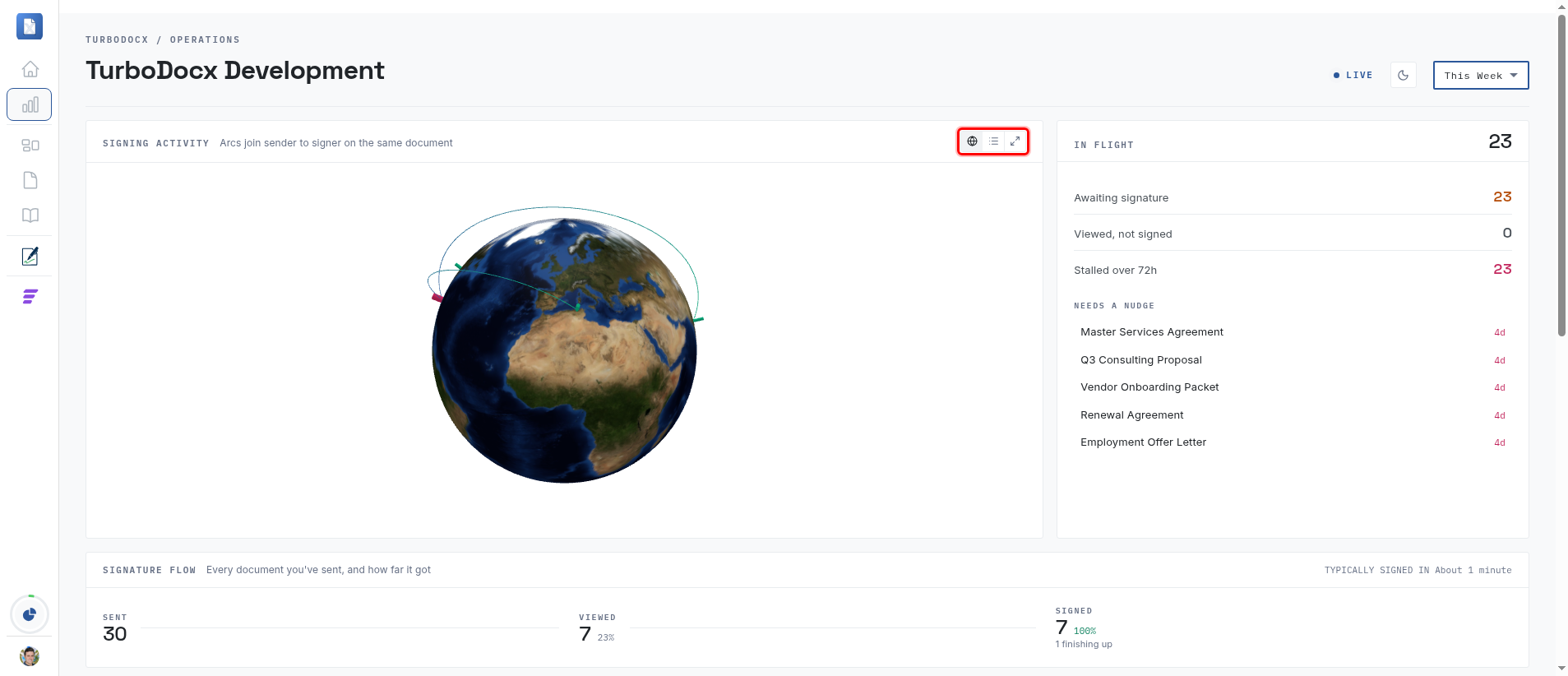
From left to right, they are:
| Button | What it does |
|---|---|
| 🌐 Globe | Shows the spinning globe. Drag it to turn it, and scroll to zoom. |
| ☰ List | Shows the same information as a plain list of places instead. |
| ⤢ Fullscreen | Opens the globe across the whole screen. |
Click the fullscreen button for a much bigger view, with the list of places down the side. Click a place in that list and the globe turns to face it. Press Escape, or click the ✕ in the top right, to come back.
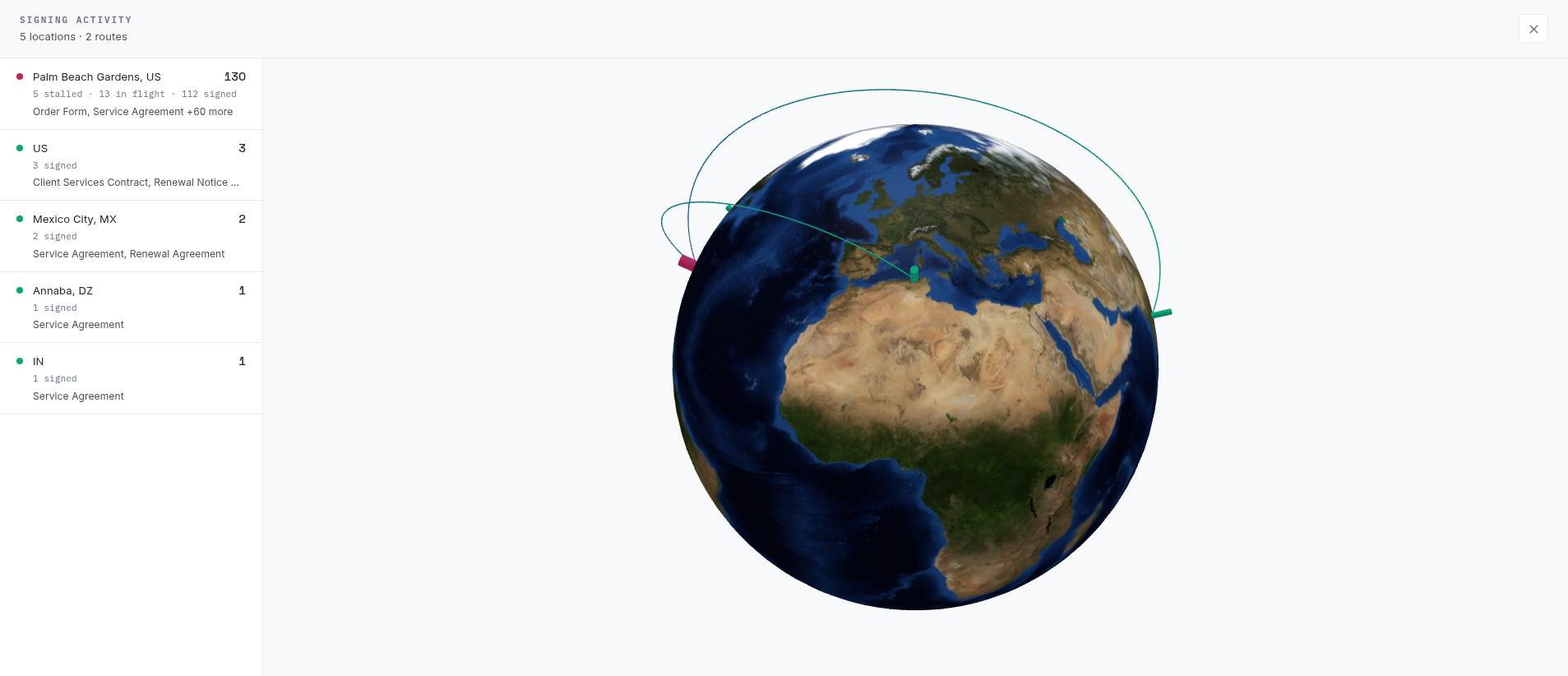
If you would rather read the numbers than look at a map, click the list button.
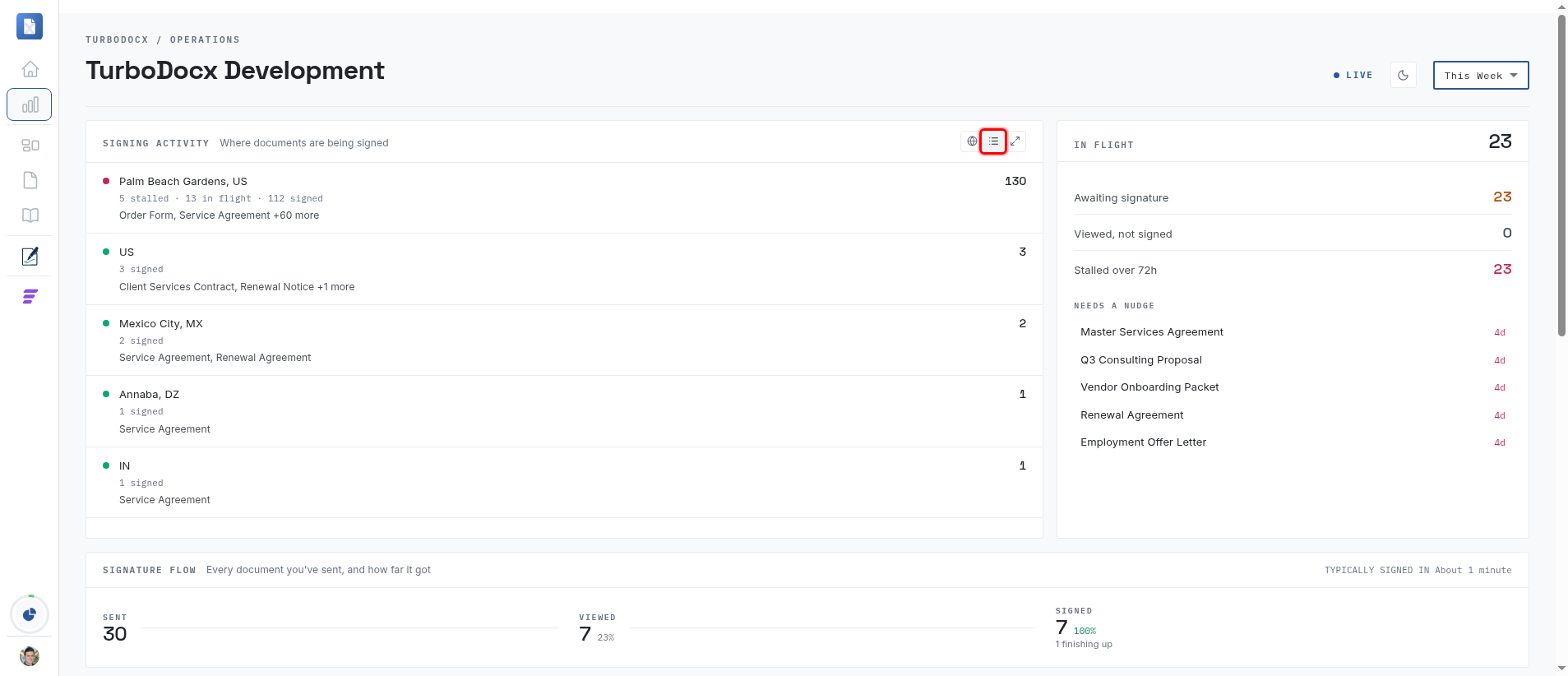
Each row gives you the place, how many documents it accounts for, and how those documents are doing.
The globe needs a reasonably modern graphics card. If yours cannot draw it, or if the globe fails to load, TurboDocx shows the list instead so you still get the information. The buttons stay available either way, so you can always switch back.
Locations come from the general area a document was opened in, accurate to roughly the nearest city. TurboDocx never shows a street address, and the underlying network addresses are never sent to your browser.
Optional: Switch to a dark Dashboard
The Dashboard can be shown light or dark, independently of the rest of TurboDocx.
- Click the moon button in the top right, just to the left of the time period dropdown.
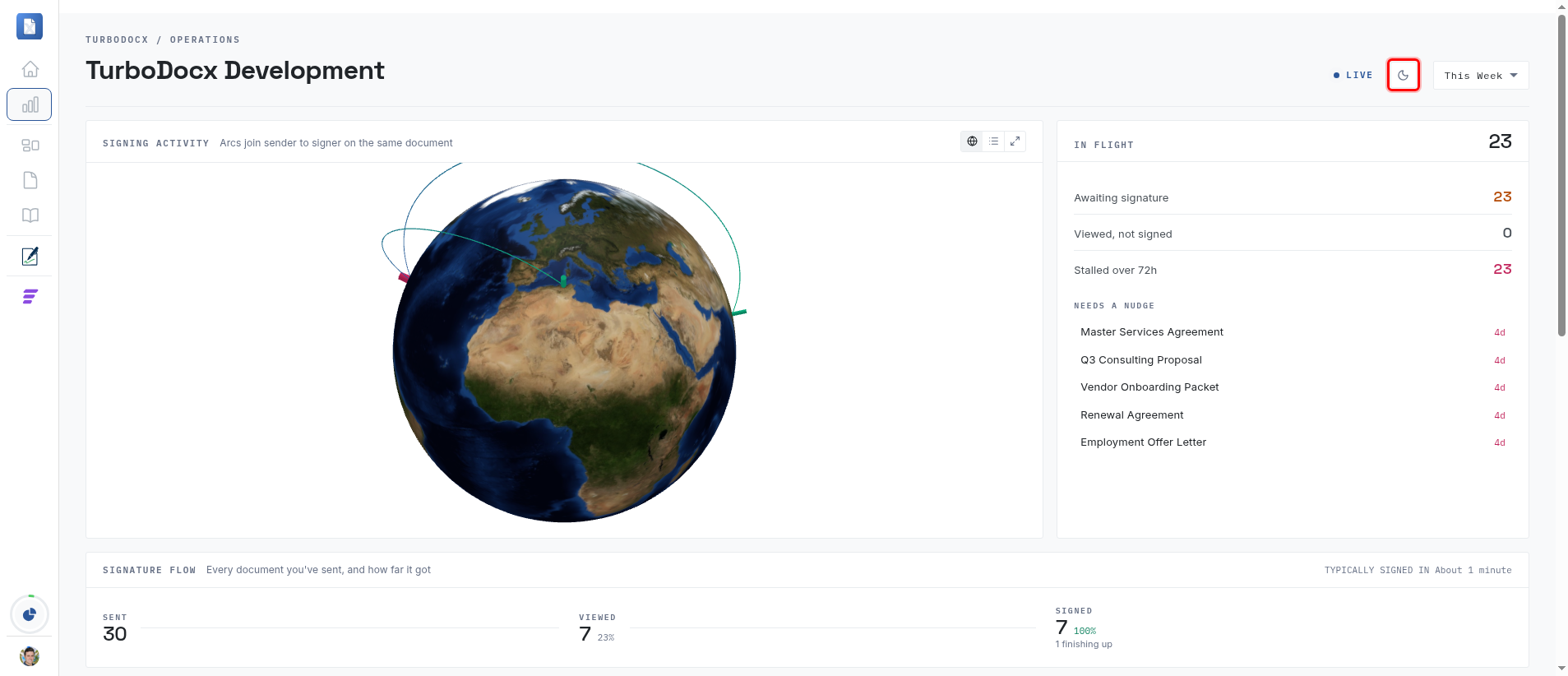
The page switches to a dark theme. Click the same button, now showing a sun, to switch back.
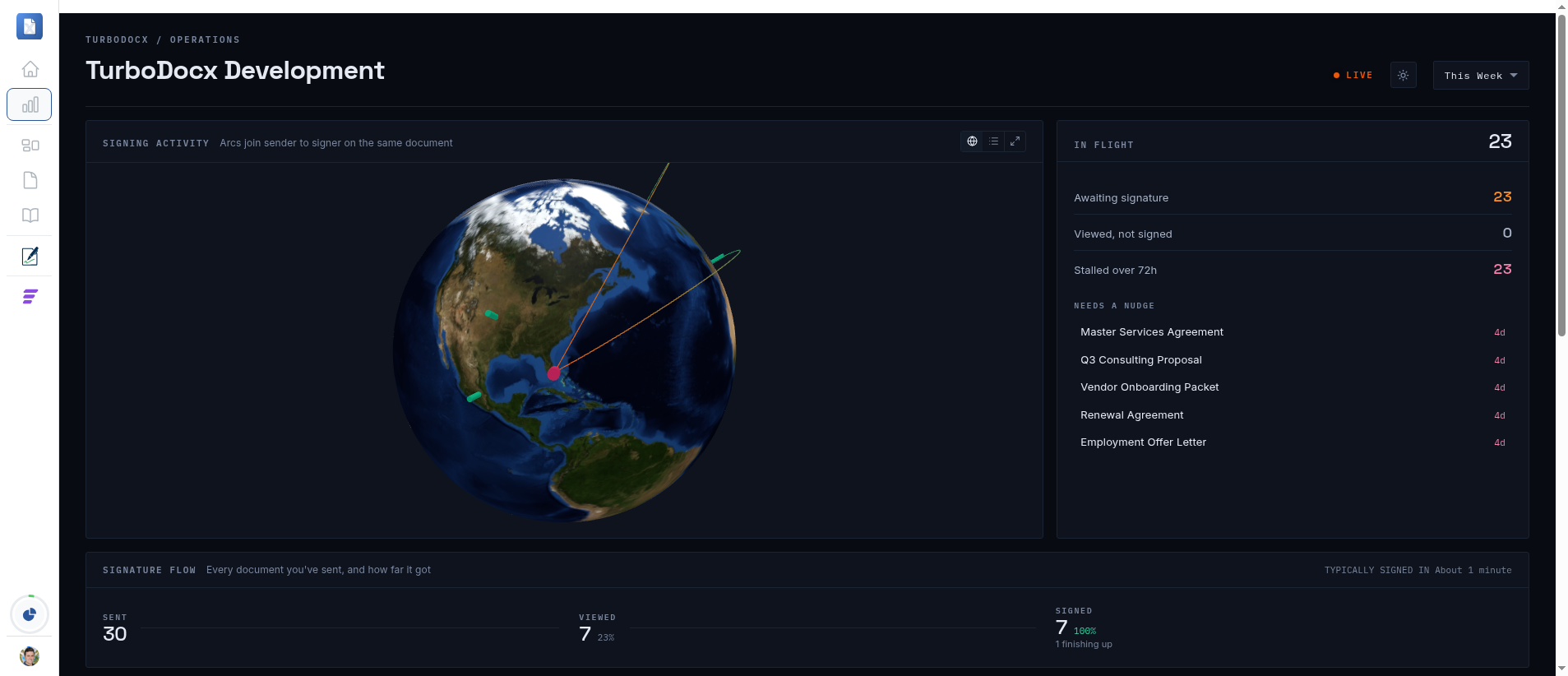
Your choice is remembered, so the Dashboard will look the same the next time you open it.
What else is on the Dashboard
Scroll down and you will find four more panels.
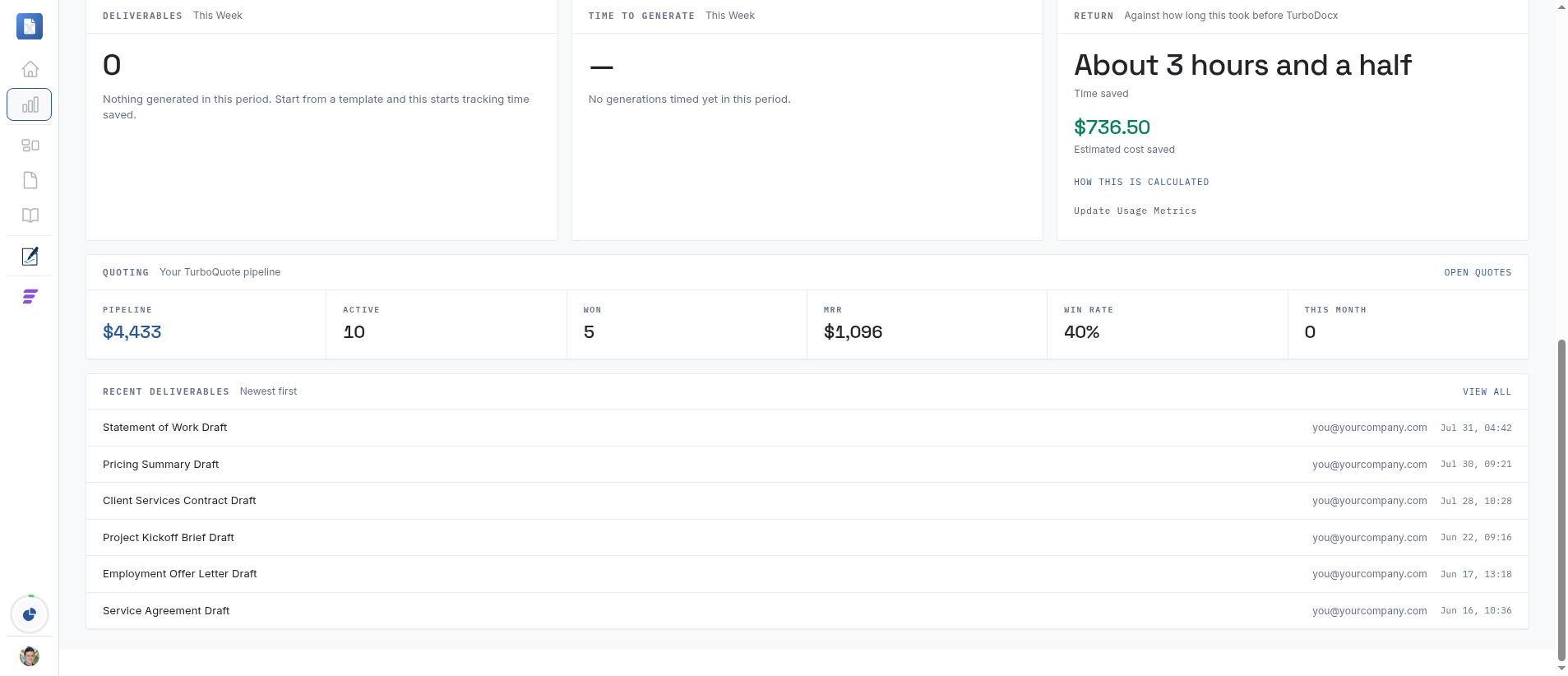
| Panel | What it tells you |
|---|---|
| Deliverables | How many documents you generated in the period. |
| Time to Generate | How long generating one usually takes. |
| Return | Roughly how much time and money you saved, compared with how long this work took before TurboDocx. Click How this is calculated to see the workings, and Update Usage Metrics to correct the assumptions it uses. |
| Quoting | Your TurboQuote pipeline: open value, how many quotes are active, how many you won, and your win rate. This panel only appears if your plan includes TurboQuote. |
| Recent Deliverables | The documents you generated most recently, newest first. Click View All to see the rest. |
Troubleshooting
A panel says there is nothing to show. That panel had no activity in the time period you picked. Try a longer period, such as This Year.
The numbers look too low. Check the time period dropdown in the top right first. This Week is the default, and it is the most common reason a Dashboard looks emptier than expected.
The Quoting panel is missing. Quoting only appears for plans that include TurboQuote. Contact your administrator if you think it should be there.
What's Next
- Managing Your Signatures: resend, remind, void and download signed documents.
- Setting up TurboSign: send your first document for signature.
- How to Create a Deliverable: generate a document from one of your templates.