Passcodes in Embedded Signing
Let an agent scaffold this for you
Install the TurboDocx Quickstart Skill and let Claude Code, Cursor, Copilot, Codex, or any agent that speaks the Agent Skills standard install the SDK, wire it into your app, and write a working TurboSign integration end-to-end.
$npx skills add TurboDocx/quickstart›/turbodocx-sdk turbosign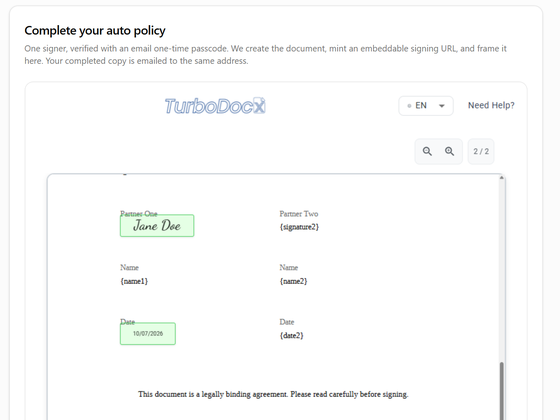
An admin turns passcodes on in Email and SMS passcode. Your code then asks for a passcode on each embedded signer.
- Email passcode: every build guide uses one:
auth: { emailOtp: true }increateEmbeddedSignature. - SMS passcode: this page.
- Which channel applies when you set none, and how each SDK leaves the channel out: see The recipient in the API reference.
If only the signers in your own app should verify, keep Only when requested. Turn on SMS and connect a provider (Steps 4-5), then have your integration request SMS on each recipient it embeds.
Other signature requests, including Pipelines, stay passcode-free. See Verify only your embedded signers by SMS.
Request an SMS passcode from your code
Before you start, check these:
- Your plan includes SMS passcodes (Pro or Enterprise).
- An admin turned on Allow SMS as an alternative to email (Step 4).
- An admin connected an SMS provider, and its status reads Connected (Step 5). Your request does not choose a provider; TurboSign uses the one your organization connected.
- You have the signer's mobile number in international format, for example
+15551234567.
Then give the recipient an SMS auth block instead of emailOtp. createEmbeddedSignature sets the recipient's phone from it.
- JavaScript / TypeScript
- Python
- PHP
- Go
- Java
- Ruby
// Continues the setup from "Your own iframe": imports and TurboSign.configure(...).
const { documentId, recipients } = await TurboSign.createEmbeddedSignature({
  file: await readFile("contract.pdf"),
  fileName: "contract.pdf",
  documentName: "Service Agreement",
  recipients: [
    {
      name: "Jane Doe",
      email: "jane@example.com",
      auth: { sms: { phoneNumber: "+15551234567" } }, // text the passcode
      fields: { signature: "{signature1}", date: "{date1}" },
    },
  ],
});
const embedUrl = recipients[0].embedUrl;
# Inside an async function, after TurboSign.configure(...) as in "Your own iframe". pdf holds the PDF bytes.
result = await TurboSign.create_embedded_signature(
    file=pdf,
    file_name="contract.pdf",
    document_name="Service Agreement",
    recipients=[
        {
            "name": "Jane Doe",
            "email": "jane@example.com",
            "auth": {"sms": {"phone_number": "+15551234567"}},  # text the passcode
            "fields": {"signature": "{signature1}", "date": "{date1}"},
        }
    ],
)
embed_url = result["recipients"][0]["embedUrl"]
// Continues the setup from "Your own iframe": TurboSign::configure(...) and the use lines.
$result = TurboSign::createEmbeddedSignature(new CreateEmbeddedSignatureRequest(
    recipients: [
        new EmbeddedSignatureRecipient(
            name: 'Jane Doe',
            email: 'jane@example.com',
            auth: new EmbeddedRecipientAuth(smsPhoneNumber: '+15551234567'), // text the passcode
            fields: new EmbeddedRecipientFields(signature: '{signature1}', date: '{date1}'),
        ),
    ],
    file: file_get_contents(__DIR__ . '/contract.pdf'),
    fileName: 'contract.pdf',
    documentName: 'Service Agreement',
));
$embedUrl = $result->recipients[0]->embedUrl;
// Inside a function that returns error, with client and ctx as in "Your own iframe". pdf holds the PDF bytes.
result, err := client.TurboSign.CreateEmbeddedSignature(ctx, &turbodocx.CreateEmbeddedSignatureRequest{
	File:         pdf,
	FileName:     "contract.pdf",
	DocumentName: "Service Agreement",
	Recipients: []turbodocx.EmbeddedSignatureRecipient{
		{
			Name:  "Jane Doe",
			Email: "jane@example.com",
			Auth: &turbodocx.EmbeddedRecipientAuth{ // text the passcode
				SMS: &turbodocx.EmbeddedRecipientSMS{PhoneNumber: "+15551234567"},
			},
			Fields: &turbodocx.EmbeddedRecipientFields{Signature: "{signature1}", Date: "{date1}"},
		},
	},
})
if err != nil {
	return err
}
fmt.Println(result.Recipients[0].EmbedURL) // frame this URL
// Inside a method that throws IOException, with client as in "Your own iframe".
CreateEmbeddedSignatureResponse result = client.turboSign().createEmbeddedSignature(
    new CreateEmbeddedSignatureRequest.Builder()
        .file(Files.readAllBytes(Paths.get("contract.pdf")))
        .fileName("contract.pdf")
        .documentName("Service Agreement")
        .recipients(List.of(
            new EmbeddedSignatureRecipient.Builder()
                .name("Jane Doe")
                .email("jane@example.com")
                .auth(EmbeddedRecipientAuth.sms("+15551234567")) // text the passcode
                .fields(new EmbeddedRecipientFields.Builder()
                    .signature("{signature1}")
                    .date("{date1}")
                    .build())
                .build()))
        .build());
String embedUrl = result.getRecipients().get(0).getEmbedUrl();
# Continues the setup from "Your own iframe": require "turbodocx_sdk" and configure.
result = TurboDocxSdk::TurboSign.create_embedded_signature(
  file:         StringIO.new(File.binread("contract.pdf")),
  fileName:     "contract.pdf",
  documentName: "Service Agreement",
  recipients:   [
    {
      name:   "Jane Doe",
      email:  "jane@example.com",
      auth:   { sms: { phoneNumber: "+15551234567" } }, # text the passcode
      fields: { signature: "{signature1}", date: "{date1}" }
    }
  ]
)
embed_url = result["recipients"].first["embedUrl"]
Frame embedUrl exactly as in the build guides. The signer sees the same gate as for email, and the code arrives by text message.
If you send with sendSignature instead, set phone on the recipient and identityVerification: { "mode": "otp", "channel": "sms" }.
| Error | Cause |
|---|---|
OtpPhoneRequired (400), or PhoneRequiredForSmsOtp from the JS, Python, Go, Java or Ruby SDK before the request is sent | The recipient asks for SMS but has no phone number. The PHP SDK doesn't check first, so PHP callers get OtpPhoneRequired from the API. With the createEmbeddedSignature SMS shorthand, the phone comes from phoneNumber, so this only happens when that is empty. |
OtpPhoneInvalid (400) | The number is well-formed but cannot exist. |
OtpNotEntitled, SmsOtpLimitExceeded (402) | The plan does not include SMS passcodes, or the SMS allowance is used up. |
SmsOtpNotEnabled (403) | Allow SMS as an alternative to email is off. |
OtpOverrideNotAllowed (403) | The organization verifies every request and locked the method to a different channel. Ask an admin to turn on Let senders change the method per recipient. |
SmsProviderNotConfigured (409) | No SMS provider is saved for the organization. |
Verify only your embedded signers by SMS
A common setup: your team keeps sending ordinary signature requests (from the TurboDocx app and from Pipelines) with no passcode, while signers in your own app verify by text message. You do not need an SMS default for the whole organization to do this.
- On the One-time passcode tab, turn on Enable identity verification.
- Under When to verify signers, keep Only when requested (the default). Signature requests sent from the app and from Pipelines keep signing with no passcode; in the app, each signer's Identity verification stays on No verification unless a sender changes it.
- Under Text message (SMS), turn on Allow SMS as an alternative to email, then connect your SMS provider and check the status reads Connected to Twilio (or RingCentral).
- In your integration, ask for SMS on each recipient you embed, as in the code above. With
sendSignature, the recipient looks like this:
{
  "name": "Jane Doe",
  "email": "jane@example.com",
  "phone": "+15551234567",
  "identityVerification": { "mode": "otp", "channel": "sms" }
}
Choose SMS in your own app's configuration. Do not copy it from defaultChannel: with Only when requested that value is none, which tells you nothing about the channel you want.
Check the organization default from your code
Your integration can read the result with GET /turbosign/embedded-signing-settings:
defaultChannelisnone,email, orsms.allowChannelOverridetells it whether a different channel is accepted.
See The organization default for details.
Next
- Next: API reference
- Email and SMS passcode: the admin settings, SMS providers and what the signer sees.