Embed Signing with the React Widget (Email Passcode)
Let an agent scaffold this for you
Install the TurboDocx Quickstart Skill and let Claude Code, Cursor, Copilot, Codex, or any agent that speaks the Agent Skills standard install the SDK, wire it into your app, and write a working TurboSign integration end-to-end.
$npx skills add TurboDocx/quickstart›/turbodocx-sdk turbosign
In this guide your React app drops in the TurboSignForm component from @turbodocx/embed. The component renders the iframe, checks where each message comes from, and calls your onCompleted callback when the signer finishes.
TurboSign verifies the signer with a six-digit code sent to their email.
What you'll build:
- A server route that creates the document and returns a signing URL.
- A React component that shows the signing page and reacts when the signer finishes.
Prerequisites
- The setup in Before you start: embedded signing on, your origin allowed, and an Administrator or Contributor API key.
- React 18 or later.
- A PDF with
{signature1}and{date1}text anchors.
Step 1: Check your setup and choose how signers verify
An admin must have completed Set up your organization: Enable identity verification is on (it is the master switch for embedded signing), and your app's origin is under Allowed embedding domains.
This guide verifies each signer with an email passcode. Every embedded signer needs a verification method unless you use the sender override while testing. To use SMS, your own identity provider, or the override, see Identity verification.
Step 2: Install the package
npm install @turbodocx/embed
React is a peer dependency and is never bundled. The React component lives at the @turbodocx/embed/react subpath, so the package root never imports React.
Step 3: Create the document and signing URL on your server
Add a route to your server, for example POST /api/signing-session. It calls createEmbeddedSignature and returns the signer's embedUrl. Your API key never reaches the browser.
- JavaScript / TypeScript
- Python
- PHP
- Go
- Java
- Ruby
import { readFile } from "node:fs/promises";
import { TurboSign } from "@turbodocx/sdk";

TurboSign.configure({
  apiKey: process.env.TURBODOCX_API_KEY!, // an Administrator or Contributor key
  orgId: process.env.TURBODOCX_ORG_ID!,
  senderEmail: "contracts@yourcompany.com",
  senderName: "Your Company",
});

// Call this from your POST /api/signing-session route.
export async function startSigning({ name, email }: { name: string; email: string }) {
  const { documentId, recipients } = await TurboSign.createEmbeddedSignature({
    file: await readFile("contract.pdf"),
    fileName: "contract.pdf",
    documentName: `Service Agreement - ${name}`,
    recipients: [
      {
        name,
        email,
        auth: { emailOtp: true }, // email passcode before the document opens
        fields: { signature: "{signature1}", date: "{date1}" },
      },
    ],
  });

  const signer = recipients[0];
  if (!signer.embedUrl) throw new Error(`Cannot start signing: recipient is ${signer.status}`);
  return { documentId, embedUrl: signer.embedUrl };
}
import os
from turbodocx_sdk import TurboSign

TurboSign.configure(
    api_key=os.environ["TURBODOCX_API_KEY"],  # an Administrator or Contributor key
    org_id=os.environ["TURBODOCX_ORG_ID"],
    sender_email="contracts@yourcompany.com",
    sender_name="Your Company",
)

# Call this from your POST /api/signing-session route (for example a FastAPI handler).
async def start_signing(name: str, email: str) -> dict:
    with open("contract.pdf", "rb") as f:
        pdf = f.read()

    result = await TurboSign.create_embedded_signature(
        file=pdf,
        file_name="contract.pdf",
        document_name=f"Service Agreement - {name}",
        recipients=[
            {
                "name": name,
                "email": email,
                "auth": {"email_otp": True},  # email passcode before the document opens
                "fields": {"signature": "{signature1}", "date": "{date1}"},
            }
        ],
    )

    signer = result["recipients"][0]
    if not signer["embedUrl"]:
        raise RuntimeError(f"Cannot start signing: recipient is {signer['status']}")
    return {"documentId": result["documentId"], "embedUrl": signer["embedUrl"]}
<?php

use TurboDocx\TurboSign;
use TurboDocx\Config\HttpClientConfig;
use TurboDocx\Types\Requests\CreateEmbeddedSignatureRequest;
use TurboDocx\Types\Requests\EmbeddedSignatureRecipient;
use TurboDocx\Types\Requests\EmbeddedRecipientAuth;
use TurboDocx\Types\Requests\EmbeddedRecipientFields;

TurboSign::configure(new HttpClientConfig(
    apiKey: getenv('TURBODOCX_API_KEY'), // an Administrator or Contributor key
    orgId: getenv('TURBODOCX_ORG_ID'),
    senderEmail: 'contracts@yourcompany.com',
    senderName: 'Your Company'
));

// Call this from your POST /api/signing-session route.
function startSigning(string $name, string $email): array
{
    $result = TurboSign::createEmbeddedSignature(new CreateEmbeddedSignatureRequest(
        recipients: [
            new EmbeddedSignatureRecipient(
                name: $name,
                email: $email,
                auth: new EmbeddedRecipientAuth(emailOtp: true), // email passcode before the document opens
                fields: new EmbeddedRecipientFields(signature: '{signature1}', date: '{date1}'),
            ),
        ],
        file: file_get_contents(__DIR__ . '/contract.pdf'),
        fileName: 'contract.pdf',
        documentName: "Service Agreement - {$name}",
    ));

    $signer = $result->recipients[0];
    if ($signer->embedUrl === null) {
        throw new RuntimeException("Cannot start signing: recipient is {$signer->status}");
    }
    return ['documentId' => $result->documentId, 'embedUrl' => $signer->embedUrl];
}
package signing

import (
	"context"
	"fmt"
	"os"

	turbodocx "github.com/TurboDocx/SDK/packages/go-sdk"
)

func newClient() (*turbodocx.Client, error) {
	return turbodocx.NewClientWithConfig(turbodocx.ClientConfig{
		APIKey:      os.Getenv("TURBODOCX_API_KEY"), // an Administrator or Contributor key
		OrgID:       os.Getenv("TURBODOCX_ORG_ID"),
		SenderEmail: "contracts@yourcompany.com",
		SenderName:  "Your Company",
	})
}

// StartSigning is called from your POST /api/signing-session handler.
func StartSigning(ctx context.Context, client *turbodocx.Client, name, email string) (documentID, embedURL string, err error) {
	pdf, err := os.ReadFile("contract.pdf")
	if err != nil {
		return "", "", err
	}

	result, err := client.TurboSign.CreateEmbeddedSignature(ctx, &turbodocx.CreateEmbeddedSignatureRequest{
		File:         pdf,
		FileName:     "contract.pdf",
		DocumentName: "Service Agreement - " + name,
		Recipients: []turbodocx.EmbeddedSignatureRecipient{
			{
				Name:   name,
				Email:  email,
				Auth:   &turbodocx.EmbeddedRecipientAuth{EmailOTP: true}, // email passcode before the document opens
				Fields: &turbodocx.EmbeddedRecipientFields{Signature: "{signature1}", Date: "{date1}"},
			},
		},
	})
	if err != nil {
		return "", "", err
	}

	signer := result.Recipients[0]
	if signer.EmbedURL == "" { // Go uses an empty string, not nil, when no URL was minted
		return "", "", fmt.Errorf("cannot start signing: recipient is %s", signer.Status)
	}
	return result.DocumentID, signer.EmbedURL, nil
}
import com.turbodocx.TurboDocxClient;
import com.turbodocx.models.*;
import java.nio.file.Files;
import java.nio.file.Paths;
import java.util.List;

public class SigningService {
    private final TurboDocxClient client = new TurboDocxClient.Builder()
        .apiKey(System.getenv("TURBODOCX_API_KEY")) // an Administrator or Contributor key
        .orgId(System.getenv("TURBODOCX_ORG_ID"))
        .senderEmail("contracts@yourcompany.com")
        .senderName("Your Company")
        .build();

    // Call this from your POST /api/signing-session route.
    public EmbeddedSignatureRecipientResult startSigning(String name, String email) throws Exception {
        CreateEmbeddedSignatureResponse result = client.turboSign().createEmbeddedSignature(
            new CreateEmbeddedSignatureRequest.Builder()
                .file(Files.readAllBytes(Paths.get("contract.pdf")))
                .fileName("contract.pdf")
                .documentName("Service Agreement - " + name)
                .recipients(List.of(
                    new EmbeddedSignatureRecipient.Builder()
                        .name(name)
                        .email(email)
                        .auth(EmbeddedRecipientAuth.emailOtp()) // email passcode before the document opens
                        .fields(new EmbeddedRecipientFields.Builder()
                            .signature("{signature1}")
                            .date("{date1}")
                            .build())
                        .build()))
                .build());

        EmbeddedSignatureRecipientResult signer = result.getRecipients().get(0);
        if (signer.getEmbedUrl() == null) {
            throw new IllegalStateException("Cannot start signing: recipient is " + signer.getStatus());
        }
        // Return result.getDocumentId() and signer.getEmbedUrl() to the browser.
        return signer;
    }
}
require "stringio"
require "turbodocx_sdk"

TurboDocxSdk::TurboSign.configure(
  api_key:      ENV.fetch("TURBODOCX_API_KEY"), # an Administrator or Contributor key
  org_id:       ENV.fetch("TURBODOCX_ORG_ID"),
  sender_email: "contracts@yourcompany.com",
  sender_name:  "Your Company"
)

# Call this from your POST /api/signing-session route.
def start_signing(name, email)
  result = TurboDocxSdk::TurboSign.create_embedded_signature(
    file:         StringIO.new(File.binread("contract.pdf")),
    fileName:     "contract.pdf",
    documentName: "Service Agreement - #{name}",
    recipients:   [
      {
        name:   name,
        email:  email,
        auth:   { emailOtp: true }, # email passcode before the document opens
        fields: { signature: "{signature1}", date: "{date1}" }
      }
    ]
  )

  signer = result["recipients"].first
  raise "Cannot start signing: recipient is #{signer['status']}" if signer["embedUrl"].nil?

  { "documentId" => result["documentId"], "embedUrl" => signer["embedUrl"] }
end
Step 4: Render the widget
Fetch the URL from your server and pass it to TurboSignForm. Set origin to the TurboSign origin so the component accepts messages only from the signing page.
import { useState } from "react";
import { TurboSignForm } from "@turbodocx/embed/react";

export function SignStep({ name, email }: { name: string; email: string }) {
  const [embedUrl, setEmbedUrl] = useState<string | null>(null);
  const [signed, setSigned] = useState(false);

  async function start() {
    const res = await fetch("/api/signing-session", {
      method: "POST",
      headers: { "Content-Type": "application/json" },
      body: JSON.stringify({ name, email }),
    });
    const data = await res.json();
    setEmbedUrl(data.embedUrl);
  }

  if (signed) return <p>All set. Your agreement is signed.</p>;
  if (!embedUrl) return <button onClick={start}>Sign now</button>;

  return (
    <TurboSignForm
      embedUrl={embedUrl}
      origin="https://app.turbodocx.com"
      height={720}
      title="Sign your agreement"
      onCompleted={({ documentId, event }) => {
        // event is "signing_complete", or "already_signed" when the signer reopened a finished link.
        // Confirm on your server (status or `completed` webhook) before you mark the deal as signed.
        setSigned(true);
      }}
    />
  );
}
Props
| Prop | Required | Description |
|---|---|---|
embedUrl | Yes | The per-recipient URL from your server. Use it exactly as the SDK returns it. |
origin | Yes, in practice | The exact TurboSign origin, https://app.turbodocx.com. You can also derive it from the URL you frame: new URL(embedUrl).origin. Without it, every message is ignored and onCompleted never fires. |
onCompleted | Yes | Called when the signer finishes. Receives documentId, status, event and scope. |
height | No | A CSS length, or a number of pixels. Defaults to 720px. |
title | No | The iframe's accessible name. Defaults to TurboSign signing. |
className, style | No | Styling for the iframe. |
onDeclined, onError | No | Reserved. The signing page does not send these events yet. |
allowAnyOrigin | No | Development only. Accepts messages from any origin. Never ship it. |
The widget fails closed. If origin is missing, it ignores every message, logs a one-time warning in the console, and onCompleted never fires. allowAnyOrigin turns that off for local debugging, but then any frame on your page could fake a completion.
What the signer sees
Your app's page around the signing panel will look different; the panel itself is the same.
-
Your signer clicks your own button (here, Start signing). Your server returns the signing URL, and you render
TurboSignFormwith it.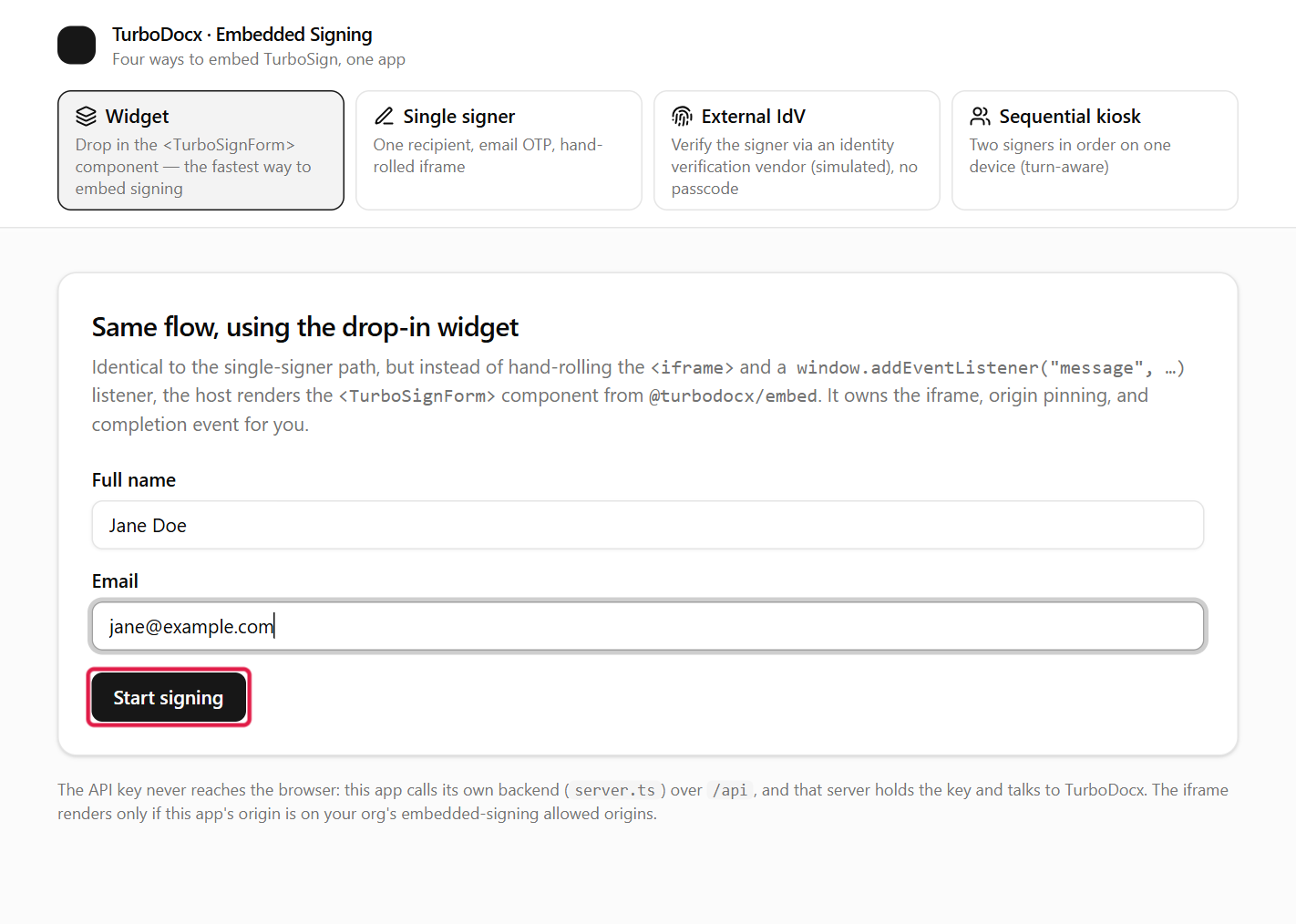
-
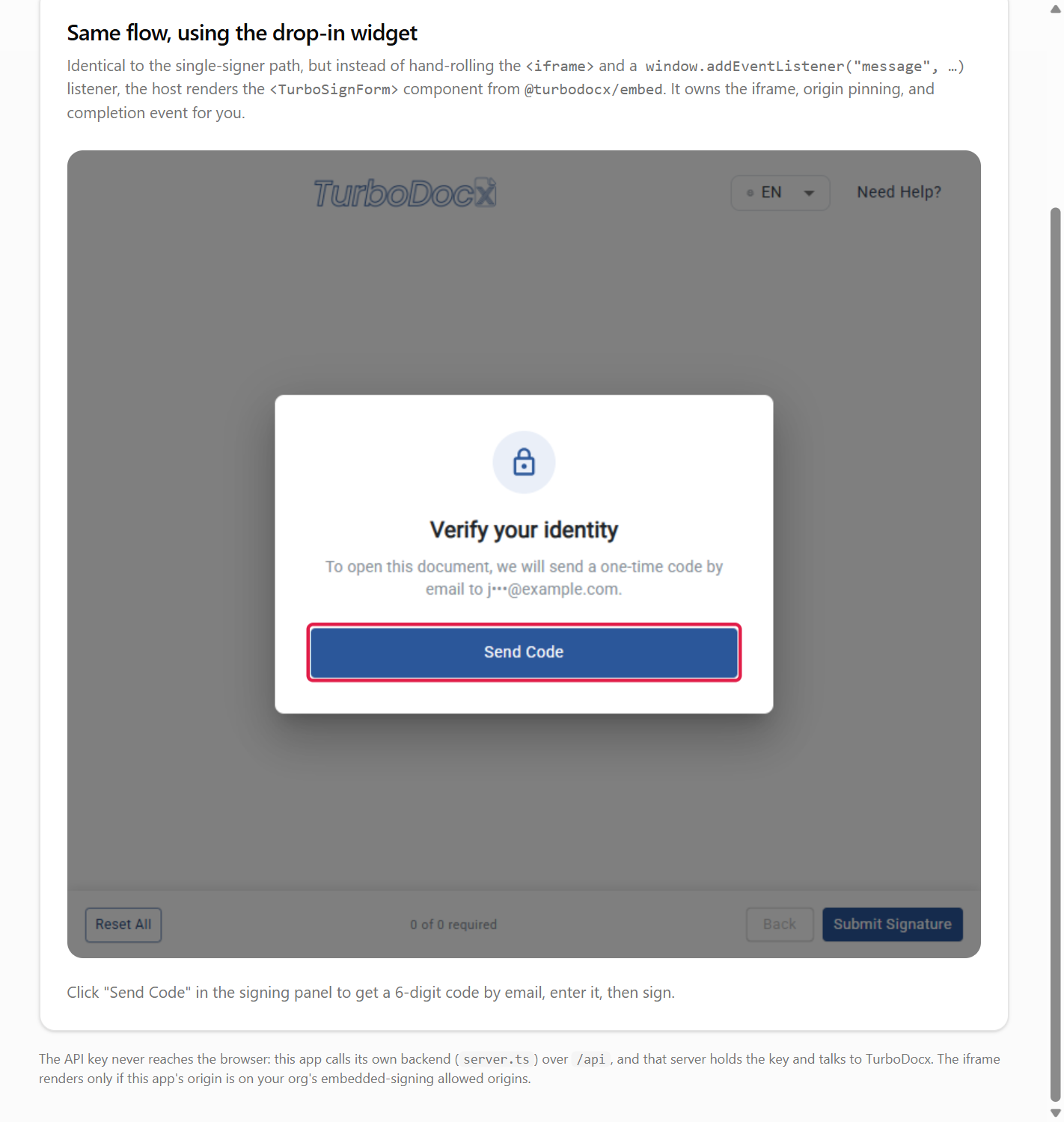
Your page shows the TurboSign signing panel. The signer clicks Send Code, and TurboSign emails a six-digit code to the signer's address.
-
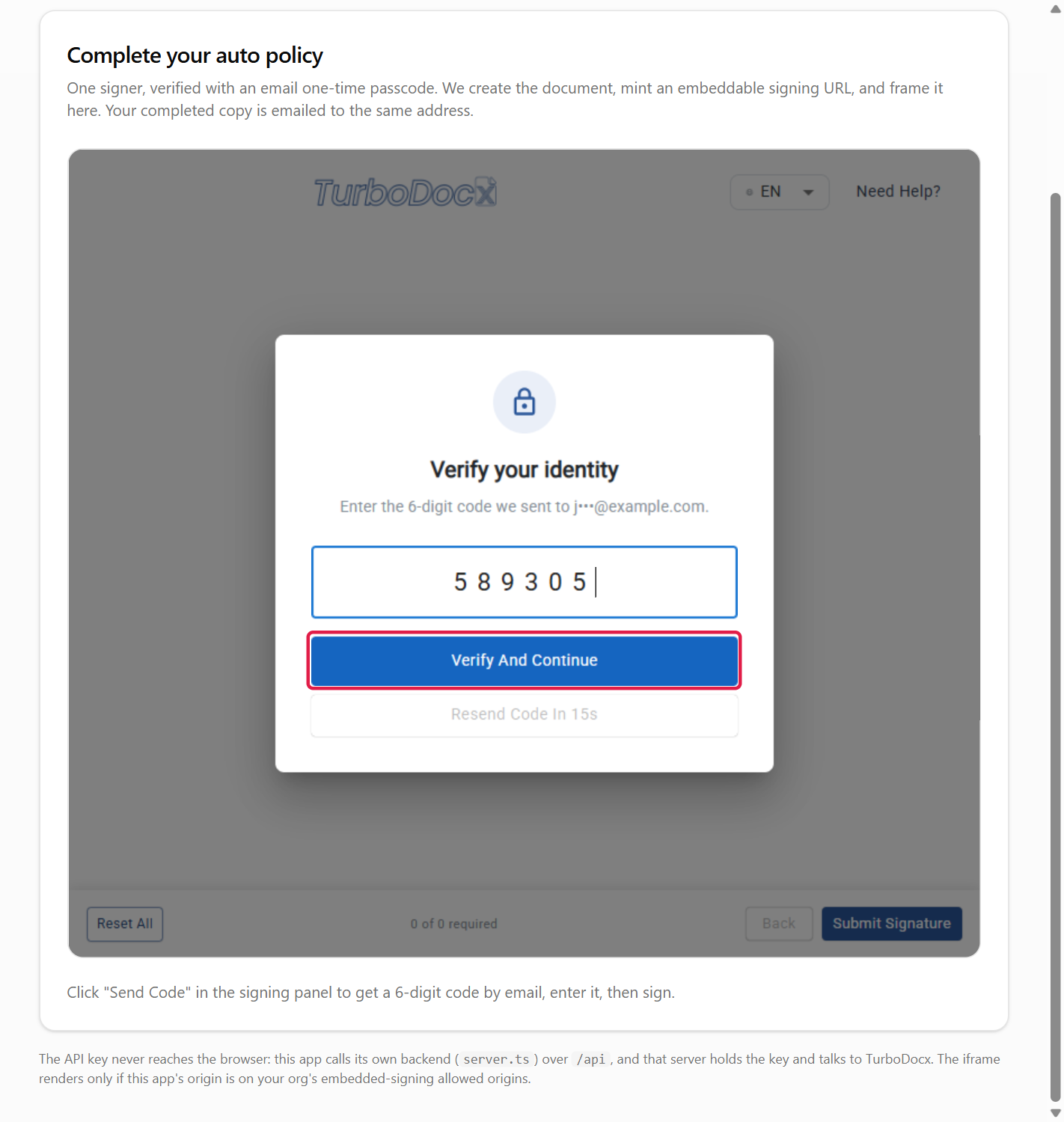
The signer types the code and clicks Verify And Continue.
-
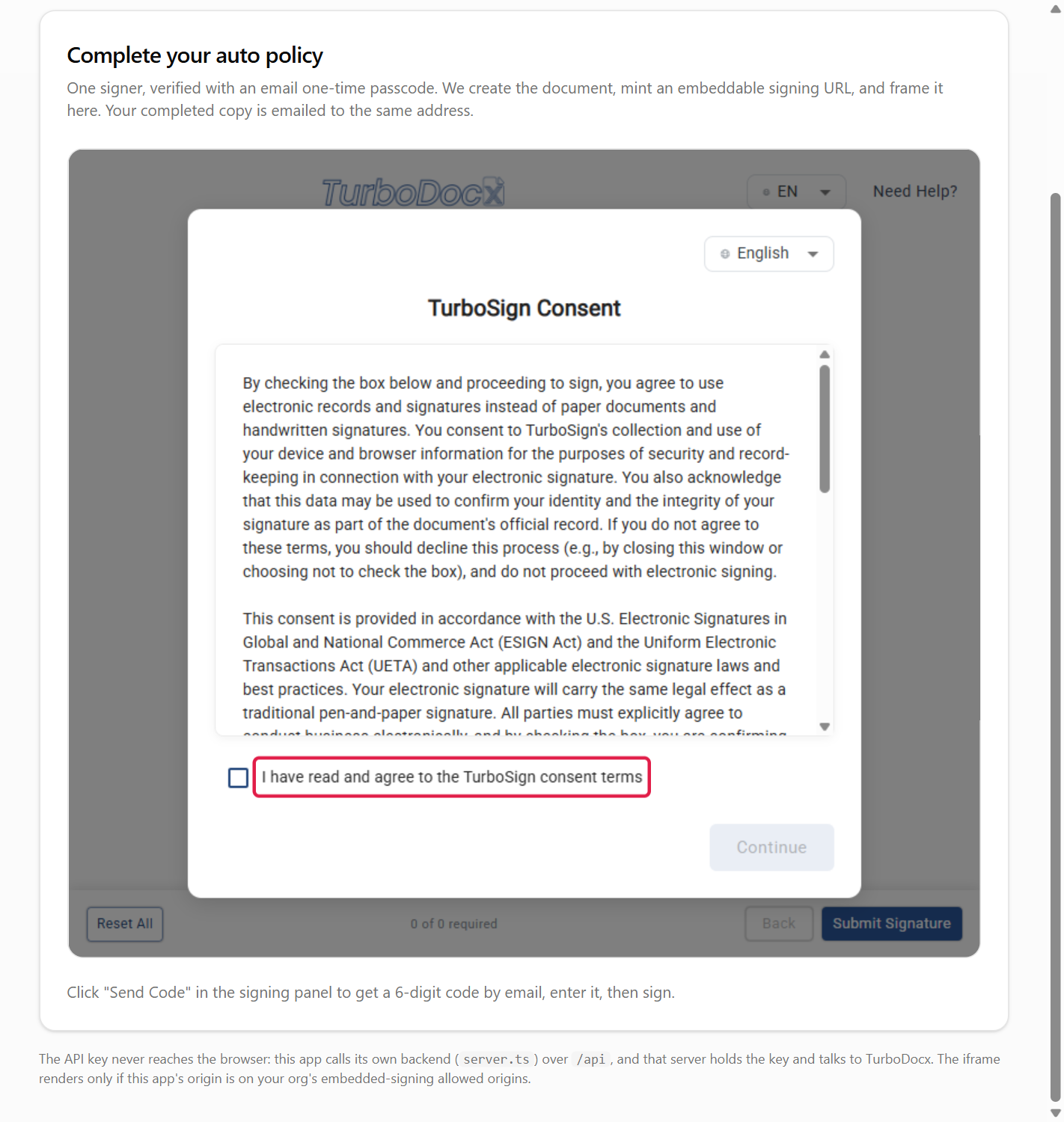
The signer ticks I have read and agree to the TurboSign consent terms and clicks Continue.
-
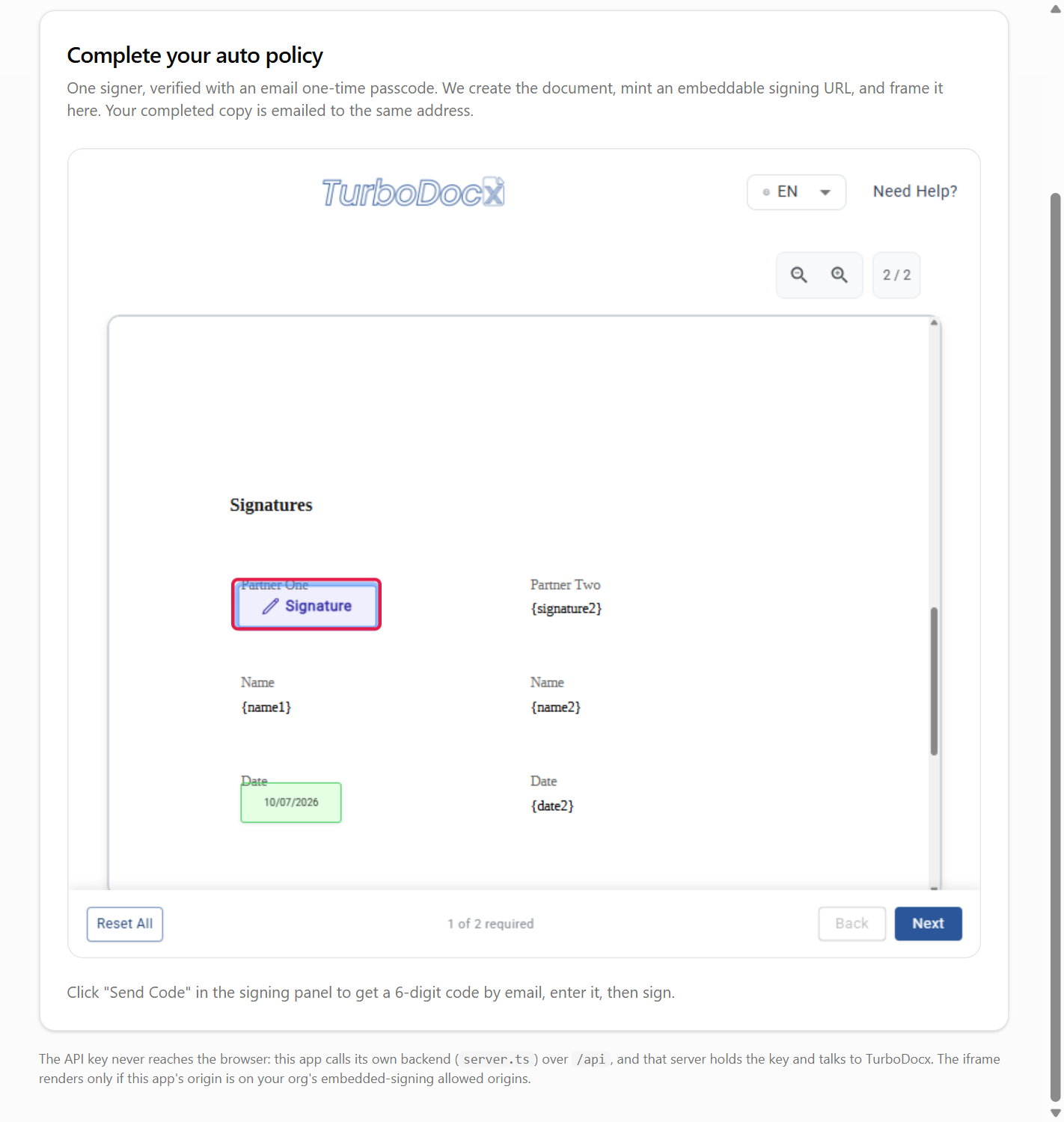
The document opens. The signer clicks the Signature field, types or draws a signature, and clicks Save. Date fields fill in automatically.
-
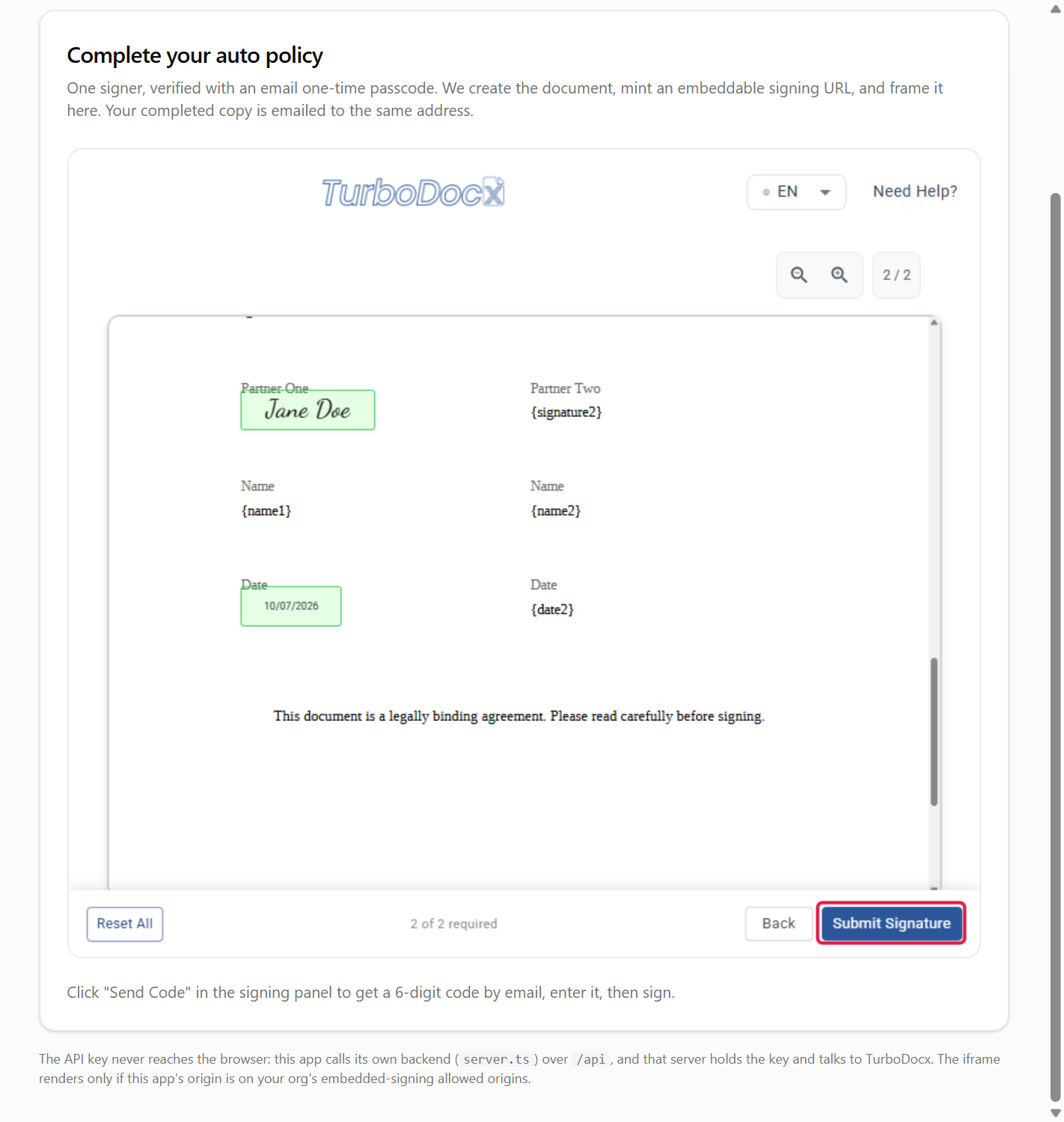
When every required field is done, the signer clicks Submit Signature.
-
The widget calls
onCompleted, and your app shows its own confirmation.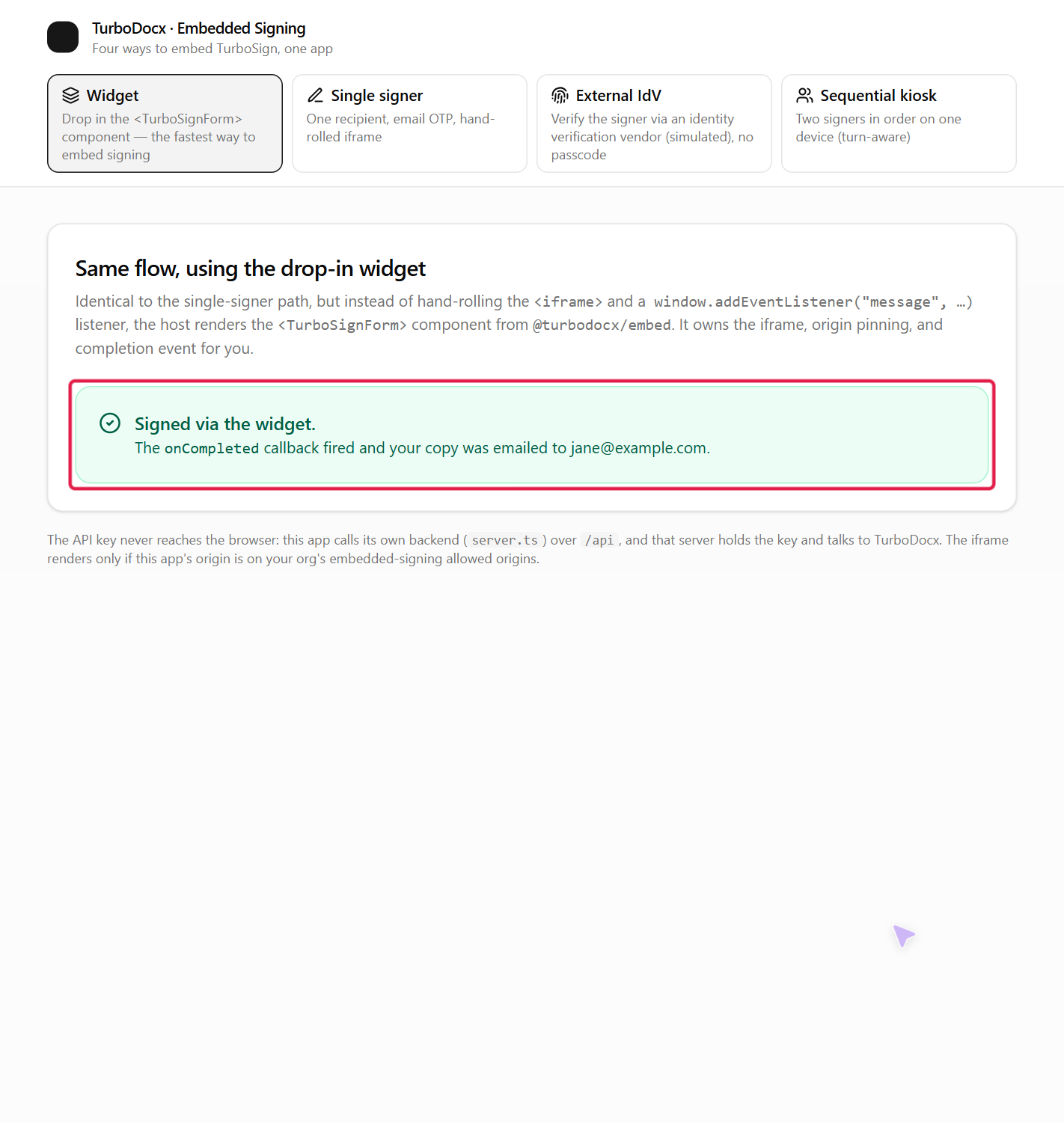
What the completion event contains
onCompleted receives the fields of the turbosign:completed message:
| Field | Value |
|---|---|
documentId | The document's id. |
status | completed. |
event | signing_complete, or already_signed when the signer reopened a link they had already completed. |
scope | recipient. This signer finished; others on the document may still be pending. |
Common errors
| Symptom | Cause | Fix |
|---|---|---|
| The widget area is blank | Your origin is not under Allowed embedding domains. | Add the exact origin, including the port in development. |
| Signing finishes but no completion message arrives (often in Firefox) | The signing page posts only to an origin it can identify, and your page or iframe sends no referrer. | Don't use referrerpolicy="no-referrer" on the iframe or a no-referrer page policy; keep the default strict-origin-when-cross-origin. |
onCompleted never fires, and the console warns about a missing origin | origin is empty or wrong. | Set origin="https://app.turbodocx.com". |
HTTP 403 when your server creates the URL | The API key belongs to a User, or Enable identity verification is off (EmbeddedSigningNotEnabled). | Use an Administrator or Contributor key, and ask an admin to check Step 1. |
HTTP 403 OtpOverrideNotAllowed | Your organization verifies every request and locked the method to a different channel. | Ask an admin to let senders change the method, or request an SMS passcode. |
What's next
- Next: Your own iframe, to frame the page yourself and write the listener.
- Web component, for the same widget outside React.
- Kiosk signing (two signers, one device).
- API reference: every field, event and error.