How to Get Ready-to-Run Code with Developer Mode
Developer Mode adds a Code button to pages across TurboDocx. Click it and you get the exact code that does what that page does, in the programming language you choose, ready to copy into your project.
For example, on a template's page the code already contains that template's ID and its real variable names, so you only fill in the values.
- A TurboDocx account. Turning on Developer Mode only changes what you see; it doesn't affect anyone else in your organization.
- An API key to run the code. You can create one from inside the code panel (see Step 7).
Step 1: Turn on Developer Mode
- Go to the Home page.
- In the top-right corner, click the Dev Mode switch to turn it on.
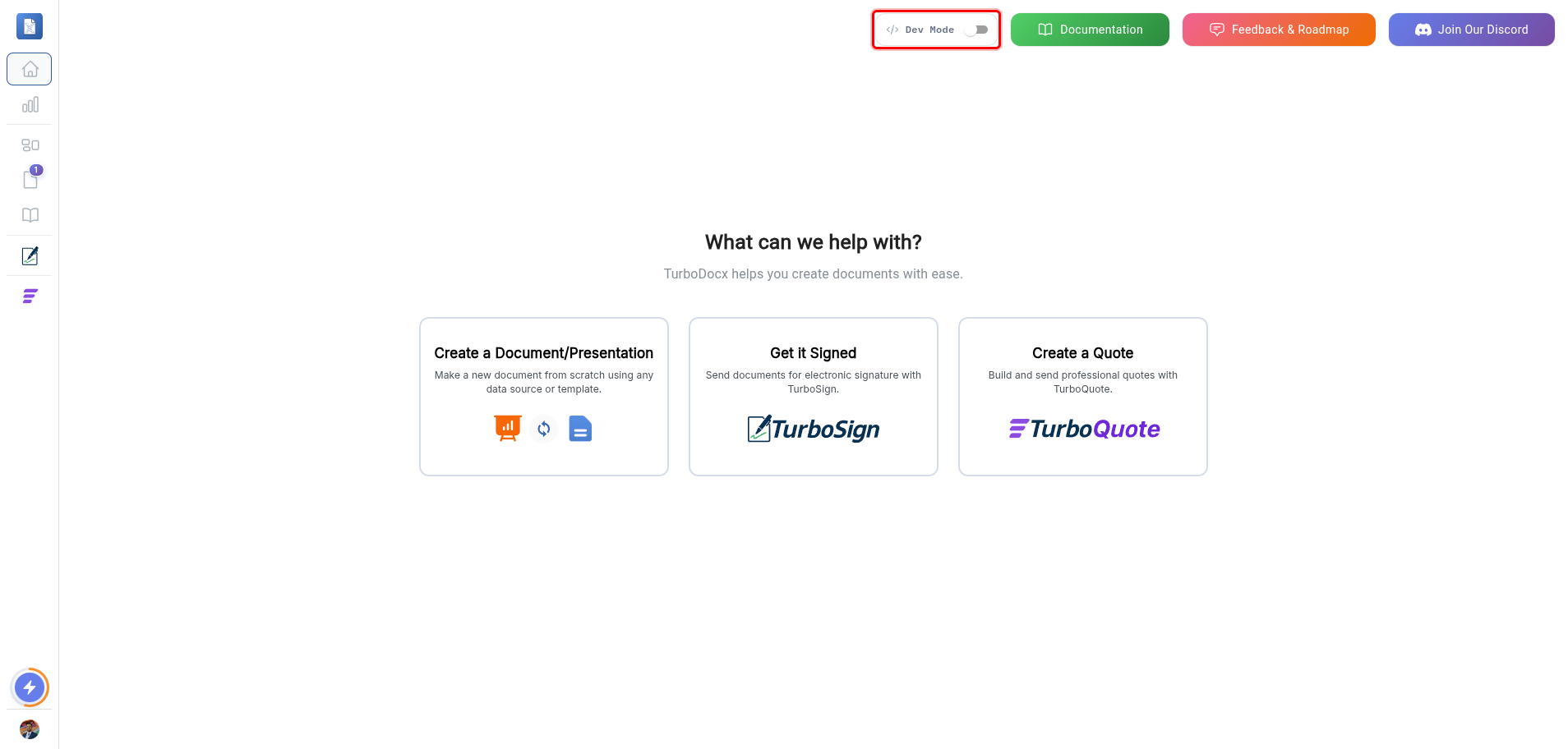
Developer Mode stays on until you turn it off. It is saved in this browser only, so you need to turn it on again on another computer or browser.
Step 2: Open the code panel
- Go to the page for what you want to do in code. In this guide we use a template: open Templates and click a template to open its generate page.
- At the top of the page, click the Code button.
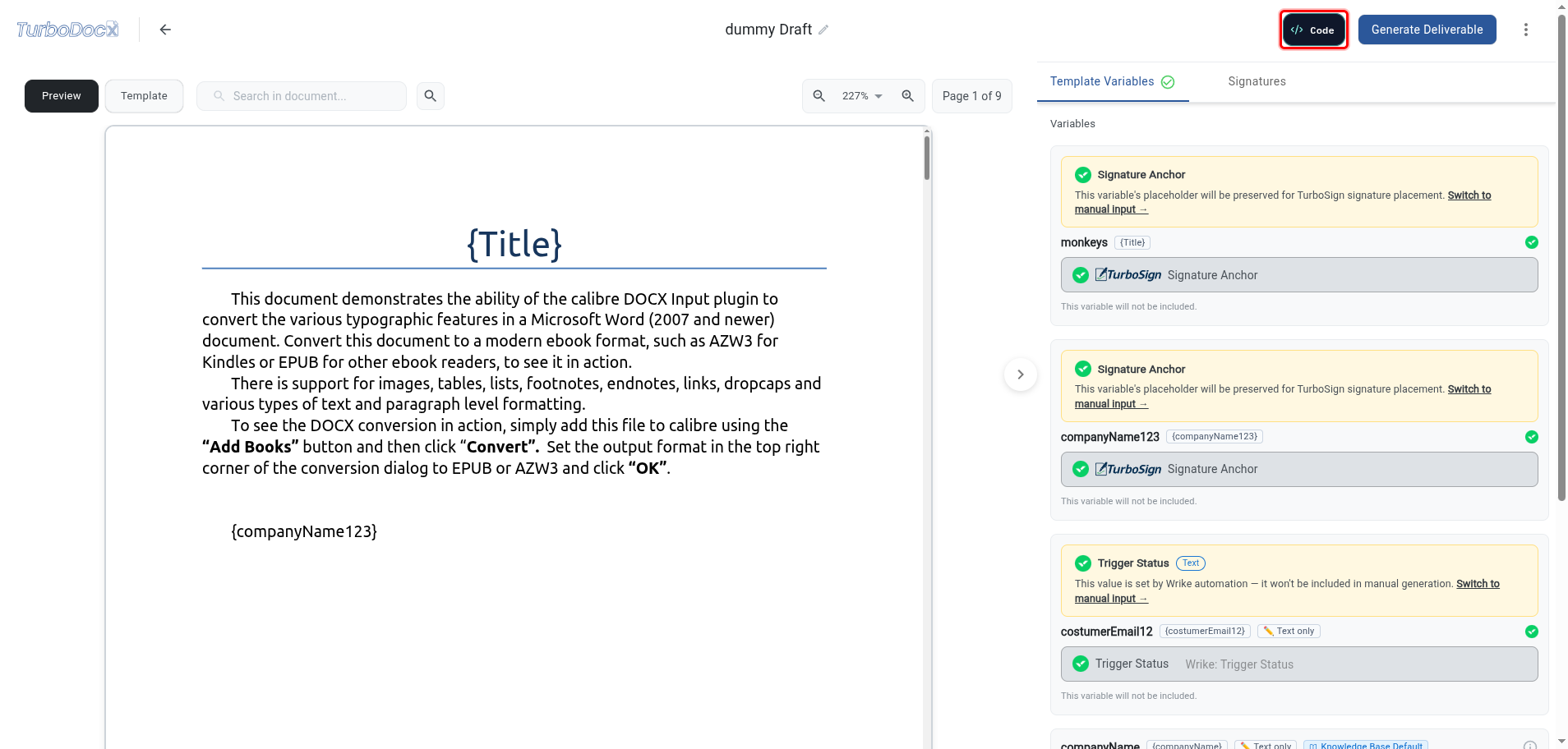
A panel opens on the right side of the screen.
The Code button also appears on deliverables, e-signature documents, quotes, products, bundles, price books, companies, webhook settings, and the partner portal. Each one shows the code for the page you are on.
Step 3: Choose what you want to do
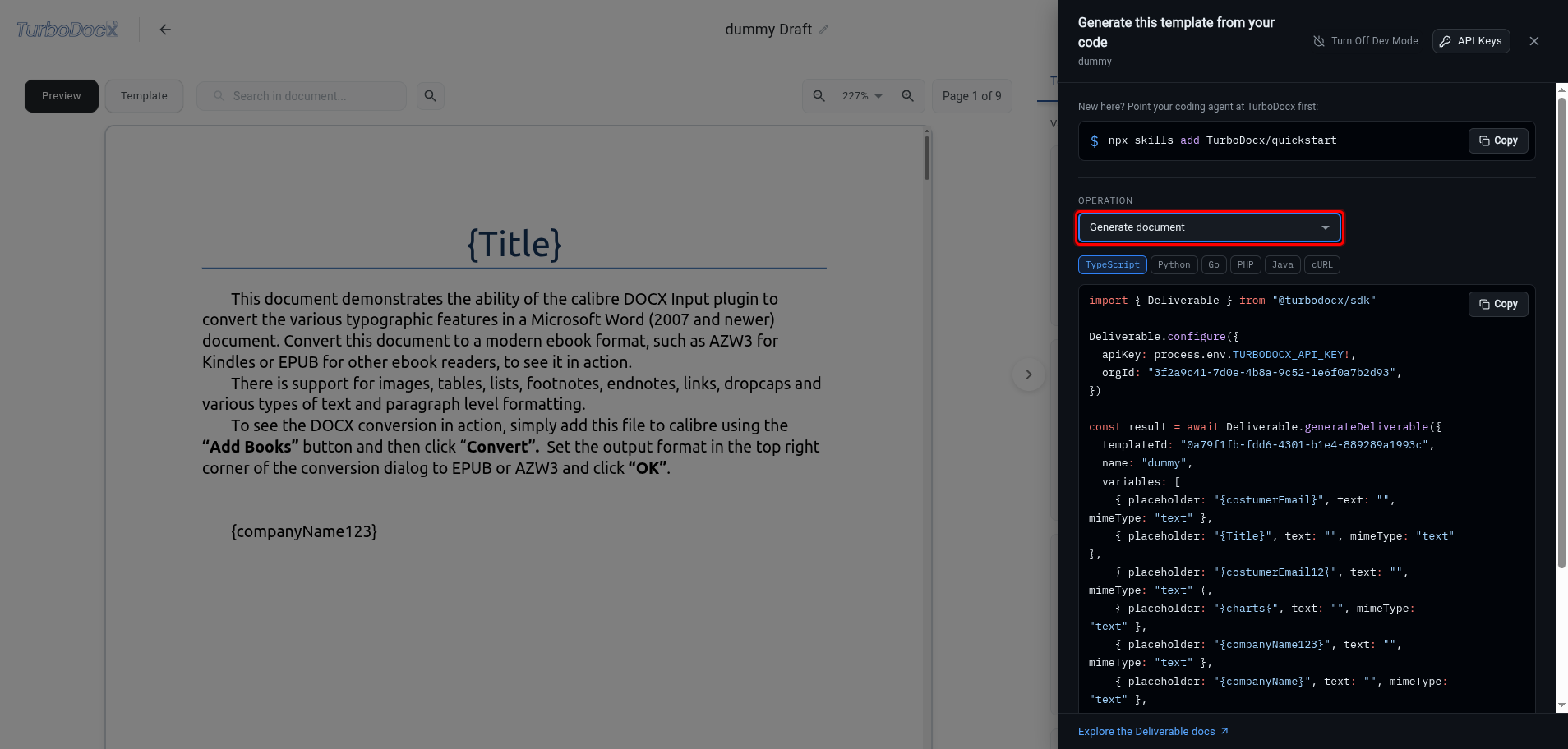
Some pages can do more than one thing. On those pages, the panel has an Operation dropdown.
- Click the Operation dropdown.
- Choose what you want the code to do. On a template's generate page you can choose Generate document or Send for signature.
Step 4: Add reminders and expiration (optional)
When you choose Send for signature, you can add reminder emails and an expiry date to the request.
- Click the Include reminders & expiration switch to turn it on.
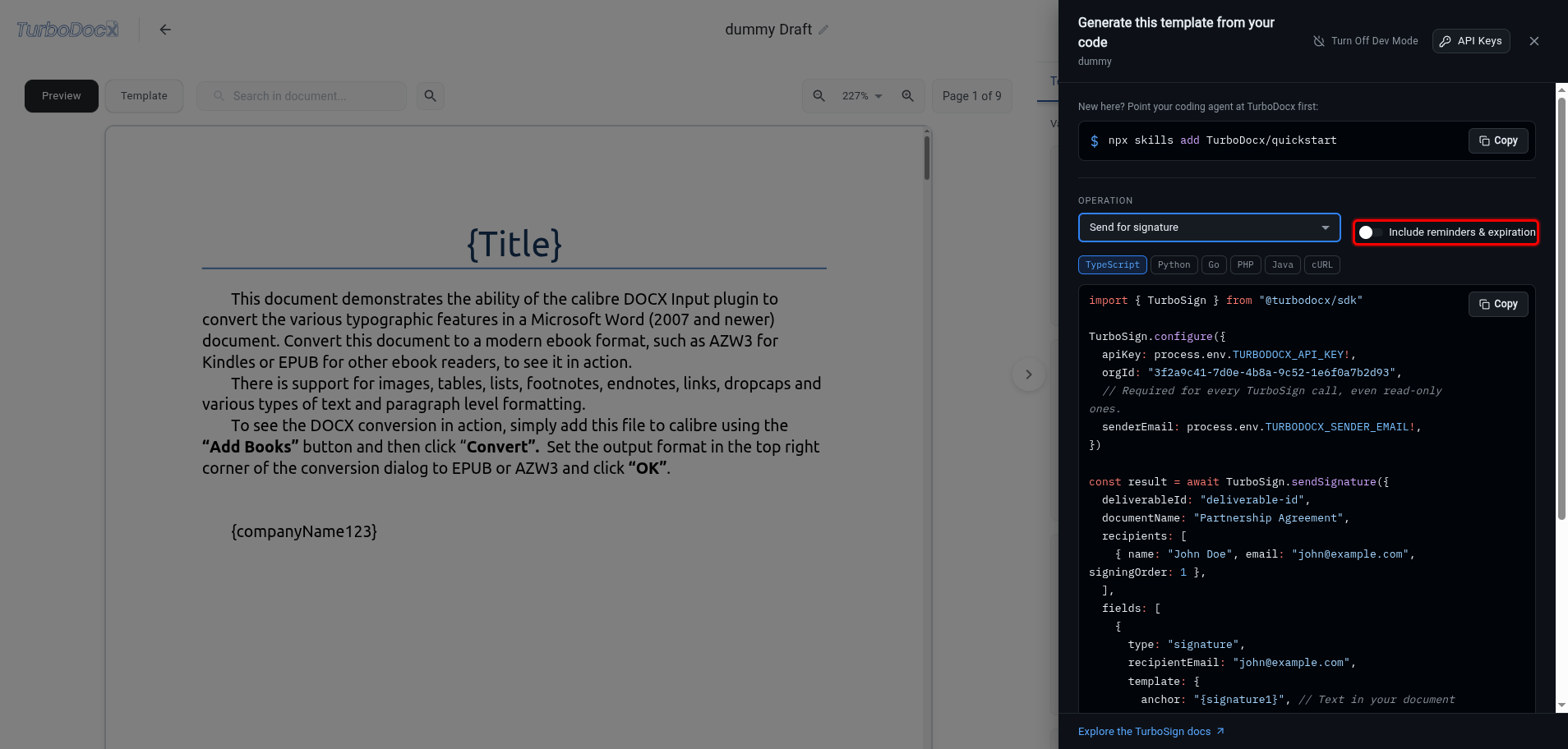
The code updates to include the reminder and expiration settings. Leave the switch off to use your organization's default settings.
Step 5: Pick your programming language
- Click the tab for your language: TypeScript, Python, Go, PHP, Java, or cURL.
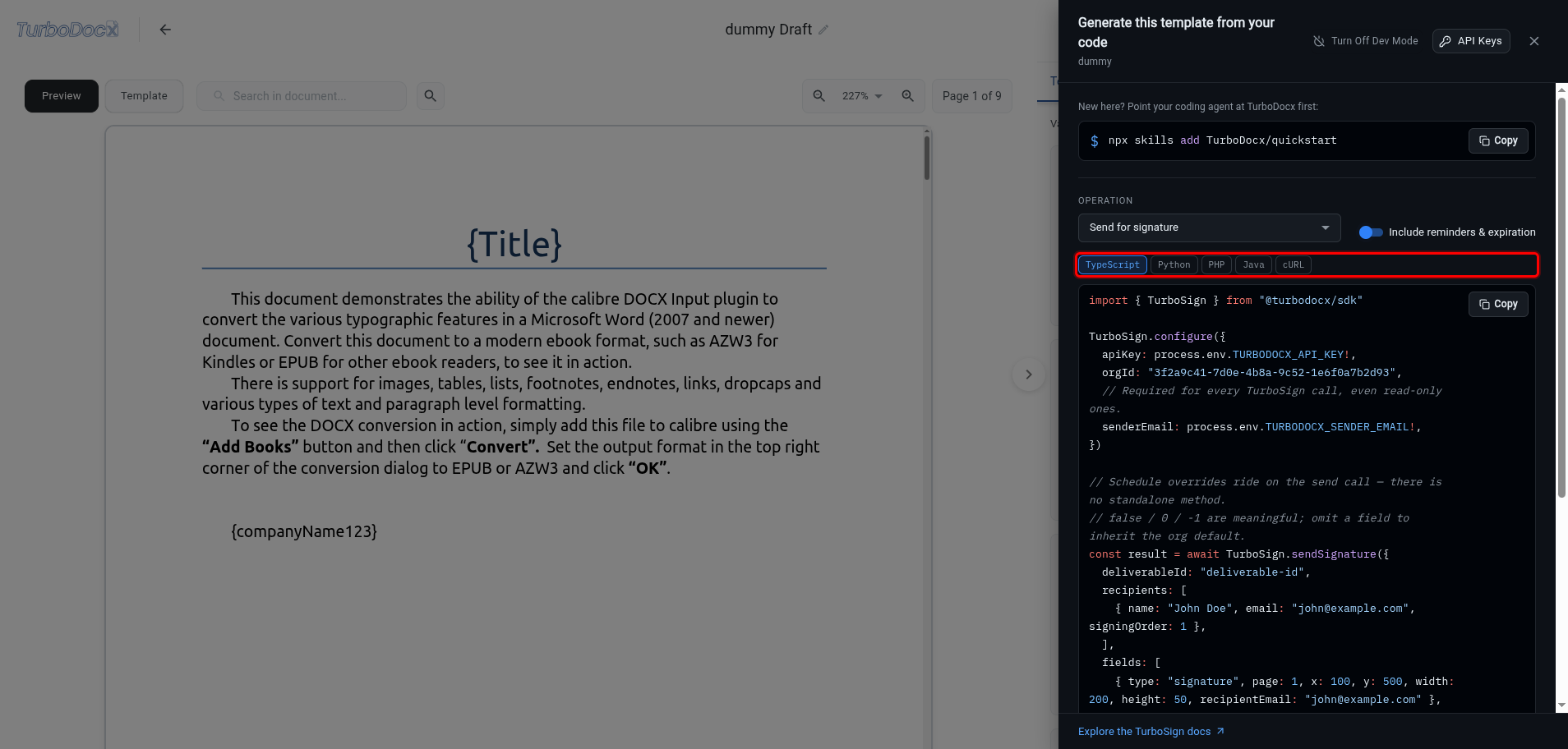
Only the languages that support the chosen operation are shown. For example, Go is hidden while reminders and expiration are switched on.
Step 6: Copy the code
- Click Copy at the top-right of the code.
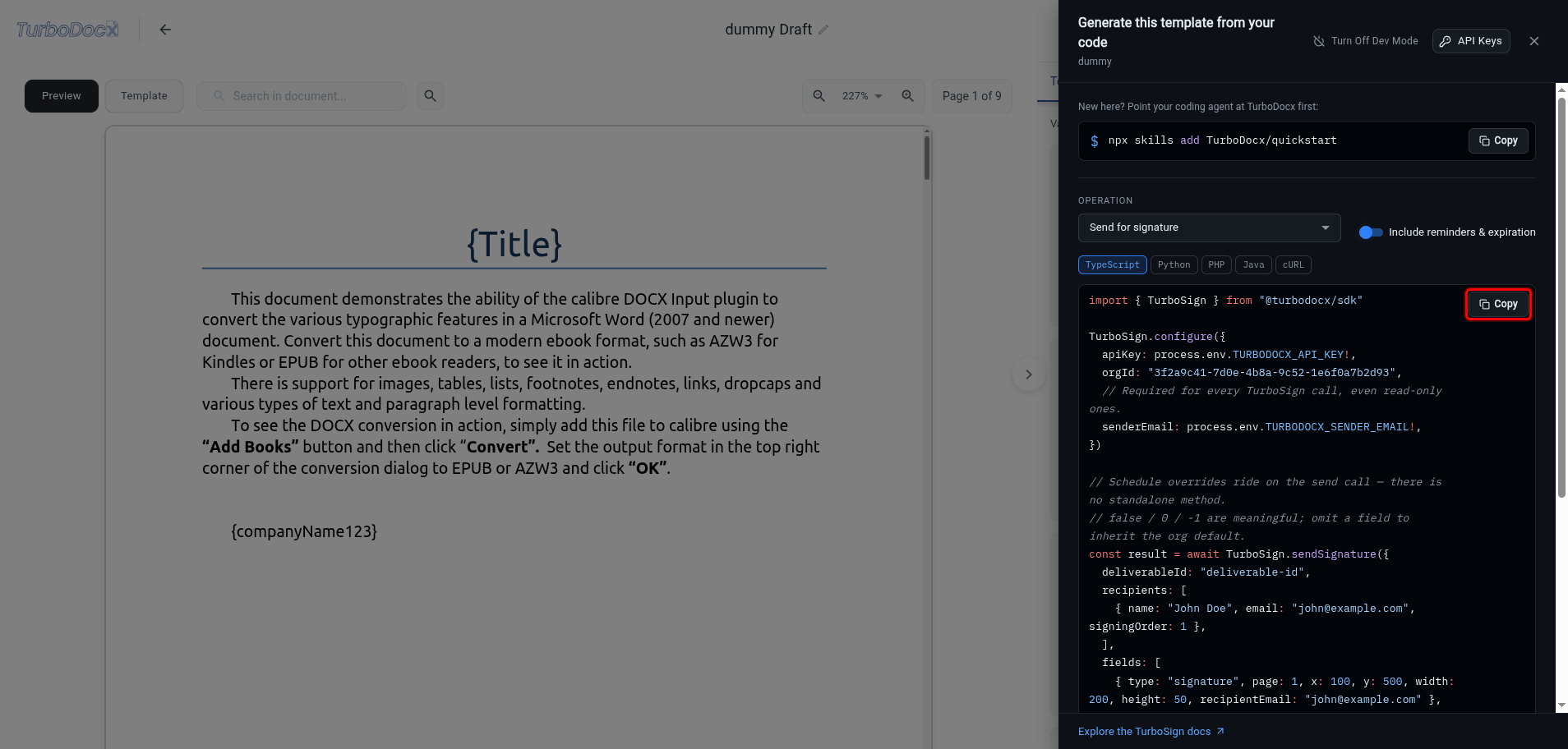
- Paste the code into your project.
Your organization ID is already written into the code. Your API key is not: the code reads it from an environment variable called TURBODOCX_API_KEY, so it never ends up in your source code. Set that variable before you run the code. Code that sends documents for signature also reads your sender email from TURBODOCX_SENDER_EMAIL.
The panel also shows a one-line command at the top (npx skills add TurboDocx/quickstart). Run it in your project and your AI coding agent installs and sets up the TurboDocx SDK for you. See Install with AI Agents.
Step 7: Create an API key if you don't have one
- At the top of the panel, click API Keys.
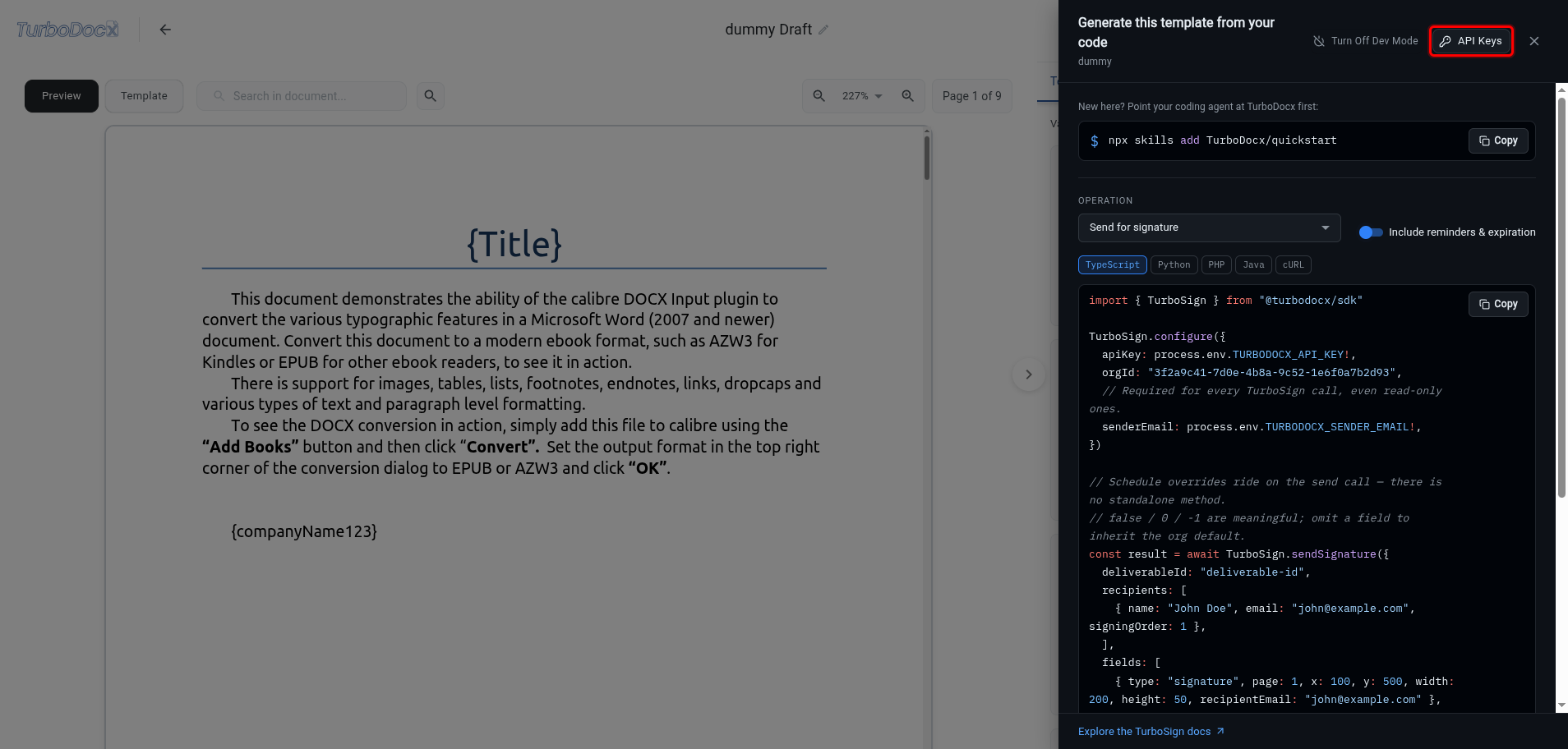
- In the window that opens, click New to create a key, then copy it into your
TURBODOCX_API_KEYenvironment variable.
Only administrators can create API keys. If the button is grayed out, ask an administrator in your organization to create one for you.
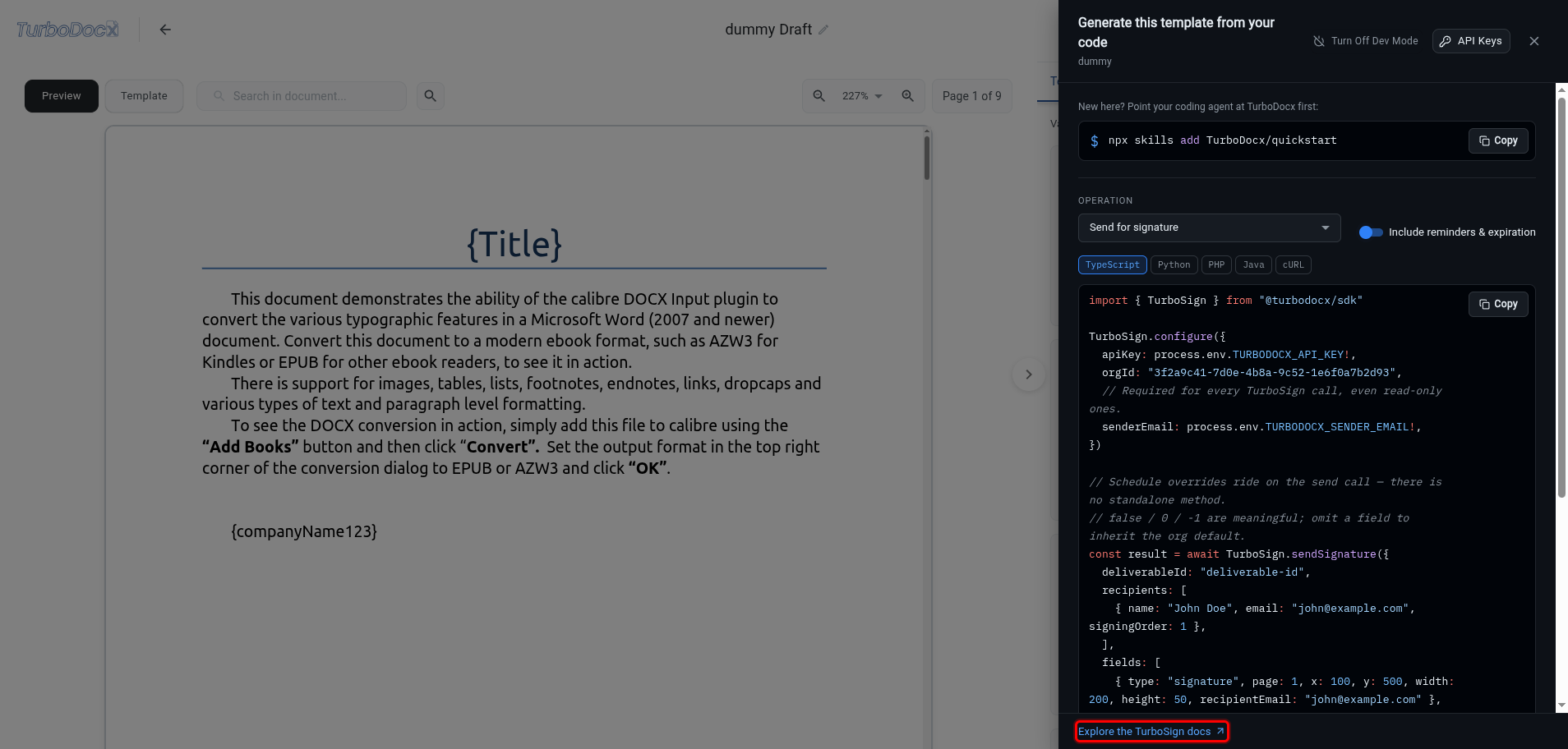
Step 8: Read the full documentation (optional)
- At the bottom of the panel, click Explore the … docs. The link opens the SDK documentation for the product you are working with (for example, TurboSign).
Turn off Developer Mode
When you no longer want to see the Code buttons:
- Open any code panel.
- At the top of the panel, click Turn Off Dev Mode.
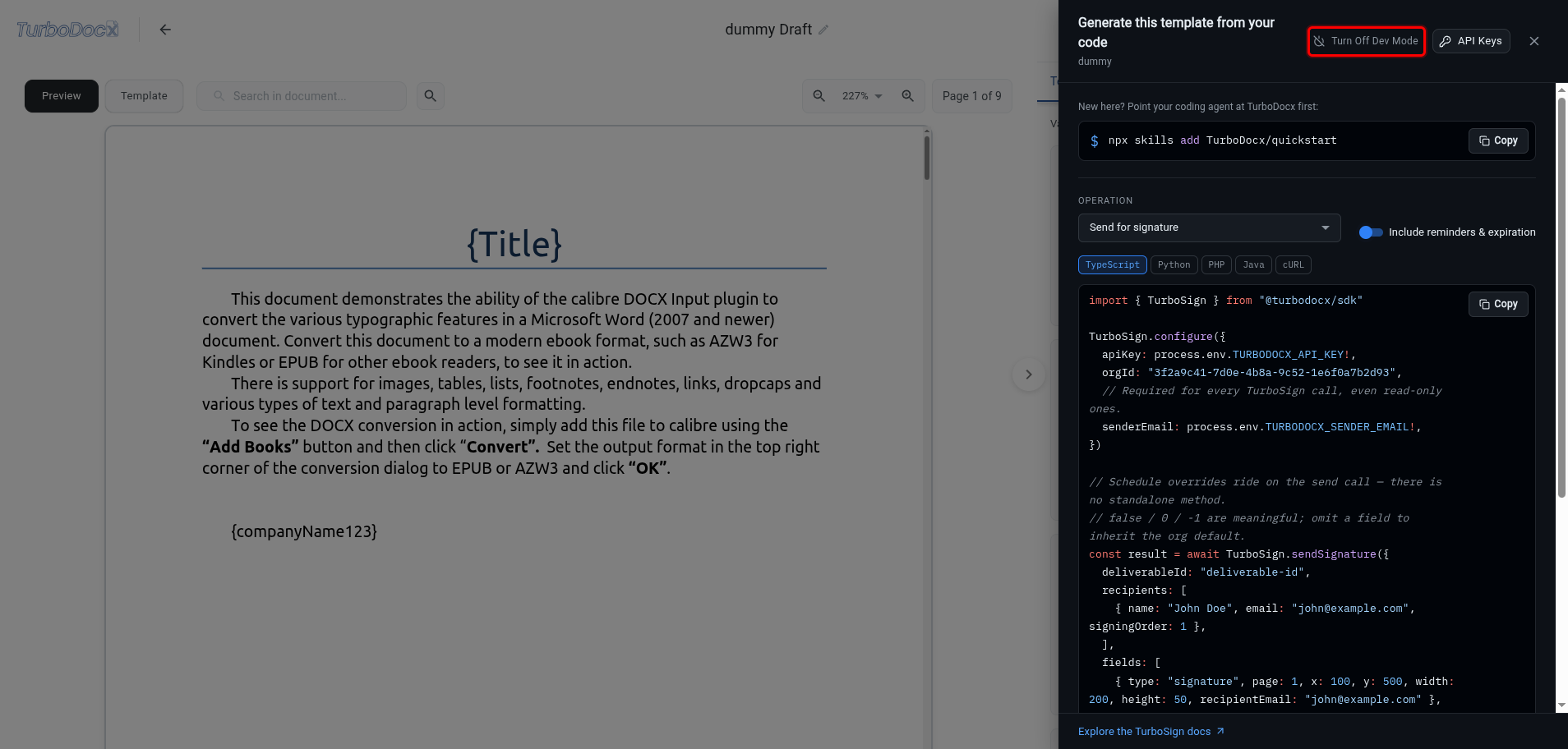
The panel closes and the Code buttons disappear. You can turn Developer Mode back on at any time from the Dev Mode switch on the Home page.
The next time you open a code panel, it opens in the language you used last, and each page reopens on the operation and switch settings you left it on. These choices are saved in this browser only.