How to Use a PDF as a Signature Template
Have a PDF you send for signature again and again, like an NDA? Upload it once, set up the roles that sign it (for example Client and Countersigner) and where each one signs. Every time you send it after that, you only say who is signing this time.
A PDF template is for signatures only. It has no {variables} and can't be used to generate
a document. To fill in text automatically, use a Word or PowerPoint template instead. See
How to Create a Template. Word and
PowerPoint templates can save a signature setup too: see
How to Save a Signature Setup on a Template.
Step 1: Upload your PDF
- Go to Templates in the left sidebar, then click New Template in the top right.

- Click Upload Template and choose your PDF (or drag and drop it onto the card).
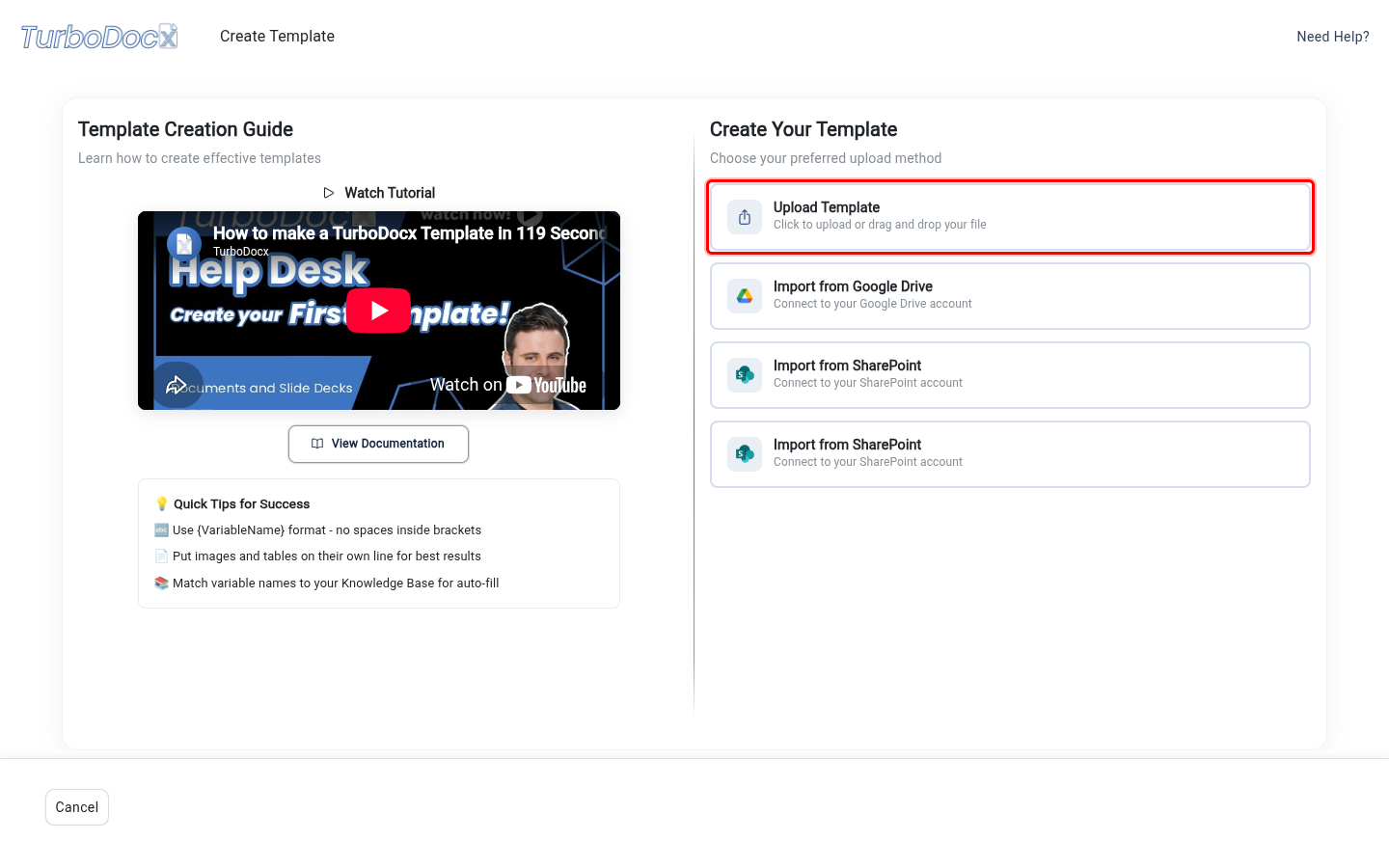
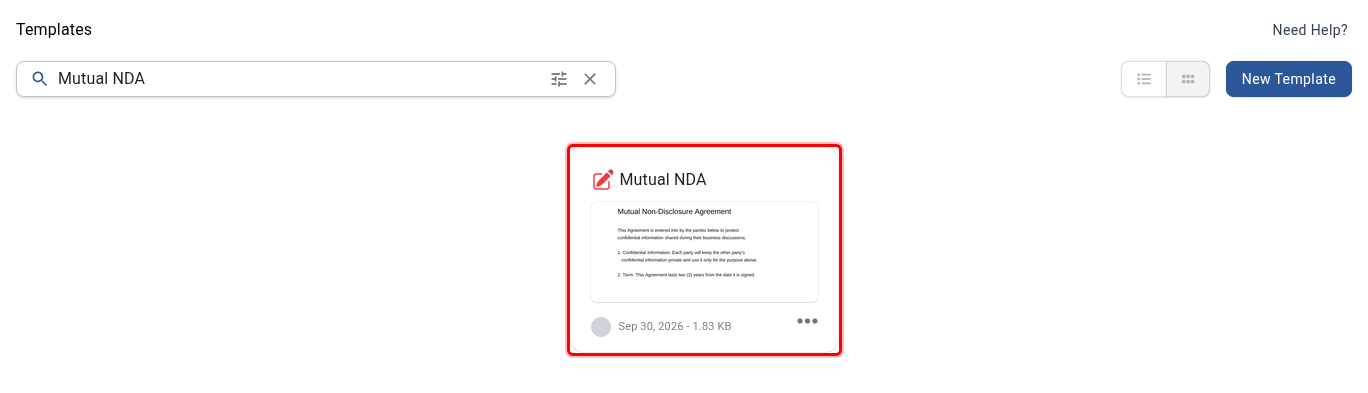
TurboDocx creates the template and asks What is this for? In the Templates list, a PDF template has a red pen icon.
TurboDocx prepares the PDF the same way as a PDF you upload for signature:
- Password-protected PDFs can't be uploaded. Remove the password and upload it again.
- A damaged PDF is repaired when possible. If it can't be read, you'll be asked to export it again.
- Fillable form fields are flattened. Anything typed into the PDF's own form fields becomes part of the page, and the form fields themselves are removed. Add TurboSign fields for anything the signer needs to fill in.
Download File on the template's page gives you this PDF.
Step 2: Choose what this is for
After you upload a PDF, TurboDocx asks What is this for?
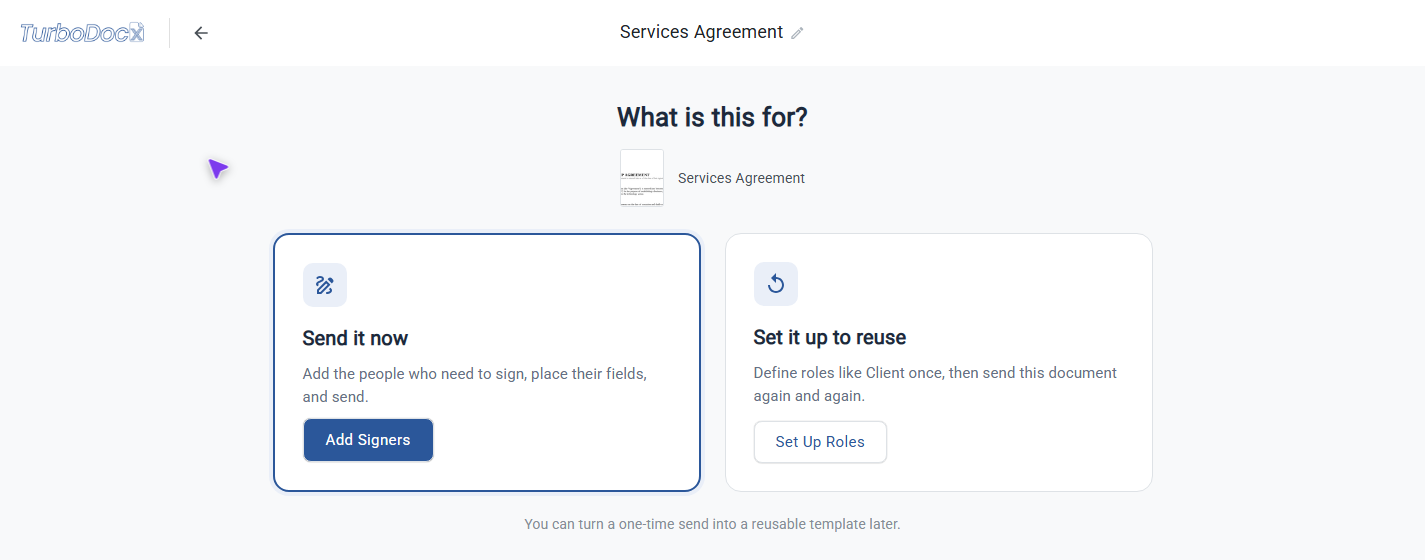
- Send it now (Add Signers): you know who signs this time. Go to Send it now.
- Set it up to reuse (Set Up Roles): you will send this PDF again and again. Go to Set it up to reuse.
You don't have to decide for good. You can turn a one-time send into a reusable template after it is sent. A template that already has roles skips this question.
Send it now
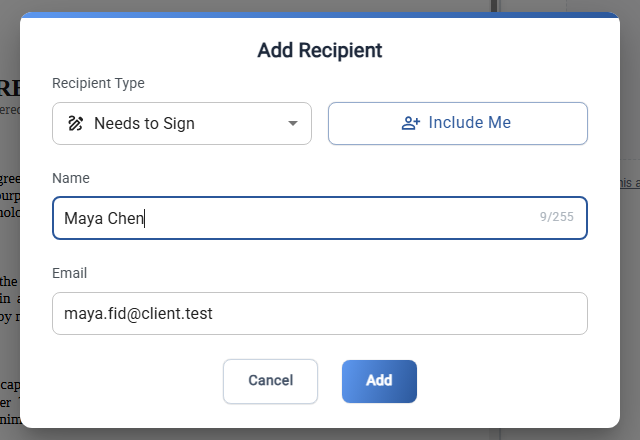
- Click Add Recipient. Choose the Recipient Type, then enter the Name and Email. Click Include Me to add yourself.
- Place the signature fields for each signer on the PDF.
- Click Get It Signed.
After it is sent, TurboDocx asks Sending this again?
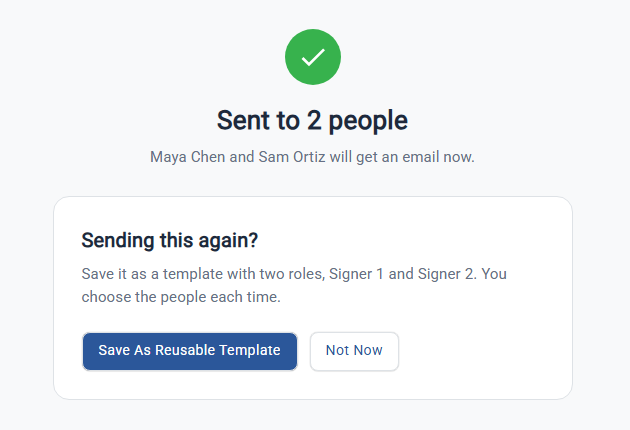
- Save As Reusable Template keeps the fields and turns each signer into a role: Signer 1, Signer 2, and so on. Nobody is kept on the template, so you choose the people each time.
- Not Now leaves the PDF as it is.
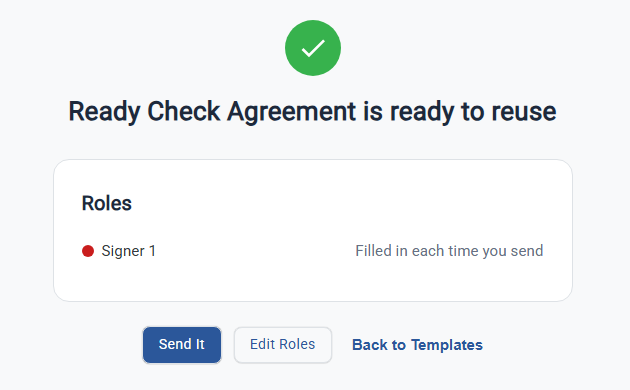
After you save, TurboDocx shows that your template is ready to reuse, with Send It, Edit Roles and Back to Templates.
Set it up to reuse
Click Set Up Roles. TurboDocx opens a Roles editor.
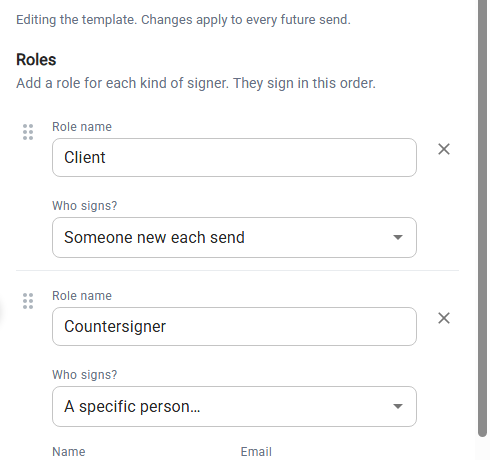
- Each role has a Role name. It starts as Signer 1, Signer 2. Rename it to say what the signer is, for example Client.
- Under Who signs?, choose:
- Someone new each send (the default): you enter the name and email every time you send.
- Me: it is always you.
- A specific person...: enter their Name and Email. This person is used every time, unless you change them for one send.
- Click + Add Role for each other kind of signer. Roles sign in the order shown.
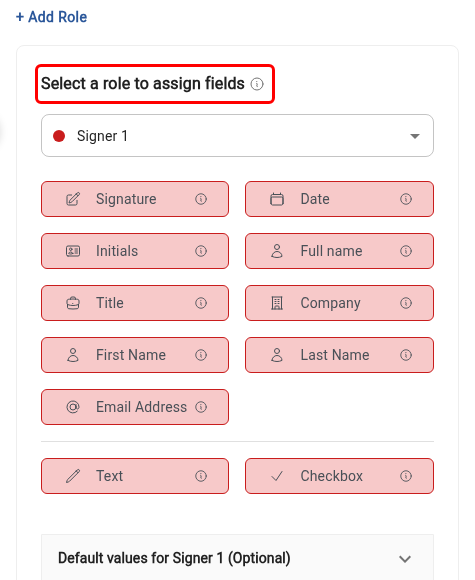
- Under Select a role to assign fields, pick a role, then drag Signature, Date and the other fields onto the PDF where that role signs. Click a field to change its settings. See Adjust each field's settings.
- Click Save Template in the header. TurboDocx saves it and shows the template ready page.
Two roles can't have the same name. TurboDocx ignores capital letters and punctuation when it compares them, so Client and client. count as the same name. A role name can't be empty.
Click ⋮ → Signature Settings. There you can set the Document Name signers see, the Signature Email Description (the message in their email), and Reminders & expiration. These are saved with the template too.
Send a template that has roles
- Go to Templates and click your PDF template.
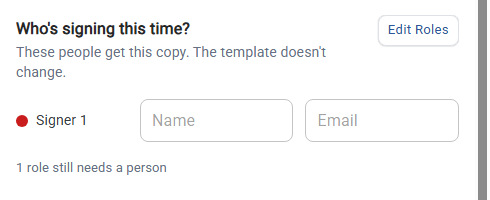
- Under Who's signing this time?, you see each role.
- For a role filled in each send, enter the Name and Email.
- A role that always goes to the same person shows that person. Click Change for this send to use someone else this time only.
- Click Get It Signed.
Changes you make while sending apply only to that send. The template stays the same.
Add someone for this send
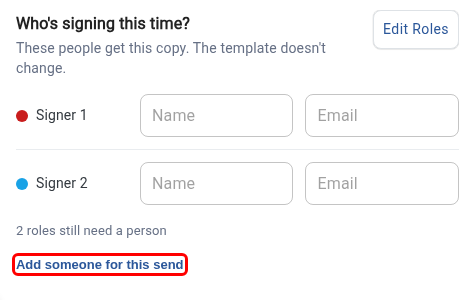
Need one more signer this time, such as a witness who isn't one of the template's roles?
- Under the roles, click Add someone for this send.
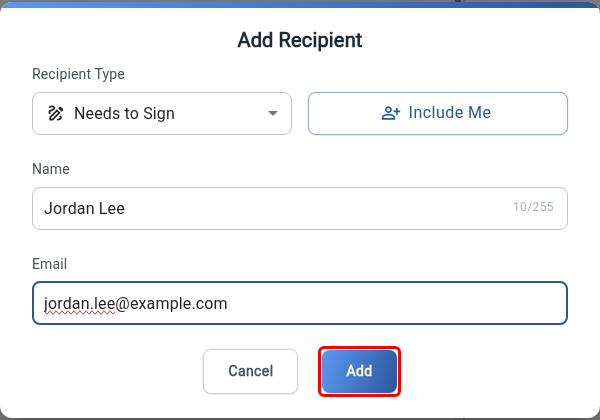
- Choose the Recipient Type, then enter the Name and Email. Choose Needs to Sign for a signer, or Receives a Copy to add someone who only gets a copy of the signed document. Click Add.
- A signer you add appears in the list as Added, with a Remove button. A panel titled Select a signer to assign fields appears below the list. Drag Signature, Date and the other fields onto the PDF for that person.
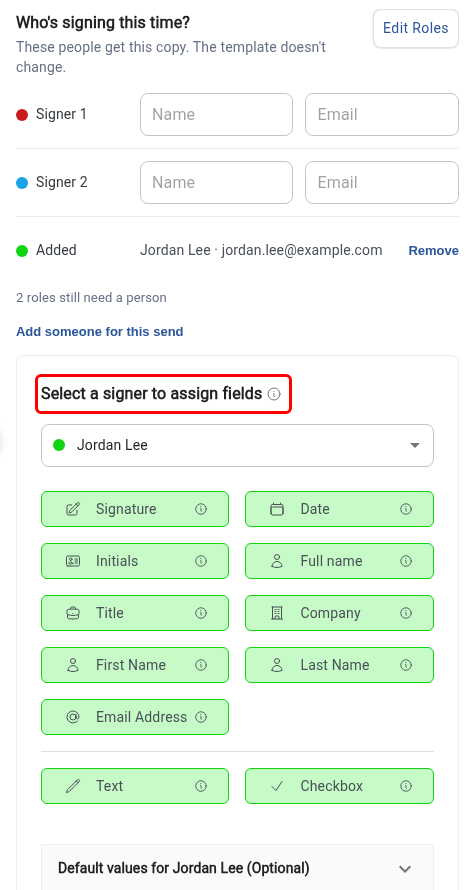
Someone you add this way is for this send only. They are never saved to the template, and the roles' fields stay as they were saved. They are not offered in Edit Roles.
You can also change who gets a copy for this send. Under CC Recipients, click a person to change their email or remove them, or add someone with Receives a Copy as above. These changes are not saved to the template either.
You can also start from TurboSign: click New Signature, pick the template on the Templates tab under Or Start with an Existing Document, and click Continue.
Change a template's roles or fields
- Click Edit Roles. You find it on Who's signing this time?, on the template ready page, and as Edit setup on the template's details page.
- TurboDocx opens Template Editing Mode. Change the roles and move or add fields.

- Click Done to save, or Cancel to throw your changes away. Template saved appears next to the template name.
Changes apply to every future send. Documents you already sent aren't affected.
Remove a template's roles and fields
On the template's details page, click Delete Setup, then confirm. The template goes back to having no roles or fields, and opening it starts again from What is this for?. Documents you already sent aren't affected.
Use it from code (Dev Mode)
You can send the template from your own app with the TurboDocx SDK or API, without placing any fields in code. Each recipient names a role, and the fields you placed for that role come with it.
- Turn on Dev Mode in TurboDocx.
- Open the template's page. The Use via API panel shows ready-to-paste code with your template ID, organization ID and role keys.
- On the send page, the Code button shows Send this template by role.
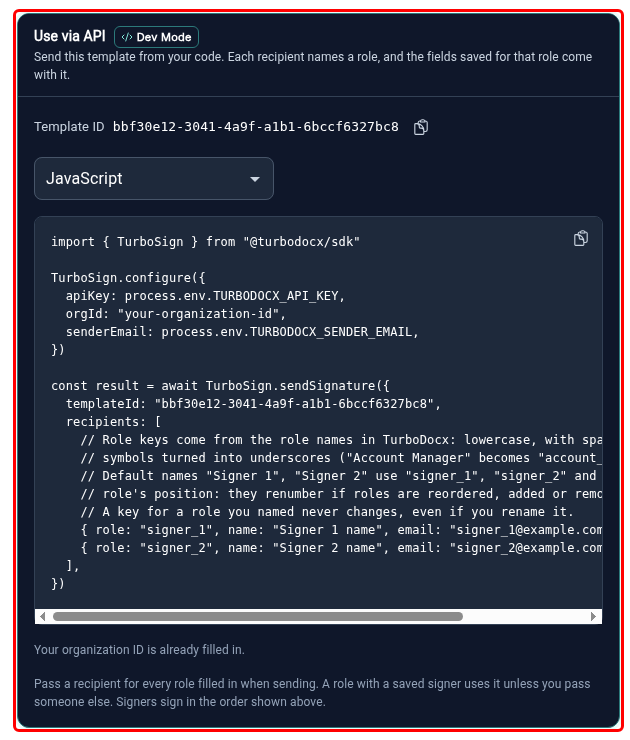
Each role has a key made from its name: Client becomes client and Account Manager
becomes account_manager. Once the template is saved, the key of a role you named never
changes, even if you rename it. A role left as Signer 1 or Signer 2 uses signer_1 or
signer_2, which follow its position, so name the role if your code depends on it. Use the key in
your code, not the name shown in the app.
await TurboSign.sendSignature({
  templateId: "your-template-id",
  recipients: [{ role: "client", name: "Jane Doe", email: "jane@example.com" }],
})
For how keys are made, every parameter and every error, see Sending with signer roles in the TurboSign API reference.
Good to know
- A PDF template can't generate a document. It has no variables, so there is nothing to fill in. It's always sent for signature as it is.
- Only some people can change a template. Only Administrators and Contributors can edit a template's roles and fields. Anyone who can send documents can send it.