How to Create a Template
Congratulations on starting your first template. In this guide, we will show you how to create your first template and how to upload it to your TurboDocx account.
Video Tutorial
Step 1: Create New Template
Let's start with creating our first template.
- Open up whatever application you will be using to create your document (Word, Google Drive, etc).
- Anything you would like to be a variable or an item that will change from document to document will be put between these
{brackets}. This can be single items such as{Date}or{CustomerName}or it can be whole sections such as{Scope}as seen in the images below.
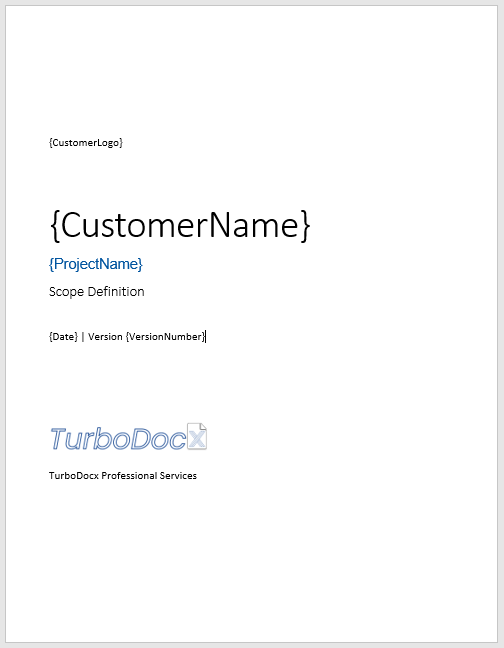
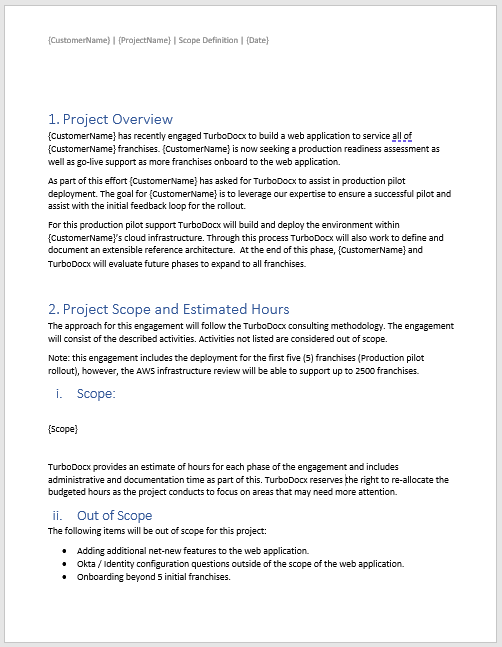
- Once you've finished your document with the variables that you want please save it and move on to the next step.
-
If you've previously created a document you want to use as a template, go ahead and use that. Just remember to replace all the variables within the
{brackets}. Find and replace may be helpful here. -
All variables will need to be one word, so do not put any spaces in the middle of the
{brackets}. -
Remember your Knowledgebase, if the variable has the same name as something in your Knowledgebase TurboDocx will use the info from the Knowledgebase to fill in the corresponding Variable.
-
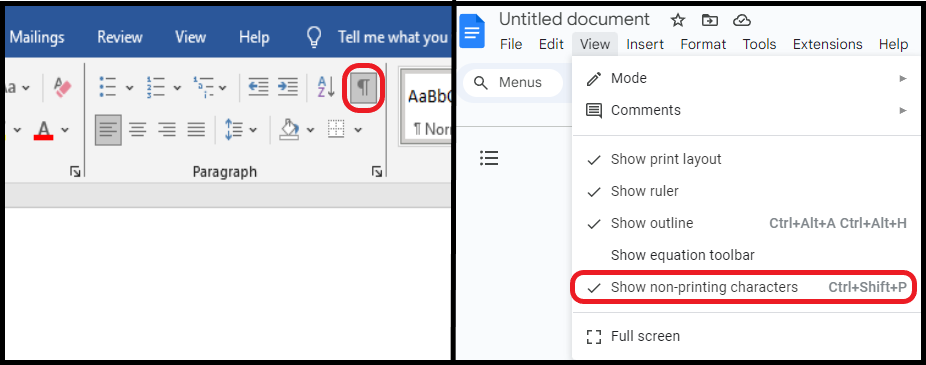
If you want to include an image or rich text, make sure the variable is on it's own line. Use the show paragraph tool if you need help. The location for that tool in Word and Google Docs are in the image below.
Step 2: Upload Template Document
Now that we've created our first template, let's upload it to TurboDocx.
- Login to your TurboDocx account you should land on the Templates tab if not it can be found on the left side. Then, On the top right of your window, click on the "New Template" button.
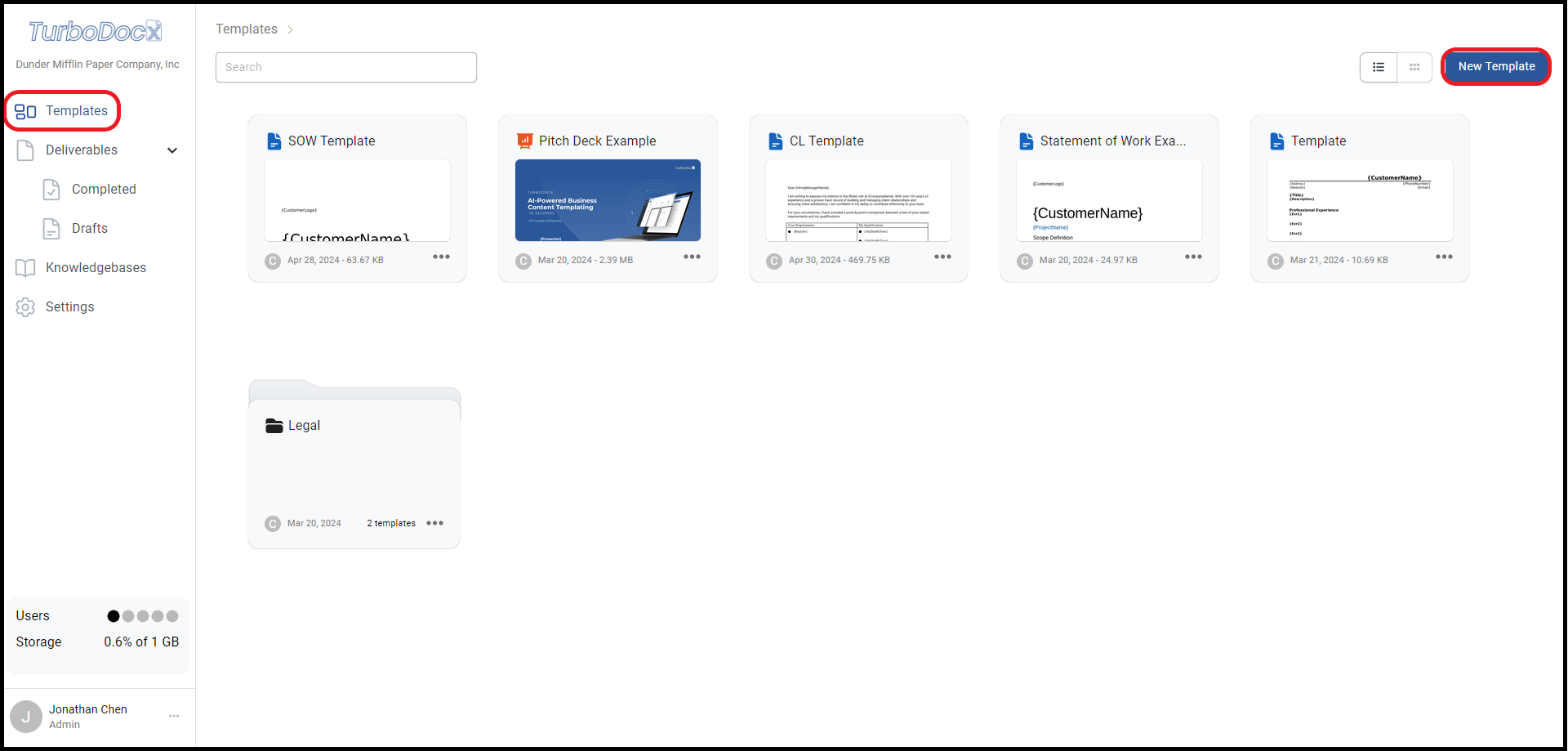
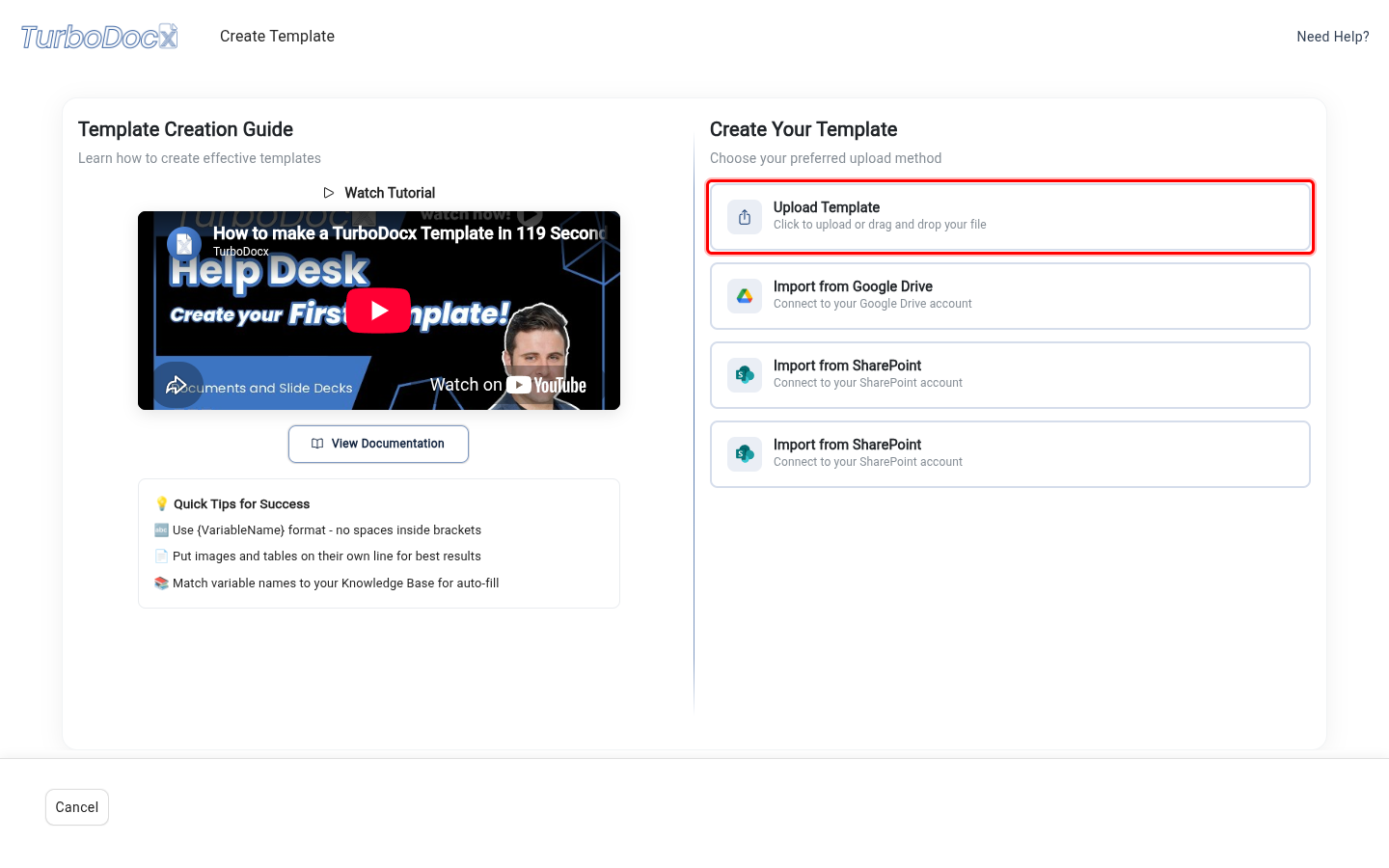
- Click the Upload Template card, then choose the document you saved in the last step (or drag and drop it onto the card).
Step 3: Your template is created
As soon as the upload finishes, TurboDocx creates the template, shows Template has been created successfully!, and a few seconds later opens it so you can generate your first document.
- The variables TurboDocx found in your
{brackets}are listed on that page as fields to fill in. - You can add default values for your variables later, from the template's details page.
- Tags can be very useful to help find certain templates, and Knowledgebase entries. Don't forget to utilize them! You can also always come back and add them in the future.
- If a variable is missing, go back to step one and check that it's in
{brackets}with no spaces in the name, then upload the file again.
You can also upload a PDF. A PDF becomes a signature-only template: it has no variables and opens on Prepare & Sign, where you add signers and place signature fields. See How to Use a PDF as a Signature Template.
Finished
Congratulations on uploading your first template. It's open and ready to use, and you'll also find it in the Templates list.