How to Save a Signature Setup on a Template
If you send the same template for signature again and again, you don't have to add the signers and place the fields every time. Set them up once on the template, save that signature setup, and every new send from the template starts with everything already in place.
This works for Word, PowerPoint and PDF templates.
What a signature setup includes
| Saved | Details |
|---|---|
| Signers | Name, email, signing order, identity verification, and each signer's default values (for example their company or title). |
| Fields | Every field you placed, at its exact position on the page, with all of its settings (alignment, Required, read-only, rules, default values). |
| CC recipients | Everyone added as Receives a Copy. |
| Email message | The Signature Email Description signers see in their email. |
| Reminders & expiration | Only the settings you changed for this template. Anything you left alone keeps following your organization's settings, even if those change later. |
| Document name | PDF templates only. For a Word or PowerPoint template, the name belongs to the document you generate, so it isn't saved. |
Step 1: Open the template
Go to Templates and click your template. Its generate page opens. Where you start depends on the template:
- The template has variables to fill in: you see the Template Variables tab with a Signatures tab next to it. Click Signatures. When you're done, Generate And Sign creates the document and then sends it for signature.
- The template has no variables (every PDF template, and any Word or PowerPoint template
without
{variables}): the page opens on Prepare & Sign. Nothing needs to be generated, so Get It Signed sends the template's document for signature straight away.
Step 2: Add the signers
- Click Add Recipient.
- Enter the signer's Name and Email. Leave Recipient Type on Needs to Sign. To add someone who only gets a copy of the signed document, choose Receives a Copy instead.
- If you sign the document yourself, click Include Me to fill in your own name and email.
- If your organization uses identity verification, choose how this signer proves who they are: No verification, Email one-time passcode, or SMS one-time passcode (enter their mobile number too). SMS needs a plan that includes it. See Email and SMS Passcode.
- Click Add.
You can add up to 15 recipients. Drag signers by their handle to change the signing order. The number next to each signer is the order they're asked to sign in.
A saved setup keeps each signer's verification choice. If your organization later stops allowing that choice (for example, it now requires verification, or SMS is no longer on your plan), the signer falls back to your organization's default method and a notice tells you which signers changed. Edit a signer to pick a different method.
Step 3: Place the fields
- Under Select a recipient to assign fields, choose the signer.
- Drag a field onto the document: Signature, Date, Initials, Full name, Title, Company, First Name, Last Name, Email Address, Text or Checkbox.
- Drag a placed field to move it, or drag its corner to resize it. TurboDocx remembers the last size you used for each field type, so the next one comes out the same size.
- Click a field to open its settings. Duplicate makes a copy of it, and Remove deletes it.
Step 4: Adjust each field's settings
Click a field to see its settings in the right panel. Which settings appear depends on the field.
| Setting | What it does | Fields |
|---|---|---|
| Alignment | Puts the signer's entry on the left, in the center or on the right of the field. | All except Checkbox |
| Enable multiline input | Lets the signer type more than one line, for example an address. On for a new Text field. | Text |
| Required — Signer must fill this field | Uncheck to let the signer leave the field blank and still finish. | All except Signature, Initials, Date and Checkbox (always filled in) and locked fields (never hold up signing) |
| Lock Field — Make field read-only | The signer sees the value but can't change it. | All except Signature, Initials and Date |
| Only show this field sometimes | Shows or unlocks the field only when one of the same signer's checkboxes is checked (or cleared). See Conditional (IF/THEN) Fields. | All except Checkbox |
| Date Value | Use the signing date fills in the day the signer signs. Use a fixed date pins a date you choose. | Date |
| Default Checked | The box starts checked. | Checkbox |
| Default value | Pre-fills the field. See Default values below. | Name, email, title, company and Text fields |
For more on alignment, optional fields and locked fields, see How to Get a Document Signed with TurboSign.
Default values
A default value pre-fills a field so the signer only has to check it. It's a real answer, not a hint: unless the signer changes it, it ends up on the signed document.
Name, email, title and company fields (Full name, First Name, Last Name, Email Address, Title, Company) use the signer's value. Set it in the field's Default Value for … box, or in Default values for [signer] (Optional) below the field list. Both edit the same value, and it fills every field of that type for that signer. Put three Company fields on the page for one signer, and all three show the same company.
When one field needs something different, give that field its own value:
- Click the field.
- Tick Use a different value for this field.
- Type the value in the field's Default Value for … box. It starts with the signer's value, and it now changes only this field. The note under the box says so: Only this field.
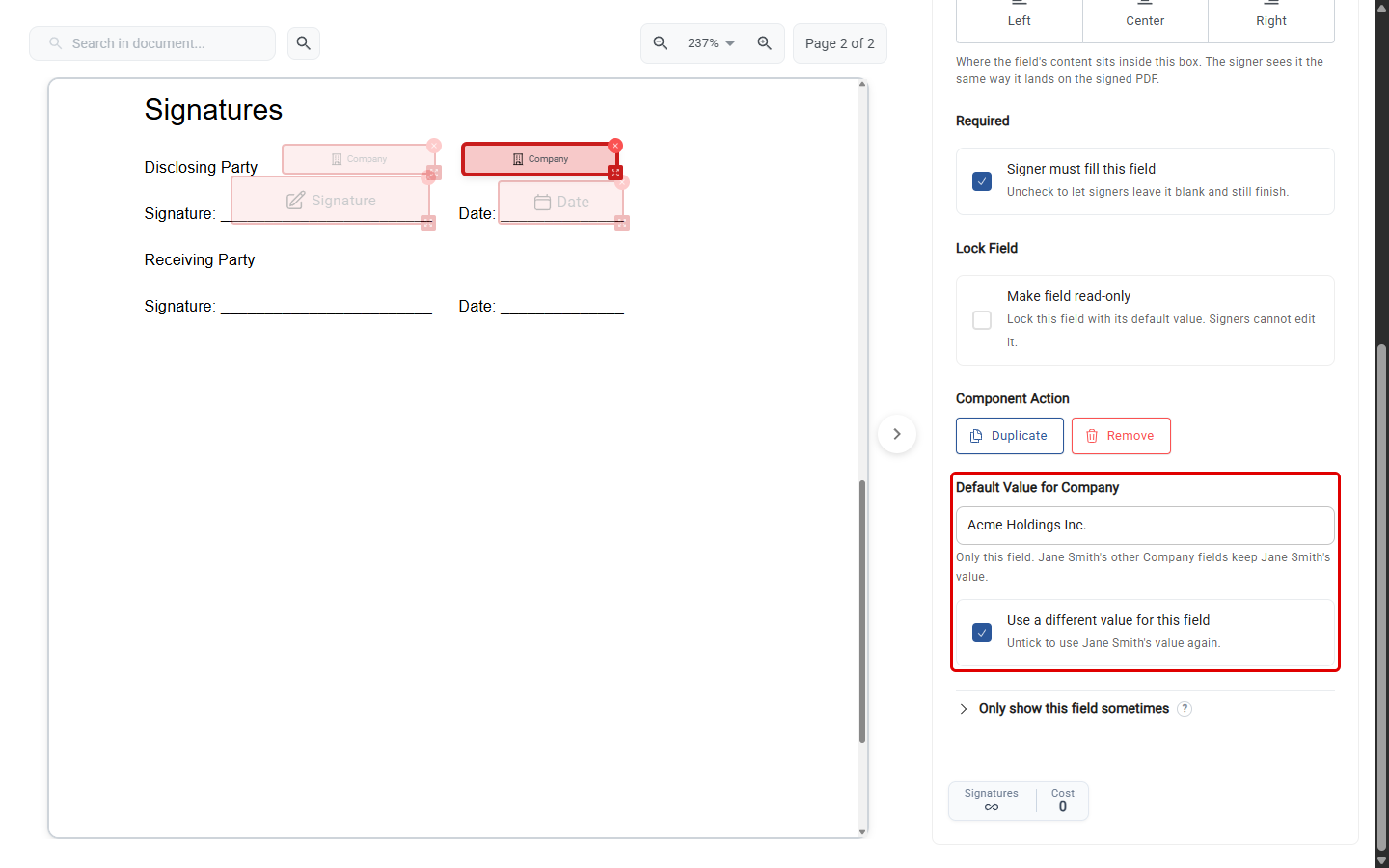
That field now keeps its own value. Changing the signer's value no longer changes it, and it keeps its value if you assign it to another signer. Untick Use a different value for this field to make the field follow the signer's value again.
Text fields always have their own value, in Default Value for This Field.
Signature and Initials fields have no default value: the signer always signs them.
If a saved setup or draft already had a field whose value differed from its signer's, that field opens with Use a different value for this field ticked, so it keeps exactly the value it had.
Step 5: Set the email and reminders
Click the ⋮ button in the top right corner, then Document Settings (for a Word or PowerPoint template) or Signature Settings (for a PDF template).
- Deliverable Name / Document Name: the name of the document. For a PDF template this is the name signers see, and it's saved with the setup.
- Signature Email Description: the message signers see in the signature request email.
- Reminders & expiration: automatic reminder emails to signers who haven't signed yet, and when the signing link stops working. These start from your organization's e-signature settings. Change them here to apply them to this template only.
For a Word or PowerPoint template, the email and reminder settings appear once you've added a signer.
Step 6: Save the setup to the template
- Click the ⋮ button in the top right corner.
- Click Save signature setup to template.
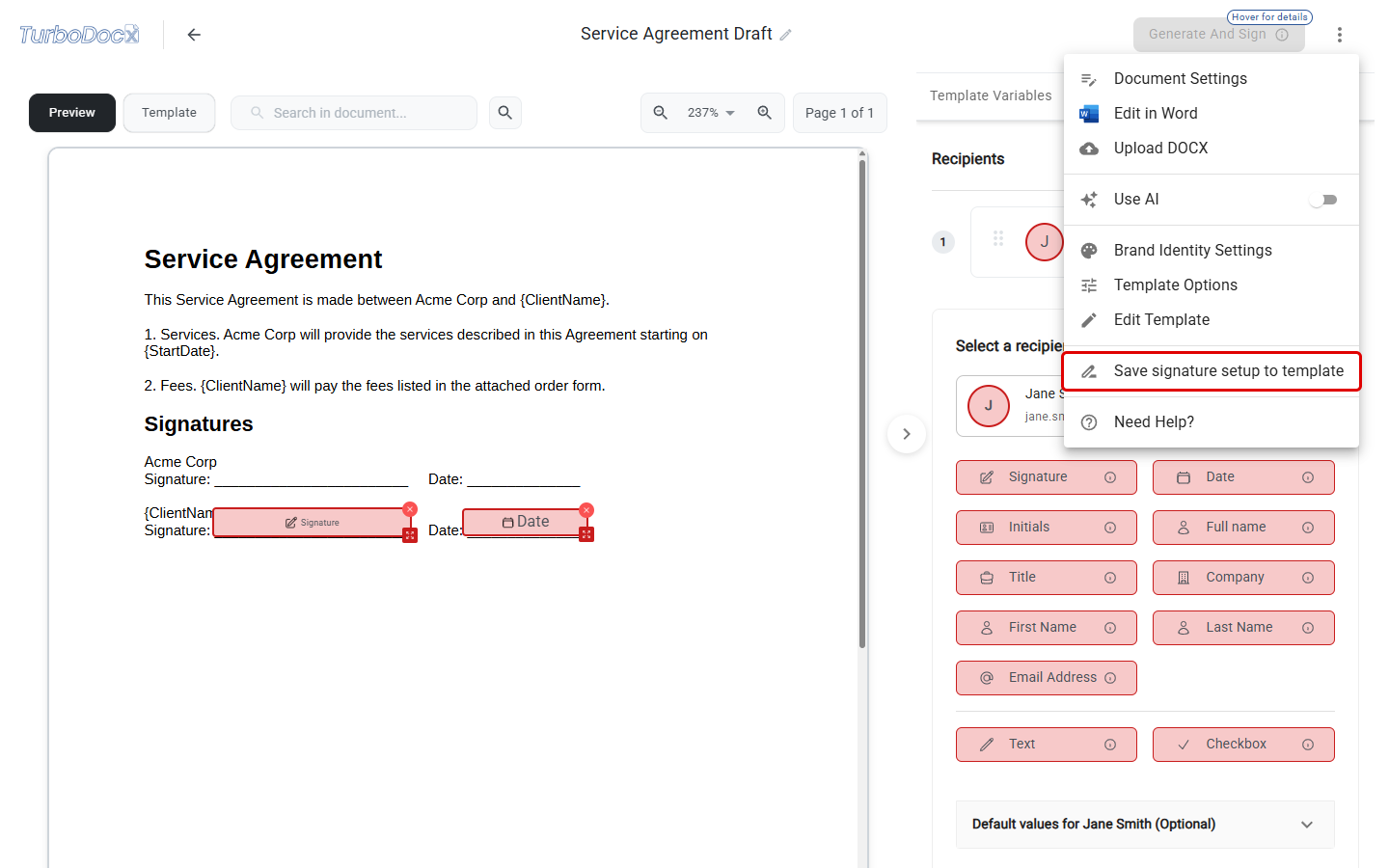
You'll see Signature setup saved to this template. It will be reused next time you send it for signing.
Only Administrators and Contributors can save or delete a template's signature setup. Anyone who can send documents can use it. The menu item appears once there is something to save, for example a signer.
Saving replaces the template's previous setup. Changes you make on the page while sending are only for that send: the saved setup stays the same until someone saves again.
Use the saved setup
From then on, every time anyone opens the template's generate page, the signers, fields, CC recipients, message and reminder settings are already filled in. Check them, fill in the template's variables if it has any, and click Generate And Sign or Get It Signed.
You can also start from TurboSign:
- Click New Signature.
- Under Or Start with an Existing Document, click the Templates tab and pick the template.
- Click Continue.
The request opens with the saved signers, fields, CC recipients, message and reminder settings. For a PDF template, the document is named with the saved document name (or the template's name if none was saved).
See the setup on the template's page
The template's own page shows its saved setup without changing it. To open it, click ⋮ → Edit Template on the generate page, or open the template's menu in the Templates list and choose Edit Template & Preferences.
- Word and PowerPoint templates: use the Variables | Signature setup switch at the top of the left column. A green dot on Signature setup means the template has one.
- PDF templates: the setup is shown right away, since there are no variables.
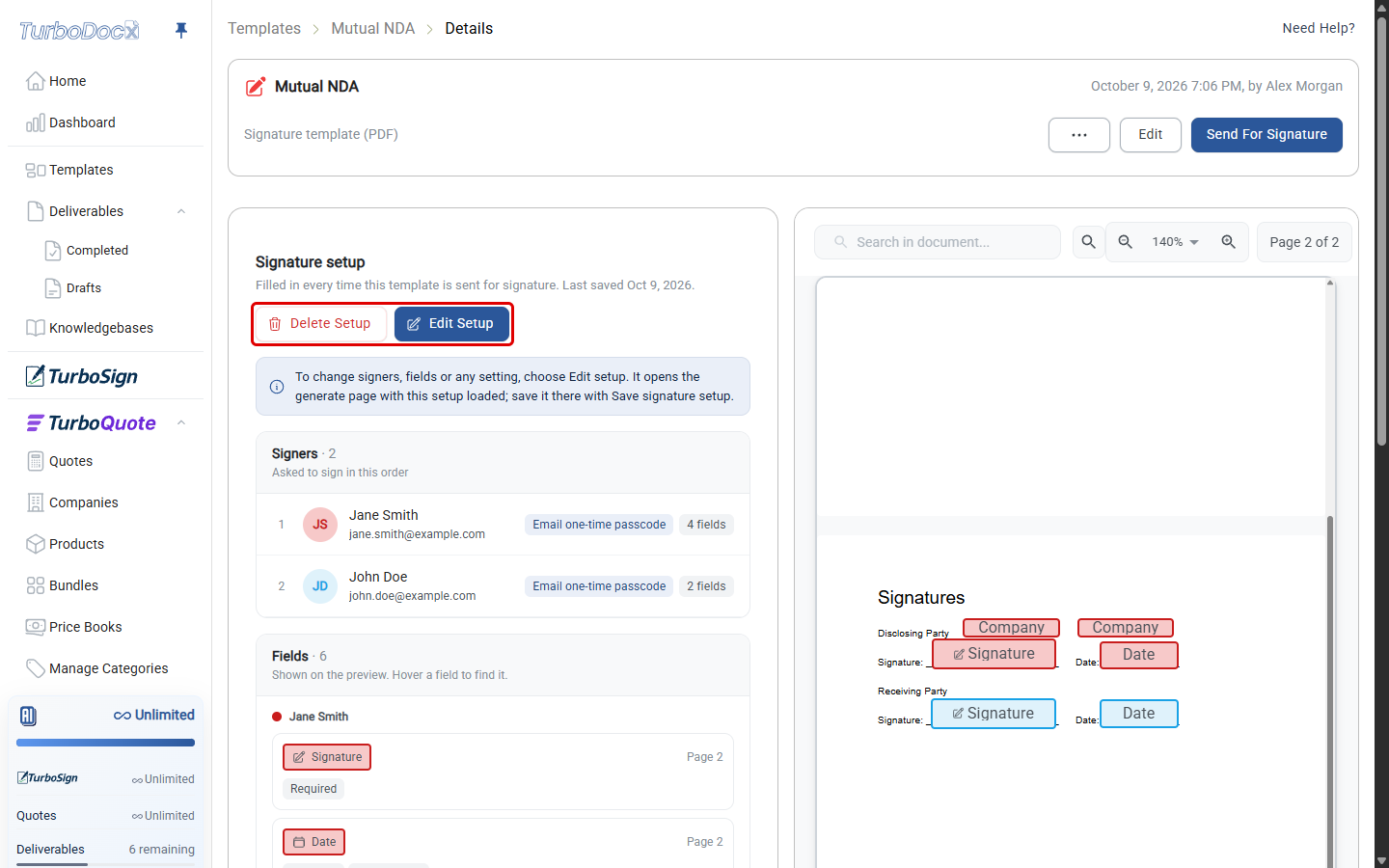
The page shows:
- Signers: in signing order, with each signer's verification method and number of fields.
- Fields: one card per field, grouped by signer, showing what the field looks like, its page, and its settings: Required or Optional, Read-only, Multi-line, Aligned left or Aligned right, Signing date, Fixed date or Checked by default, Own value for a field that uses its own value, and the field's default value.
- Email to signers: the document name (PDF templates), the message, and CC recipients.
- Reminders & expiration: Organization defaults, or Changed for this template with a summary.
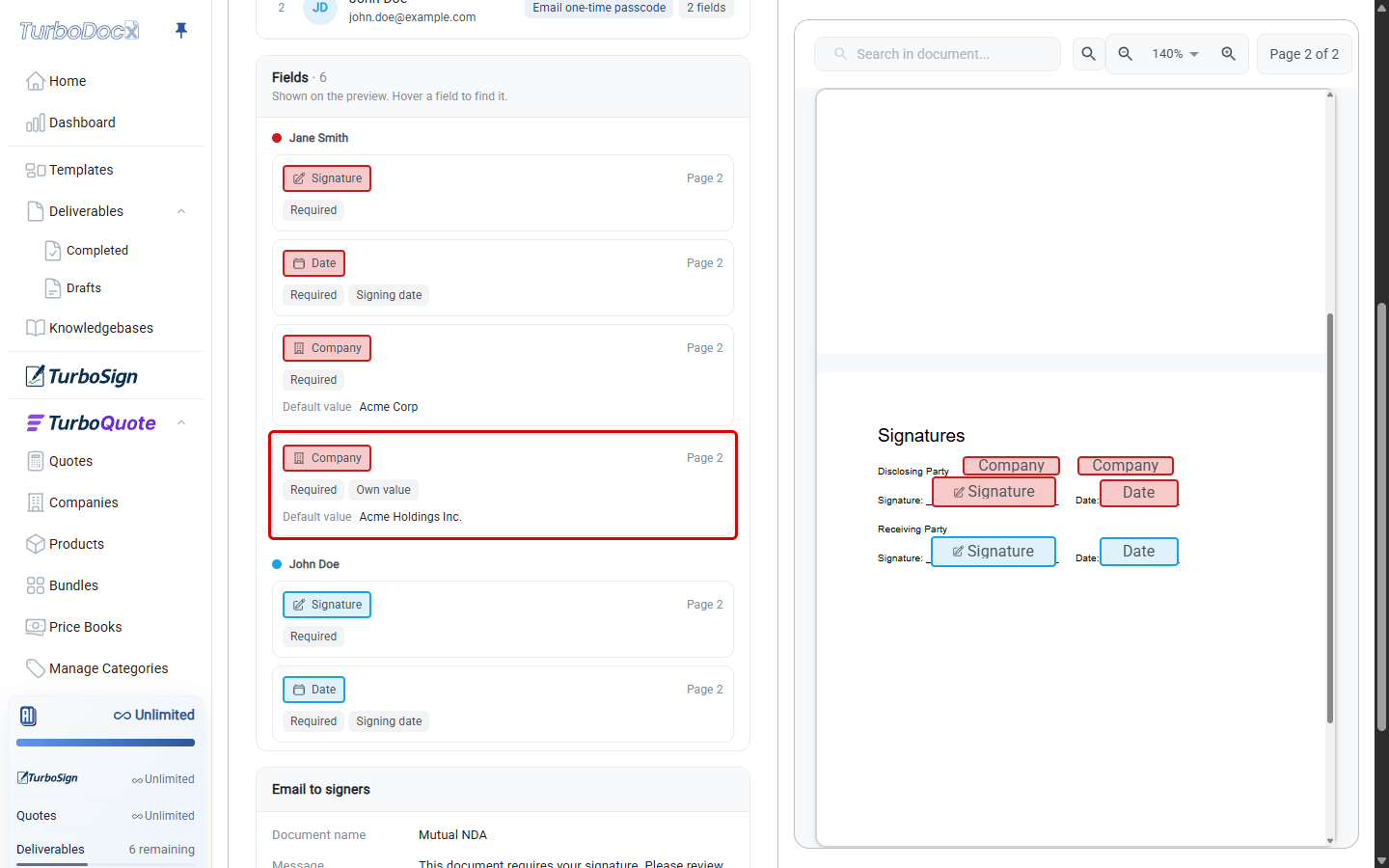
The saved fields are drawn on the document preview. Hover over a field card to highlight that field and scroll the preview to it.
Change or remove the setup
- Change it: on the template's page, click Edit Setup. The generate page opens on its Signatures (or Prepare & Sign) tab with the setup loaded. Make your changes, then click ⋮ → Save signature setup to template.
- Remove it: on the template's page, click Delete Setup and confirm, or click ⋮ → Delete signature setup from template on the generate page. Documents you already sent aren't affected. New sends start with no signers or fields.
- No setup yet? The template's page shows No signature setup yet. Click Set Up On The Generate Page to create one.
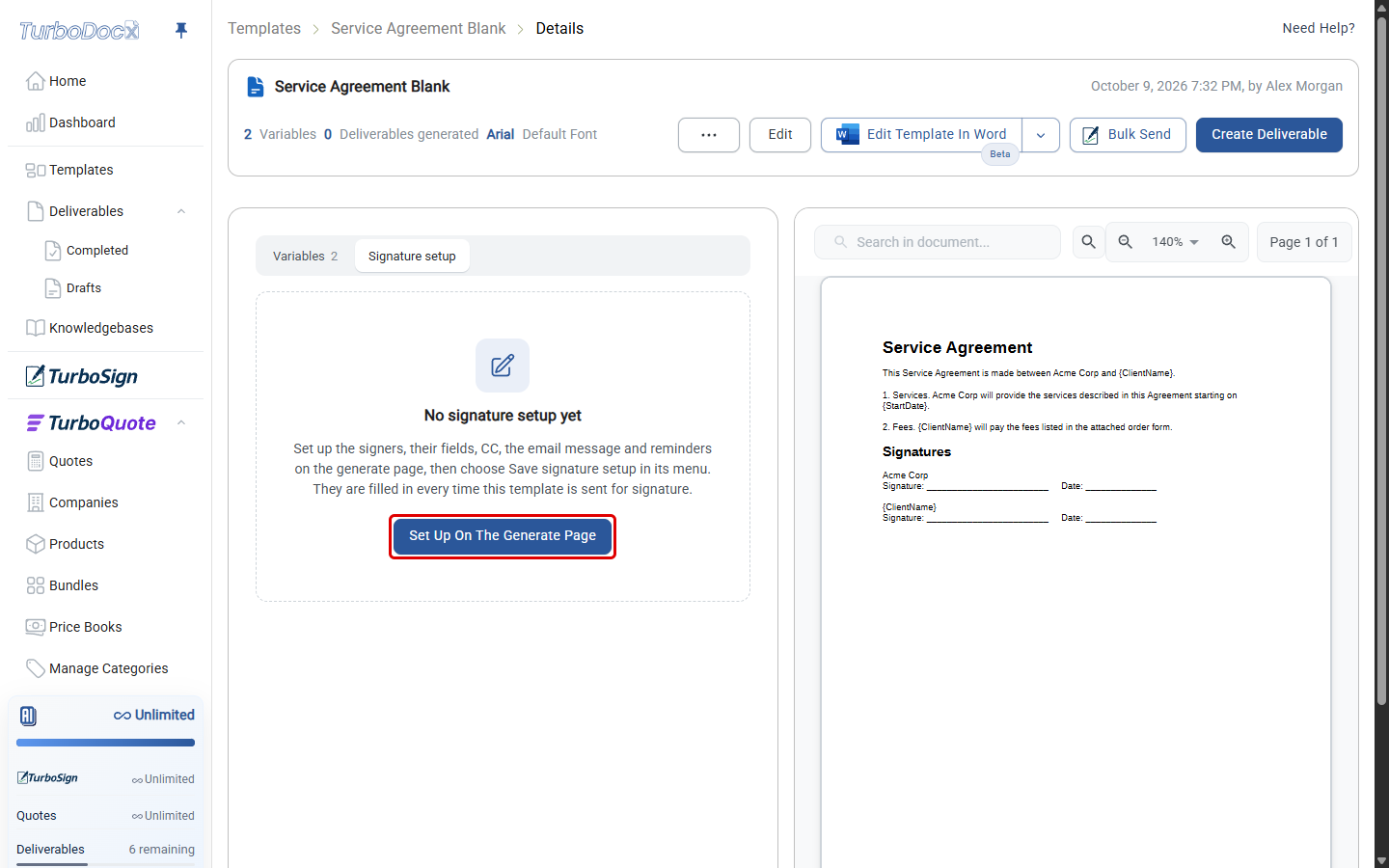
Edit Setup, Delete Setup and Set Up On The Generate Page are shown to Administrators and Contributors only.
Save a setup from TurboSign
You can also save a setup while preparing a request in TurboSign. On the page where you place the fields, click the ⋮ button next to Send Document, then Save signature setup to template. If the request started from a template, the setup is saved to that template. If you uploaded a file, choose the template to save it to.
Fields are saved at exact positions on the page. If you save a setup to a different template, or later replace the template's file, open the template's page and check that the fields still sit where they should.
Drafts keep everything
Work on a template's generate page is saved as a draft as you go, under Deliverables → Drafts in the left sidebar. A draft keeps the whole Signatures tab: signers, fields at their exact positions, CC recipients, the message, and reminder settings. Open the draft to carry on where you left off. Once the request is sent, the draft is deleted.
Drafts are kept in the browser you worked in. To share a setup with your team, save it to the template instead.
Good to know
- A saved setup is used in the TurboDocx app. Requests sent through the TurboSign API use the recipients and fields in the request. The one exception is a PDF template with signer roles, which the API can send by role. See Use it from code.