How to Configure Quote Numbering
This guide walks you through setting up a custom quote number for your organization. You choose the format (prefix, year, month, and how many digits), pick the starting number, and decide when the count resets. A live preview shows the exact number your next quote will receive.
What You'll Accomplish
By the end of this guide, you will have:
- ⚙️ Opened the Quote Settings for your organization
- 🔤 Built a quote number format with a prefix, year, month, and digit padding
- 🔢 Set the starting number and chosen when the count resets
- 👀 Previewed the next quote number live
- 💾 Saved your new numbering scheme
Quote numbering is an organization-wide setting, so you need an Administrator role. Changes apply to every new quote created after you save — existing quotes keep their numbers.
Step 1: Open your organization Settings
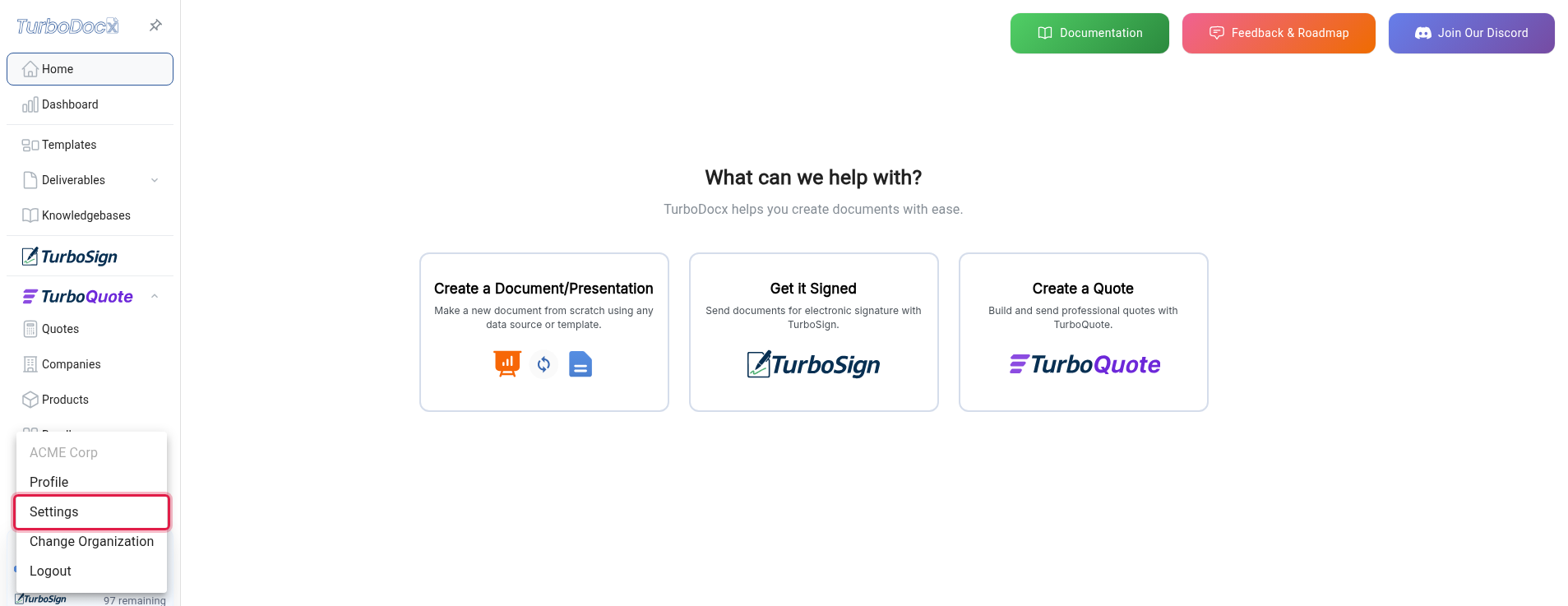
From anywhere in TurboDocx, open the user menu in the top-right of the left sidebar (your avatar), then select Settings.
Instruction: Click your User Avatar, then click Settings.
Step 2: Open the Quote Settings tab
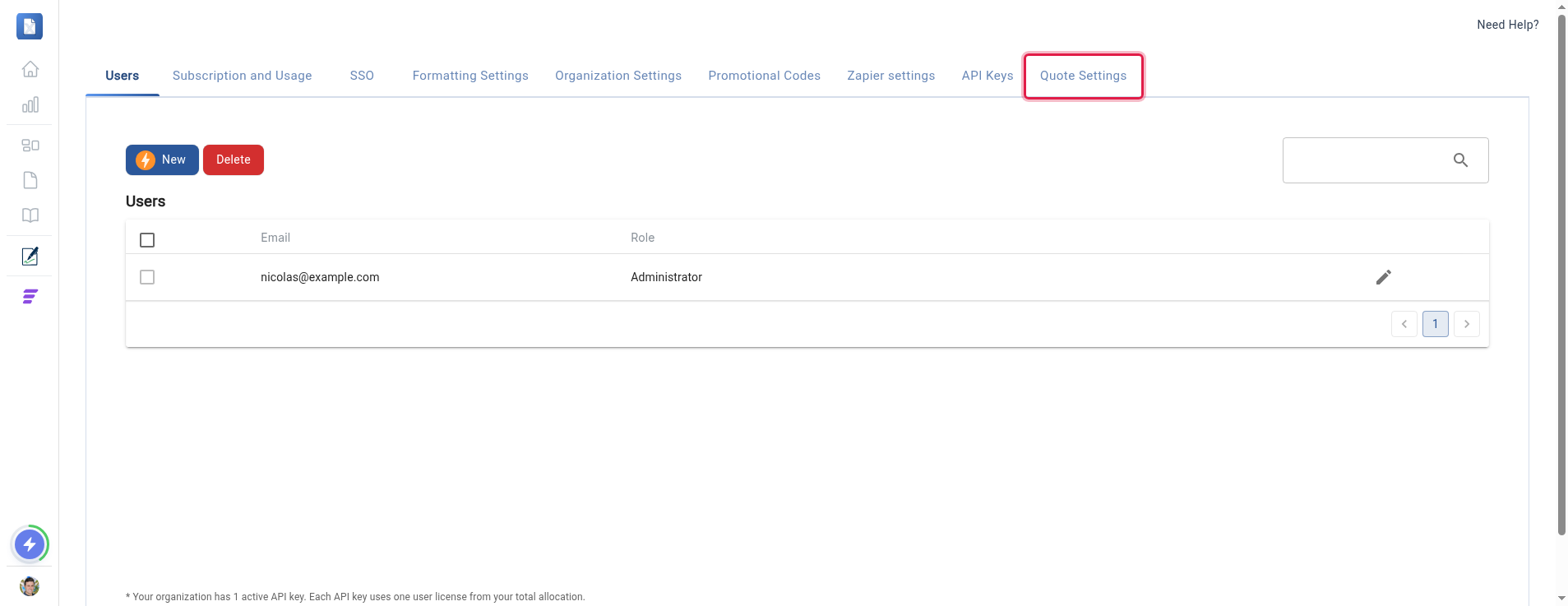
The Settings page has a row of tabs across the top. The quote number options live on the Quote Settings tab.
Instruction: Click the Quote Settings tab.
Step 3: Build your number format
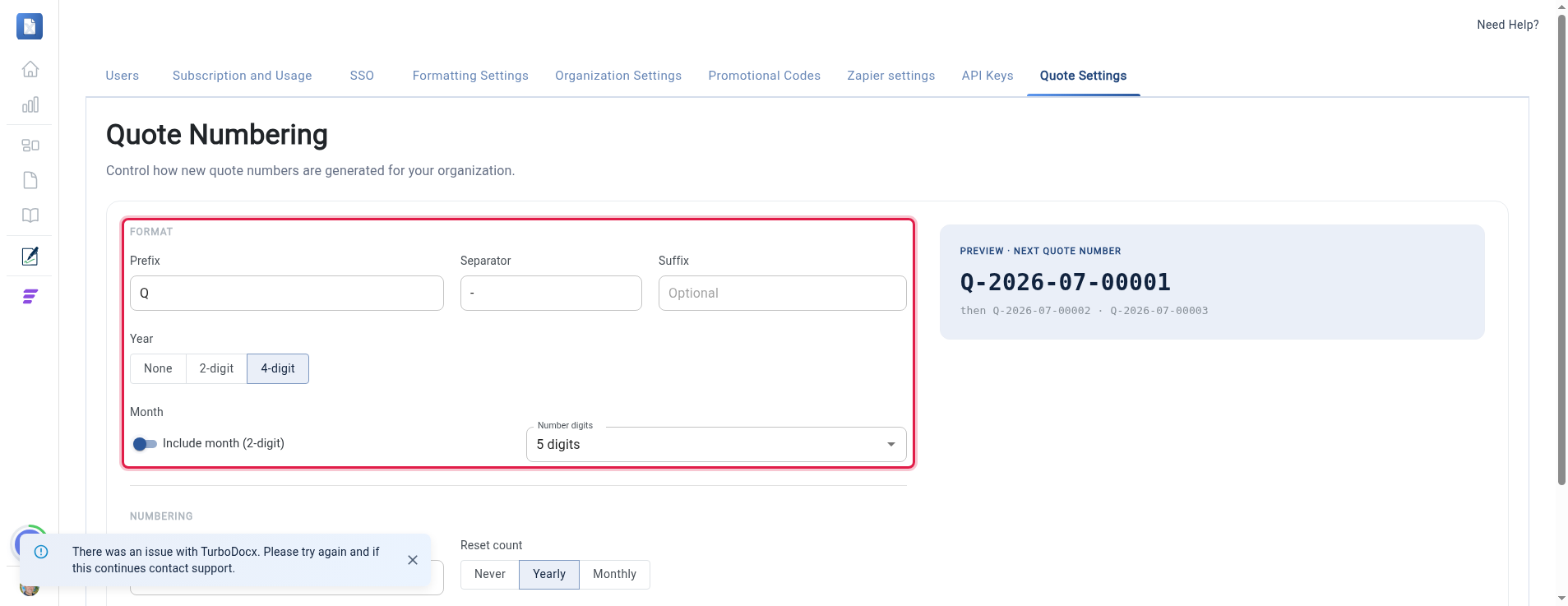
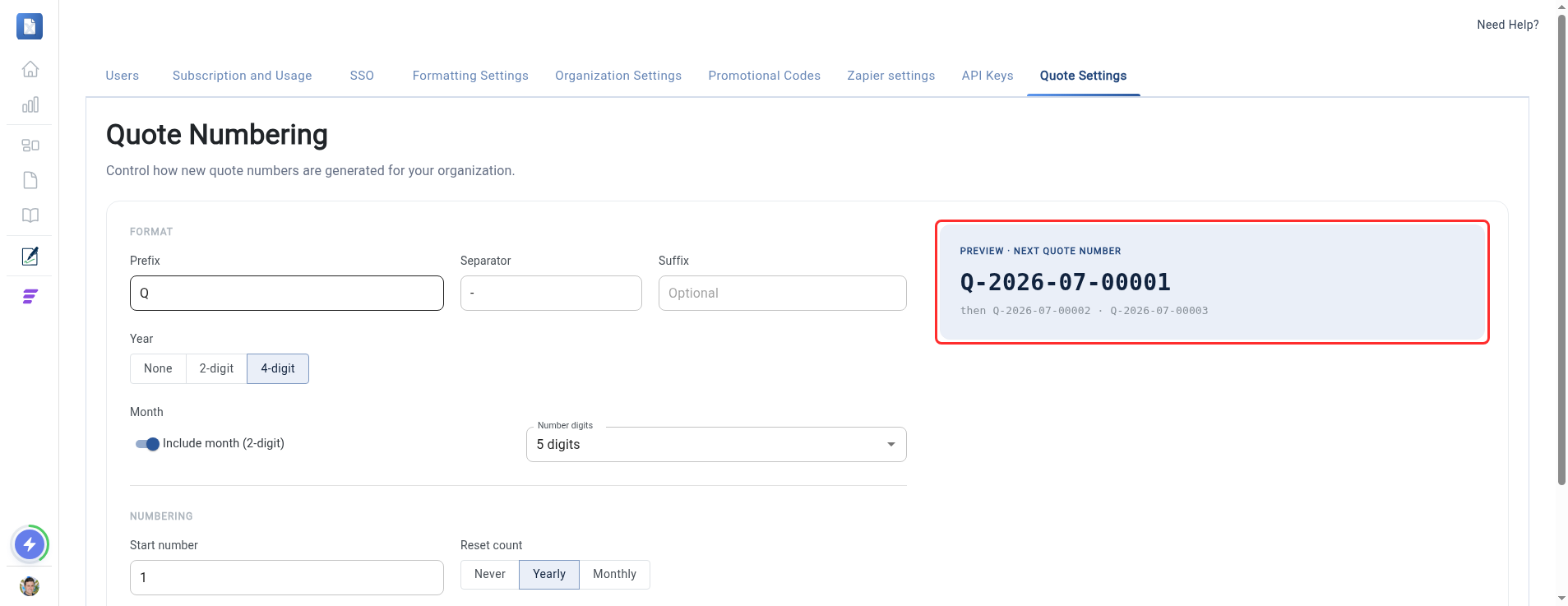
The Format section controls what a quote number looks like. Fill in the parts you want:
- Prefix — text that starts every number (for example,
Q). - Separator — the character placed between each part (for example,
-). - Suffix — optional text added to the end.
- Year — choose None, 2-digit (
26), or 4-digit (2026). - Month — turn on Include month (2-digit) to add the month (for example,
07). - Number digits — how many digits the running count is padded to (for example, 5 digits shows
00001).
Instruction: Set the Prefix, Separator, and Suffix, then choose your Year, Month, and Number digits options.
Step 4: Set the starting number and reset cadence
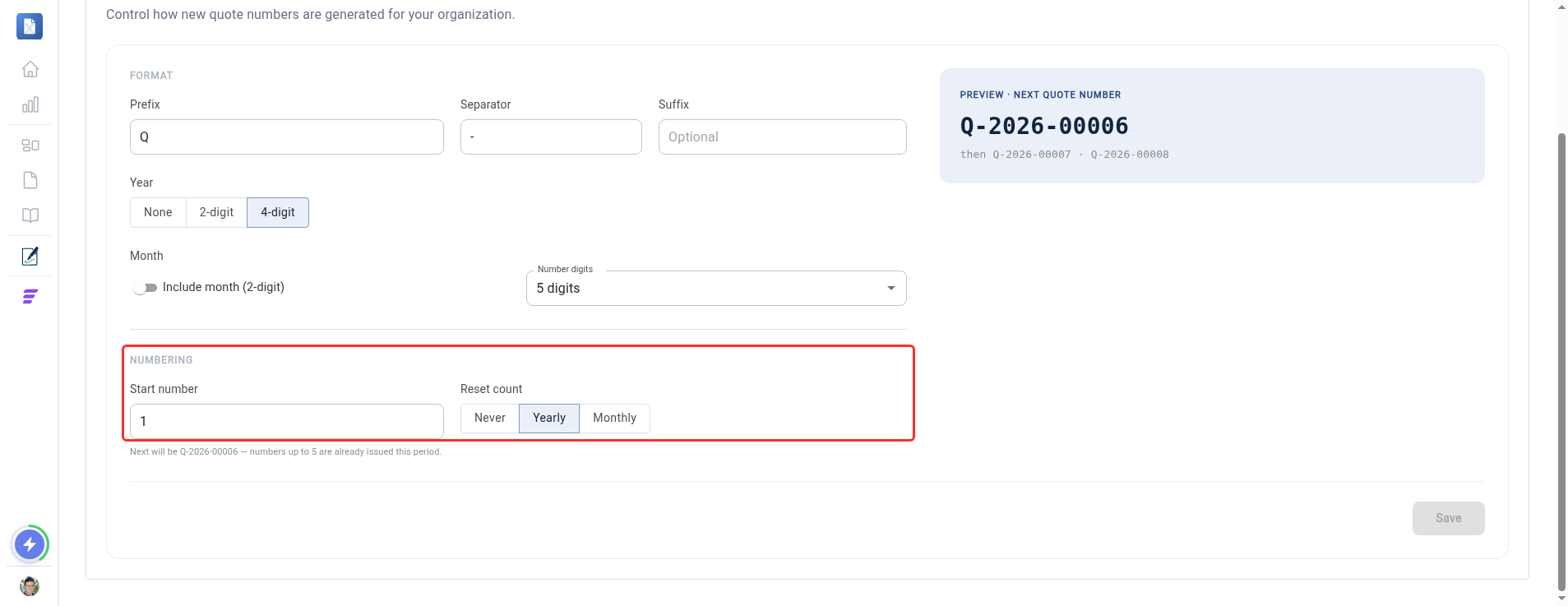
The Numbering section controls the running count.
- Start number — the first sequence number to use (for example,
1). - Reset count — choose Never (the count keeps climbing forever), Yearly (it restarts at your start number each new year), or Monthly (it restarts each new month).
Instruction: Enter a Start number, then choose a Reset count of Never, Yearly, or Monthly.
If you reset Monthly, include the Month in your format (Step 3) so numbers stay unique across months — otherwise a fresh 00001 could repeat each month.
Step 5: Check the live preview
As you change the format, the Preview · Next Quote Number box updates instantly. It shows the exact number your next quote will get, followed by the two after it.
Instruction: Read the Preview to confirm the next quote number looks the way you want.
Step 6: Save your settings
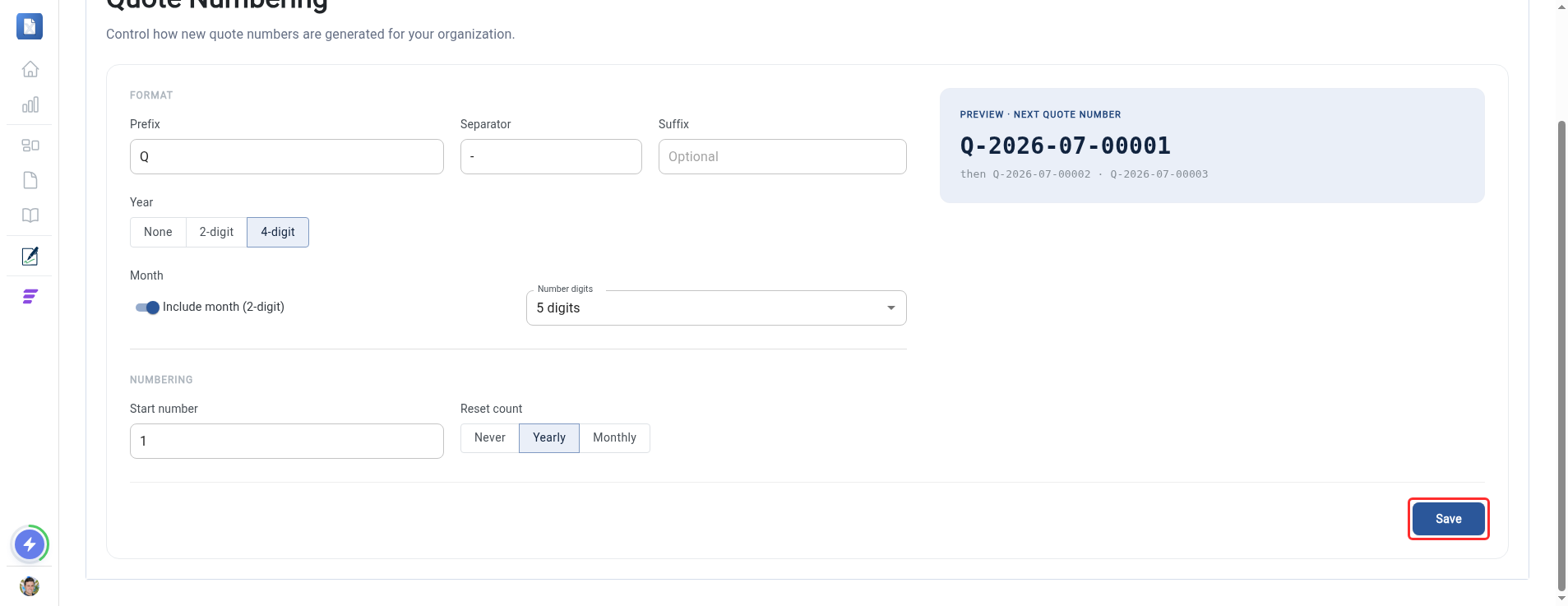
When the preview looks right, save. The Save button becomes active as soon as you make a change.
Instruction: Click Save.
Every new quote your organization creates from now on uses this format and picks up the next number in the sequence automatically.