How to Set Your Quote Sender Information
Every quote shows a "Prepared by" block with a name, phone, and email so your customer knows who sent it. This guide walks you through setting that information once for your whole organization, so it appears consistently on every quote — no matter who creates or sends it.
What You'll Accomplish
By the end of this guide, you will have:
- ⚙️ Opened your organization's quote template settings
- ✍️ Set a Sender Name, Sender Phone, and Sender Email
- 💾 Saved your changes
- 👀 Confirmed the new information appears in the "Prepared by" preview
Quote sender information is an organization-wide setting, so you need an Administrator role. Once saved, it applies to every quote — including quotes created through the API, SDKs, or n8n, which have no mailbox of their own and rely entirely on this setting.
Step 1: Open your organization Settings
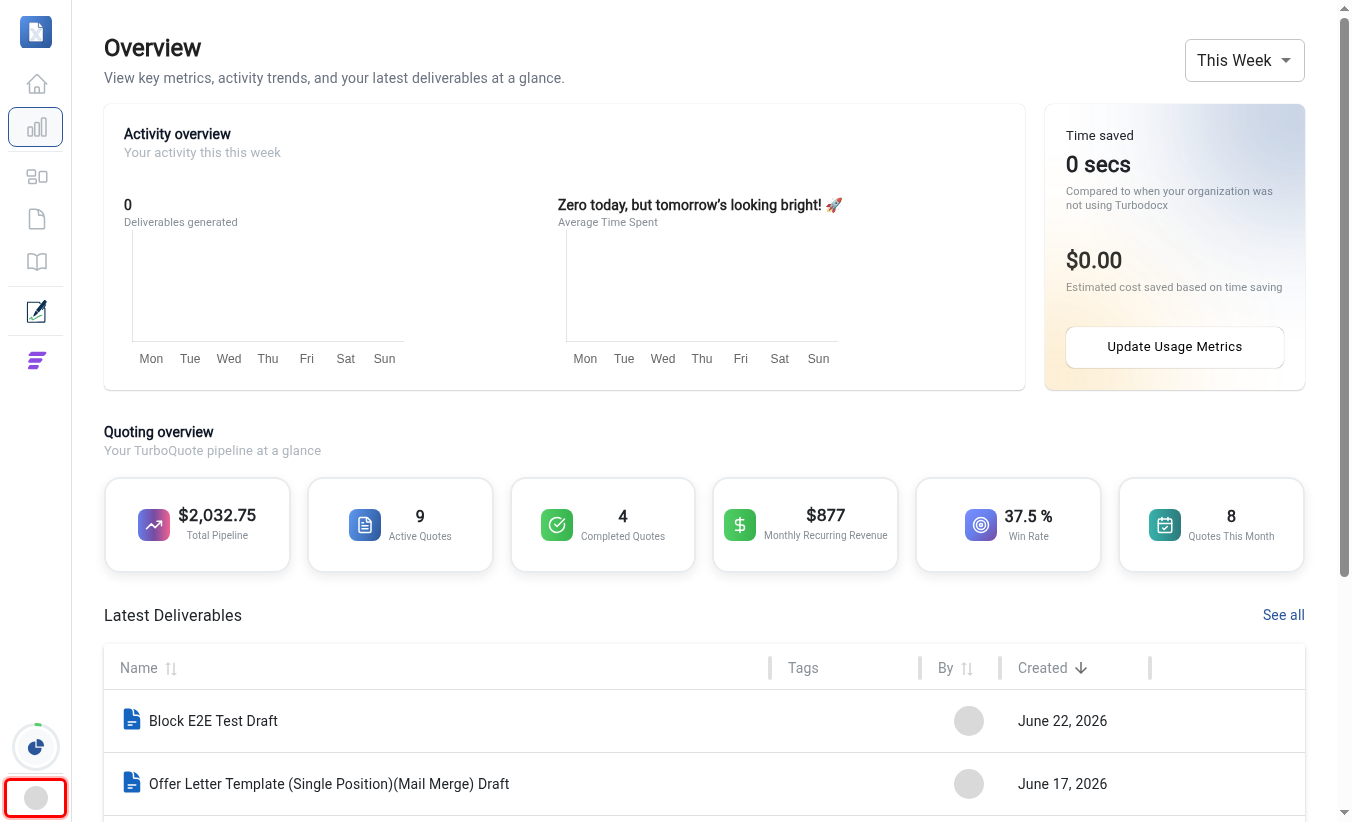
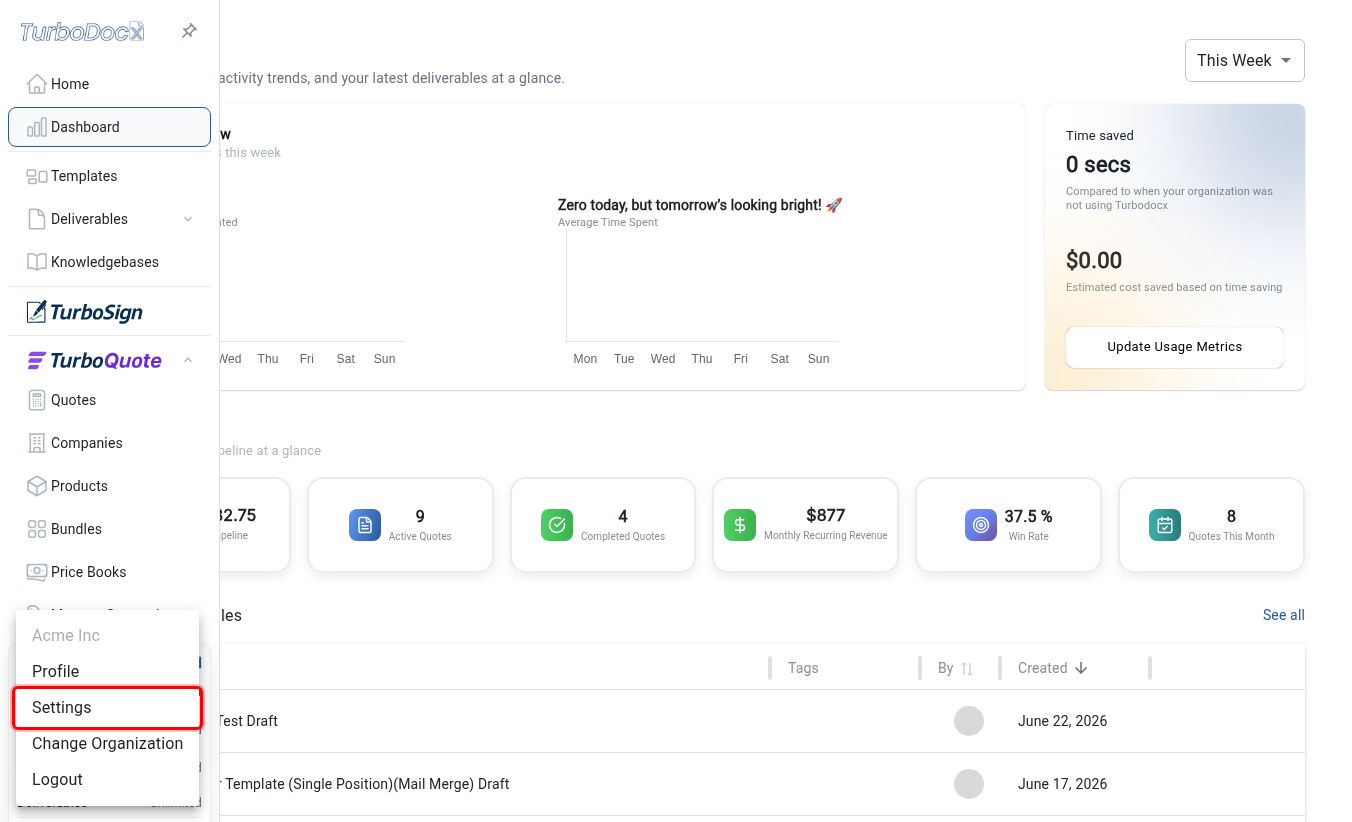
From anywhere in TurboDocx, open the user menu in the top-right of the left sidebar (your avatar), then select Settings.
Instruction: Click your User Avatar, then click Settings.
Step 2: Open the Formatting Settings tab
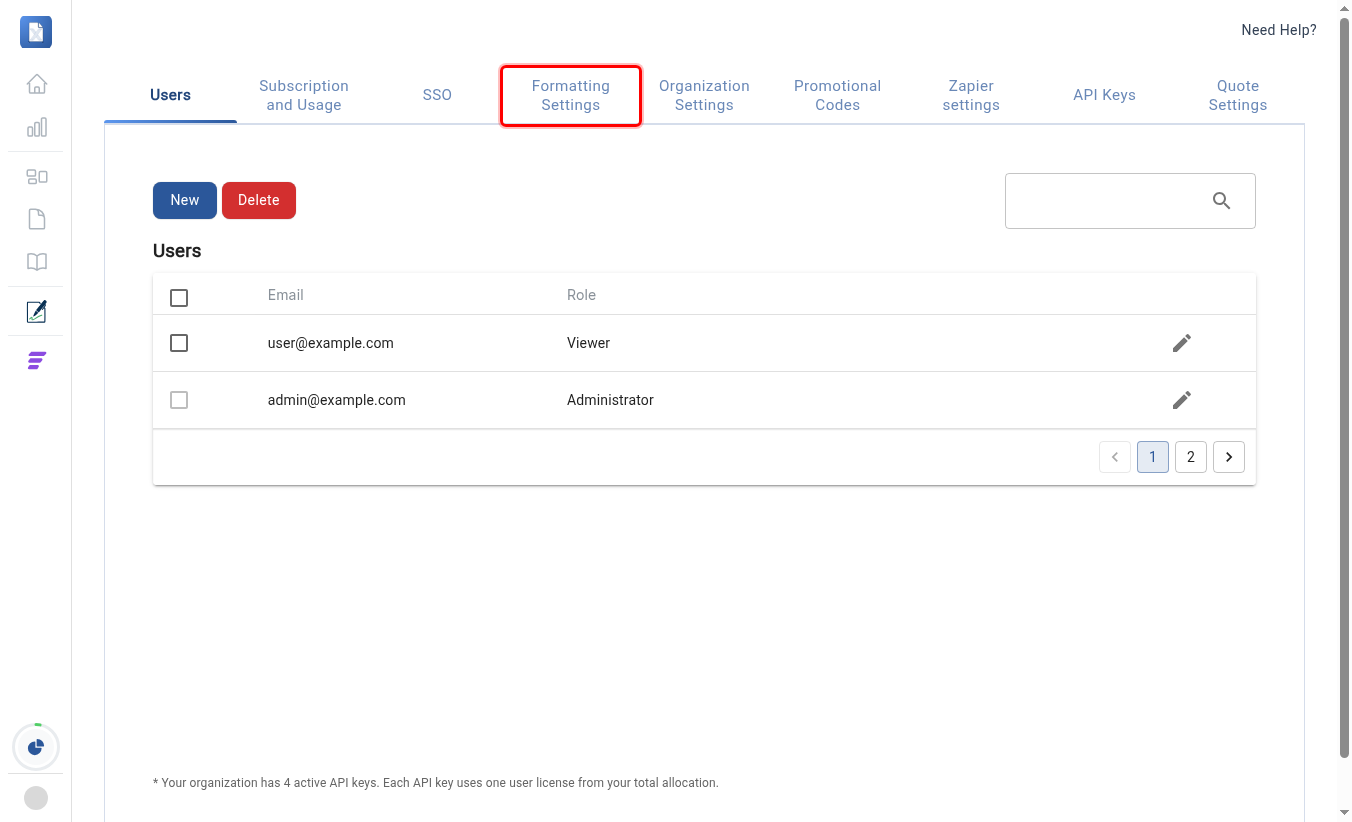
The Settings page has a row of tabs across the top. Sender information lives on the Formatting Settings tab.
Instruction: Click the Formatting Settings tab.
Step 3: Switch to the TurboQuote settings tab
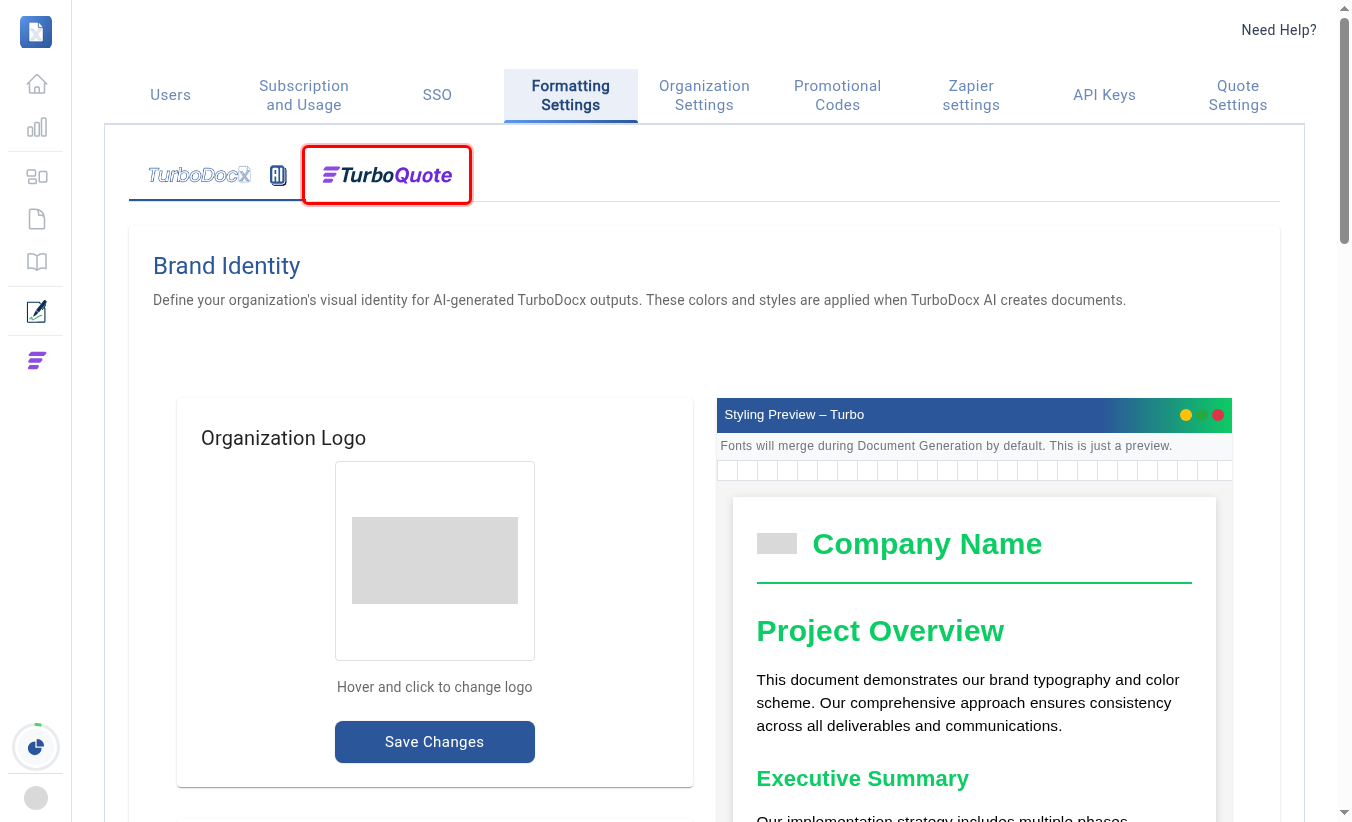
Formatting Settings has its own two tabs — one for TurboDocx documents, one for TurboQuote. Sender information for quotes lives under the TurboQuote tab.
Instruction: Click the TurboQuote settings tab.
Step 4: Fill in your Sender Information
Scroll down to the Sender Information section. This is exactly what appears as "Prepared by" on your quotes, shown live in the Quote Preview on the right.
- Sender Name — the name your customers see (for example, your own name or a team name).
- Sender Phone — an optional contact number.
- Sender Email — the reply-to address customers use to reach you.
Instruction: Enter your Sender Name, Sender Phone, and Sender Email.
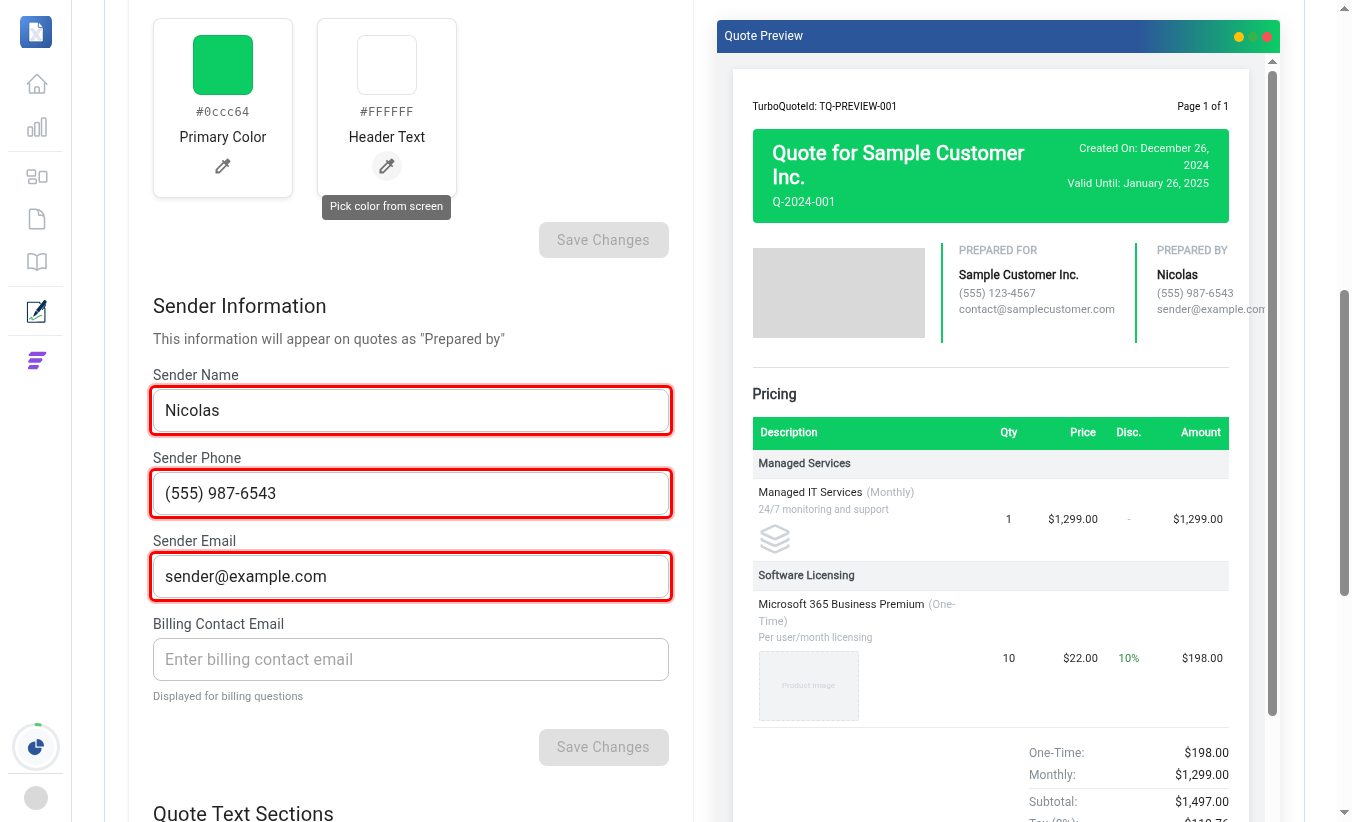
A quote created through the API, an SDK, or an n8n workflow has no mailbox of its own — its "Prepared by" email can only come from this template. If it's not set, those calls are rejected with 400 SenderEmailRequired until you configure it here.
Step 5: Save your changes
The Save Changes button for this section becomes active as soon as you make a change.
Instruction: Click Save Changes.
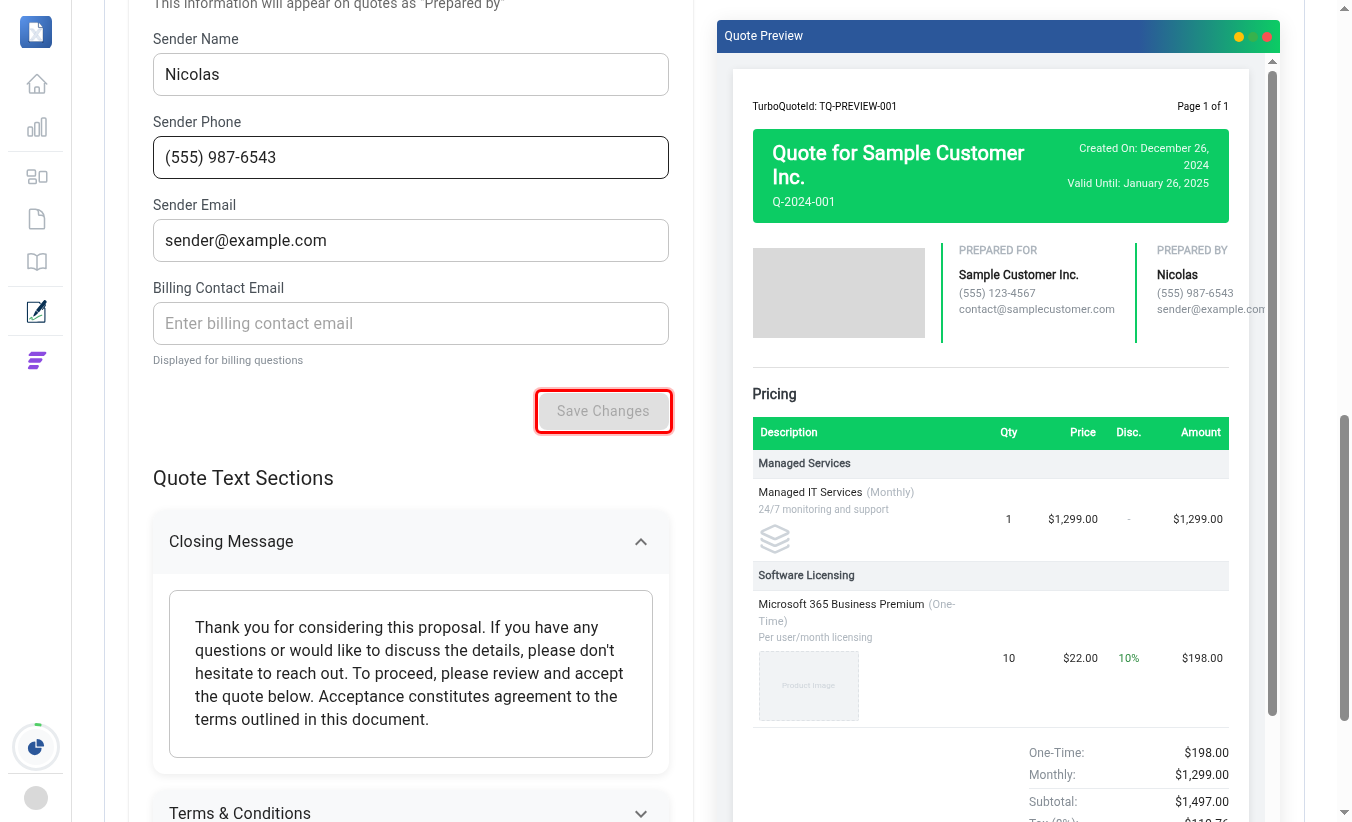
Once saved, the button greys out again and the Quote Preview on the right reflects your new Sender Name, Phone, and Email under "Prepared by."
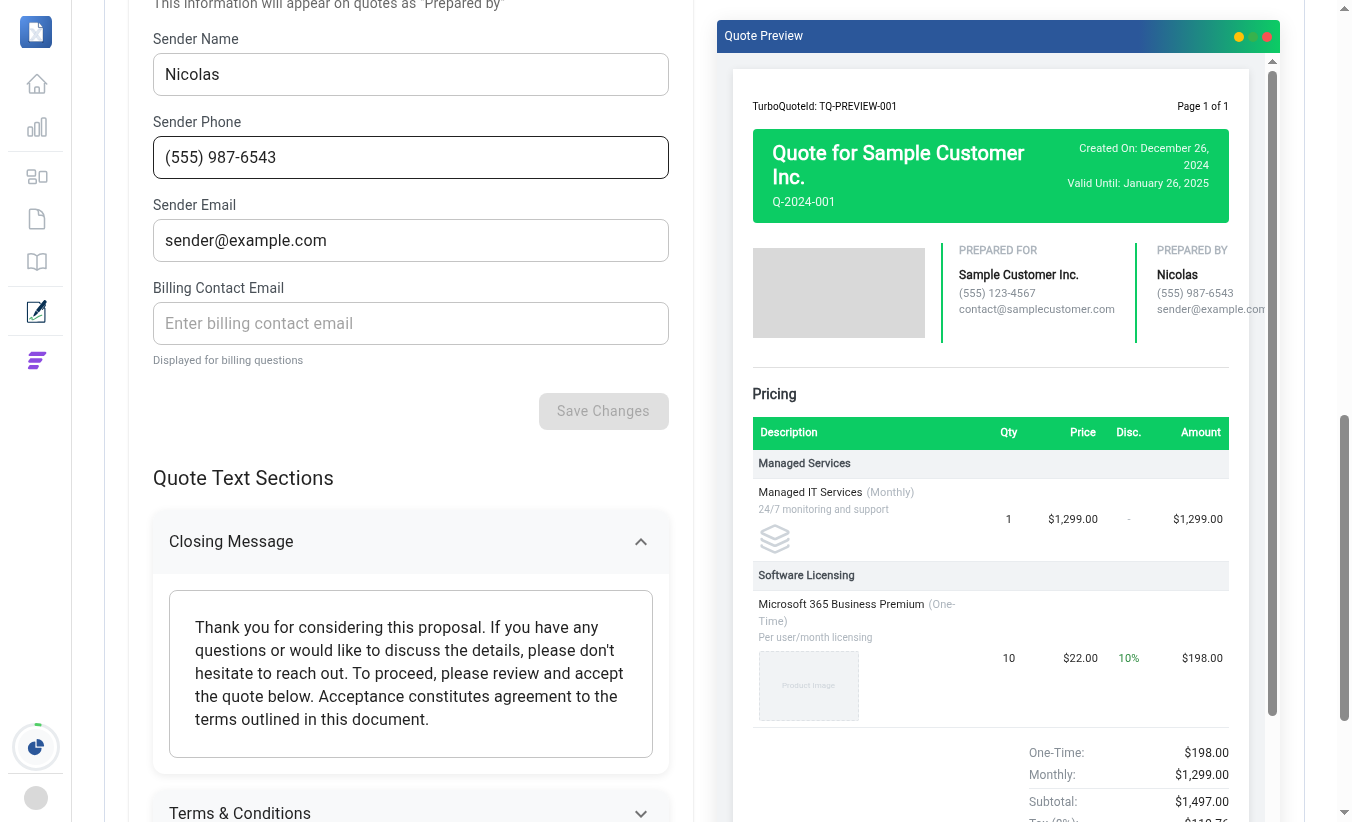
Every quote — created in the app, through the API, an SDK, or n8n — now shows this Sender Information as "Prepared by." See Prepared By & Sender Identity for exactly how that resolution works and what happens for API-created quotes.