How to Setup Static Field Mapping
Static field mapping lets you map Wrike custom fields directly to TurboDocx template variables. When a document is generated, the exact value from the Wrike field is placed into the template variable — no AI interpretation or transformation is applied.
Prerequisites
- A template uploaded to TurboDocx with at least one variable
- A connected Wrike account (see Setting Up a Wrike Automation)
Map a Wrike Field
Step 1: Select Your Template
Navigate to your templates and select the template you want to configure with Wrike field mappings.
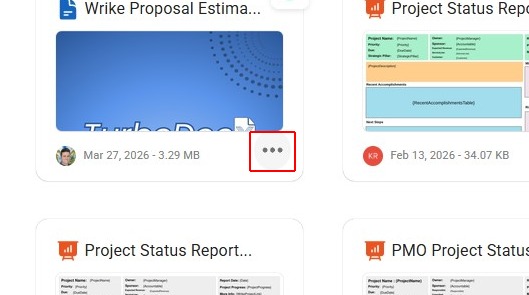
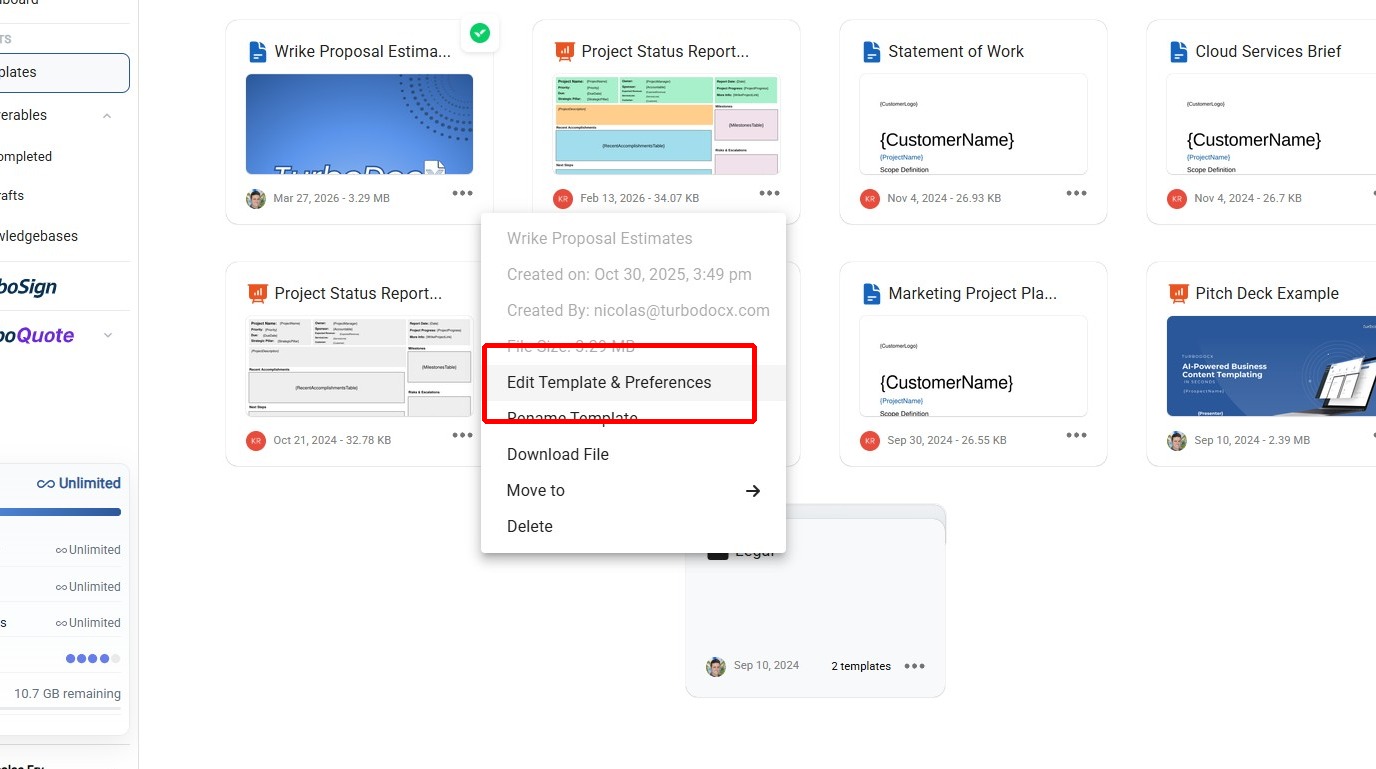
Step 2: Open Template Preferences
Click Edit Template & Preferences to open the template configuration view.
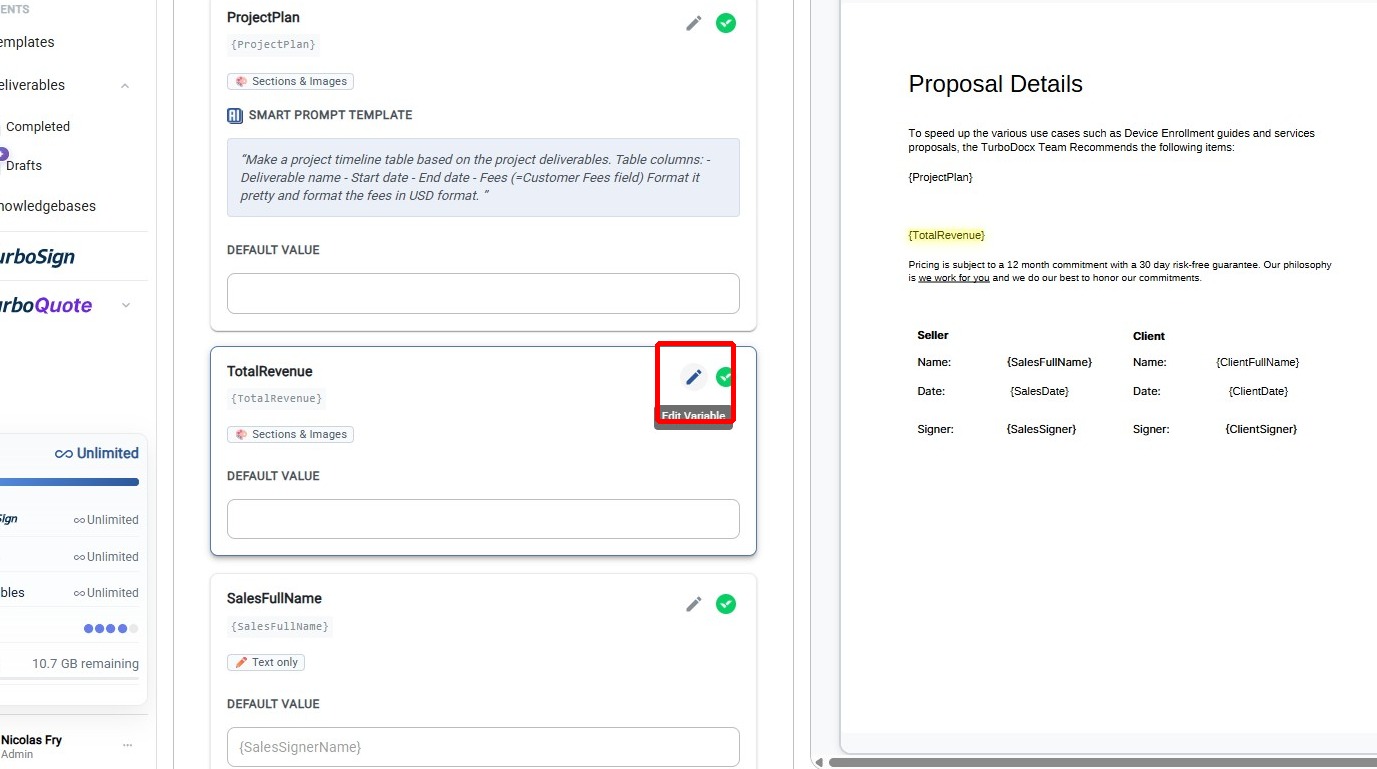
Step 3: Open Variable Settings
Click the settings icon on the variable you want to map to a Wrike field.
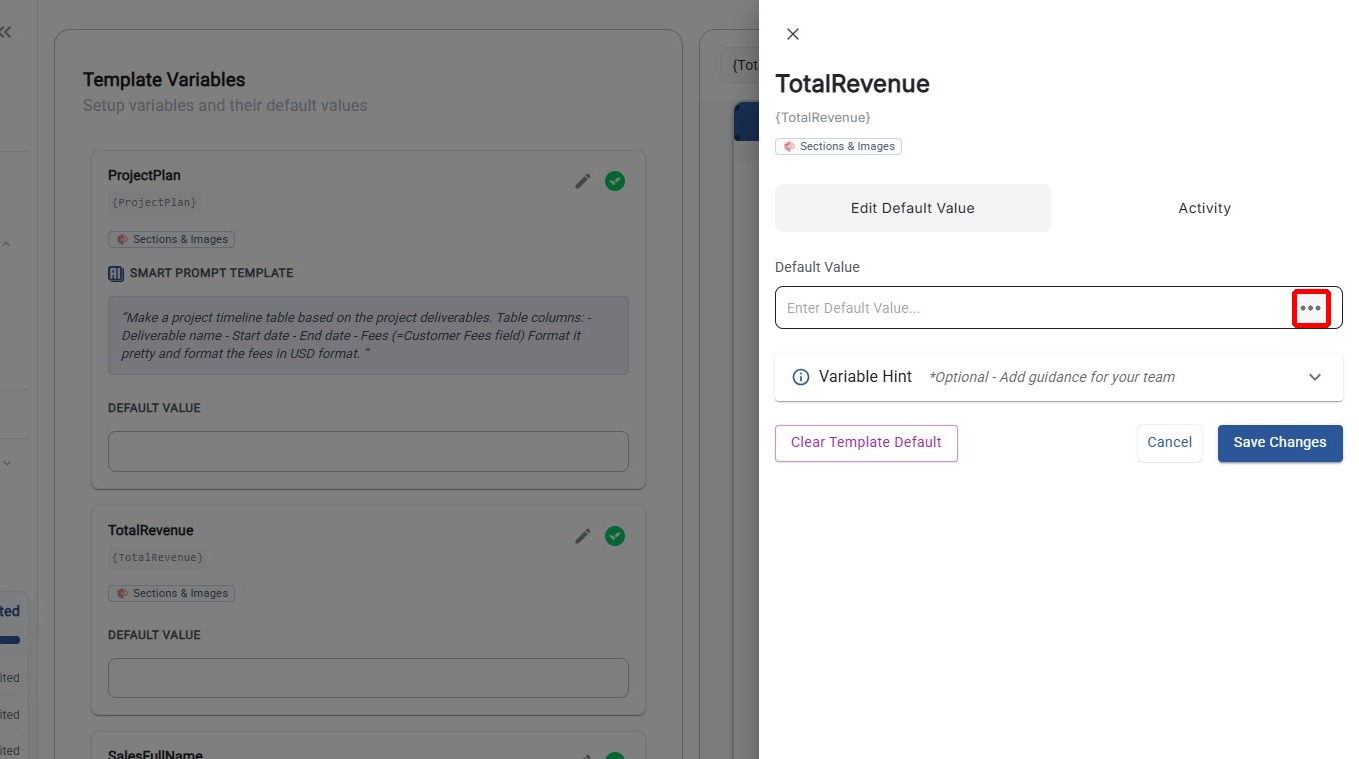
Step 4: Open the Field Type Menu
Click the field type selector to change the variable's data source.
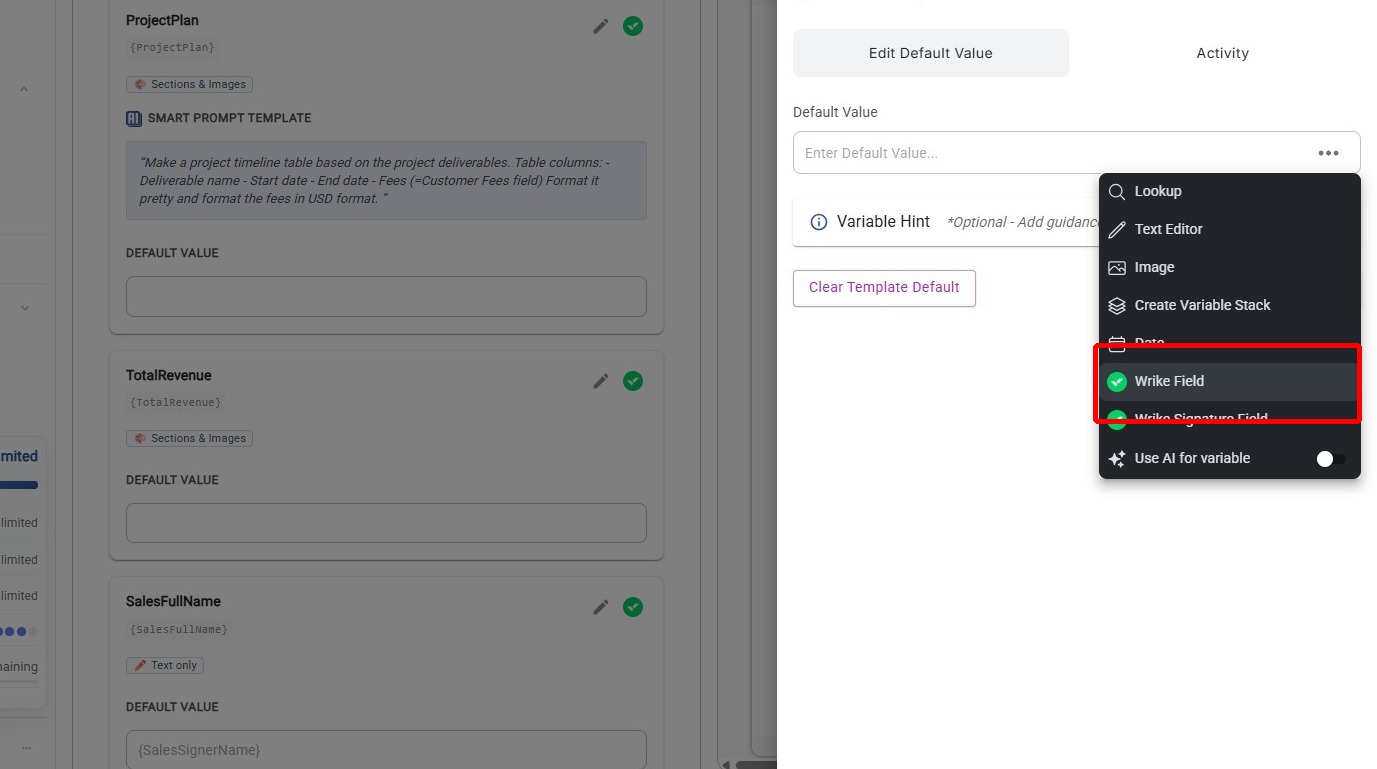
Step 5: Select "Wrike Field"
Choose Wrike Field from the field type options. This tells TurboDocx to pull data from a Wrike custom field when generating the document.
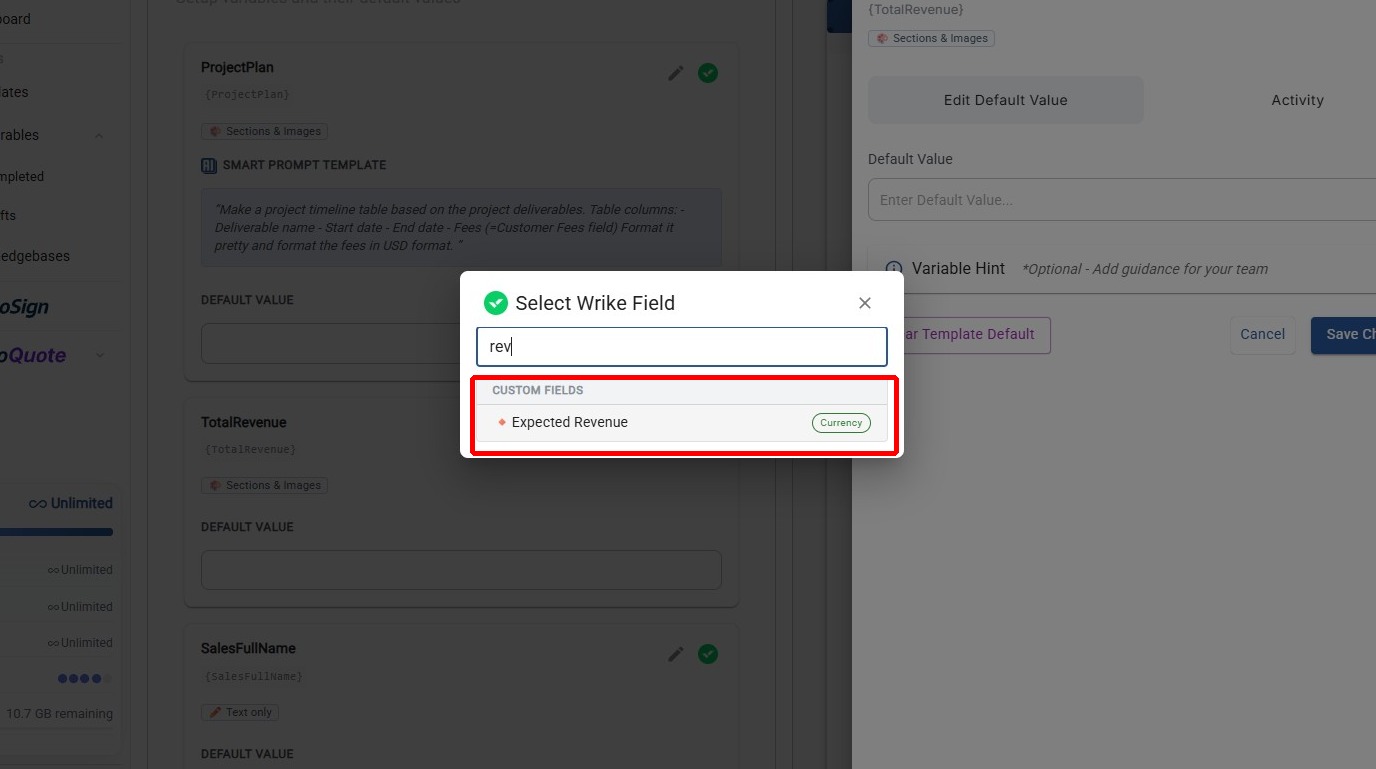
Step 6: Search and Select the Wrike Field
Use the search box to look up the Wrike custom field you want to map (e.g., "Revenue", "Budget", or any custom field in your Wrike workspace), then click it from the results to map it to your template variable.
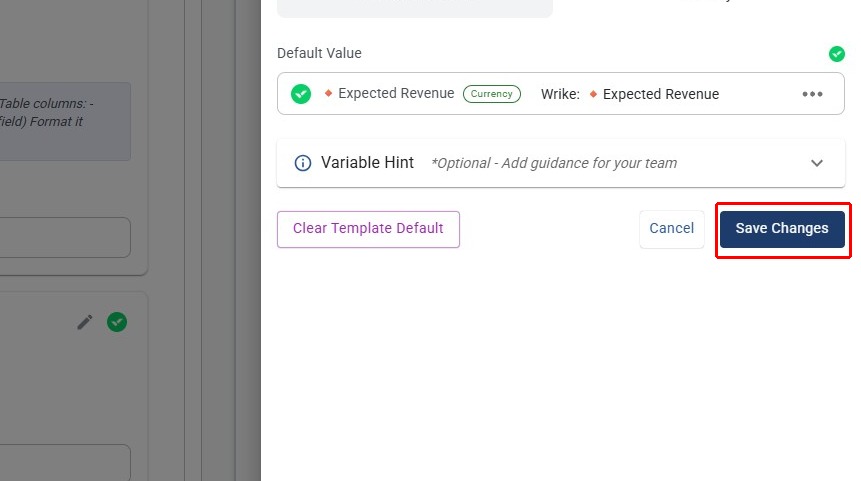
Step 7: Save Changes
Click Save Changes to persist the field mapping.
How It Works at Generation Time
When a Wrike automation triggers document generation, TurboDocx reads the mapped custom field values from the Wrike task and places them directly into the corresponding template variables — the value is used exactly as-is with no AI processing.
This is different from AI-mapped variables, which use AI to interpret and generate content from Wrike data. Static mapping is ideal for structured data like revenue figures, dates, project codes, and other fields where you need the exact value.
You can map multiple variables in the same template to different Wrike fields. Repeat steps 3–7 for each variable you want to connect.