How to Add Signature Anchors
Signature anchors are special template variables that tell TurboSign where to place signature elements (name, date, signature) in your generated documents. This guide walks you through adding them to your template.
Prerequisites
- A template uploaded to TurboDocx with signature variables (e.g.,
{SalesSigner}) - An e-signature automation configured (see How to Setup E-Signature Automation)
Add Signature Anchors
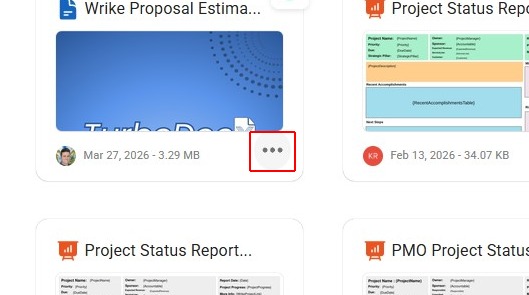
Step 1: Select Your Template
Navigate to your templates and select the template you want to configure with signature anchors.
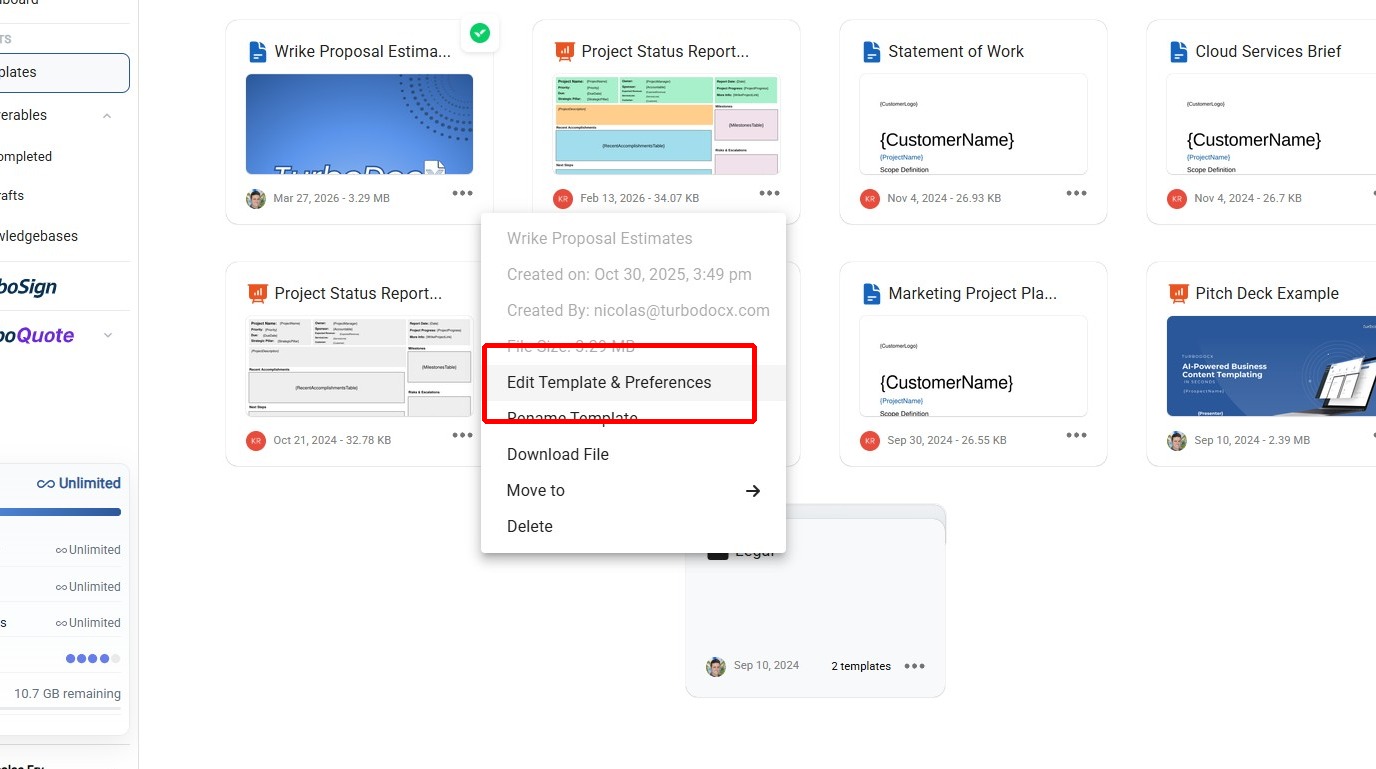
Step 2: Open Template Preferences
Click Edit Template & Preferences to open the template configuration view.
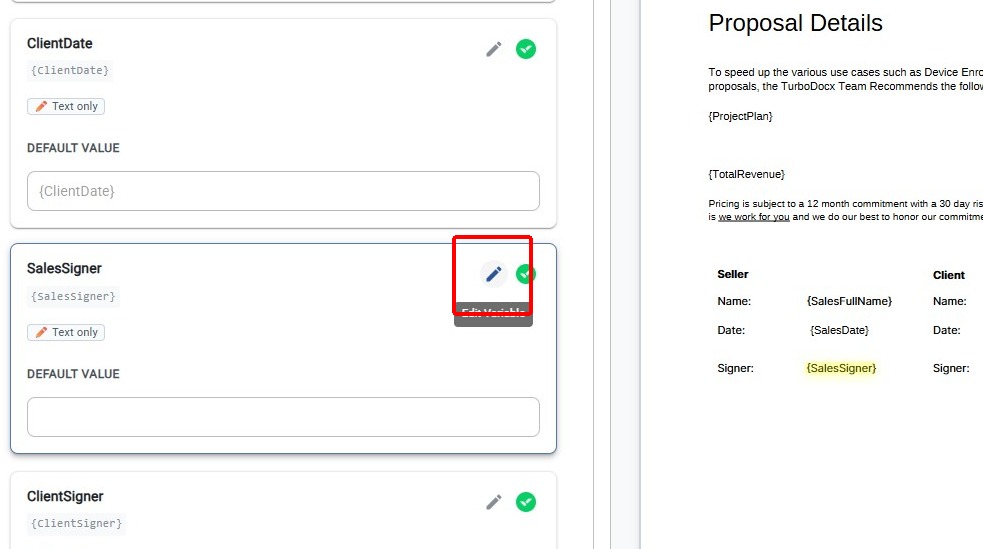
Step 3: Edit the Signature Variable
Click the edit icon on the signature variable you want to configure as an anchor (e.g., SalesSigner).
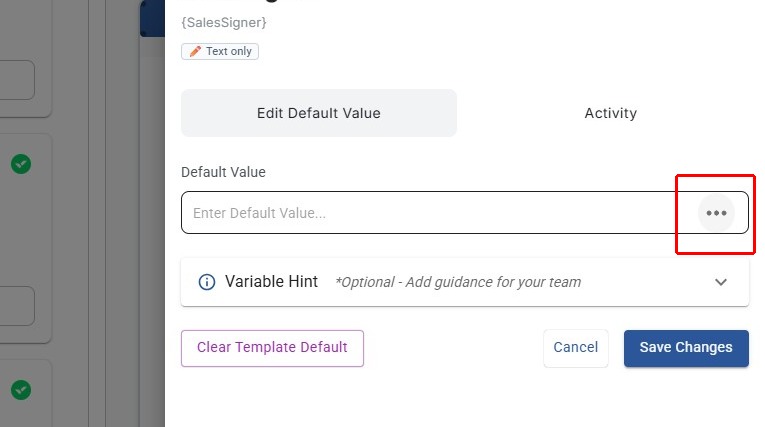
Step 4: Open the Field Type Menu
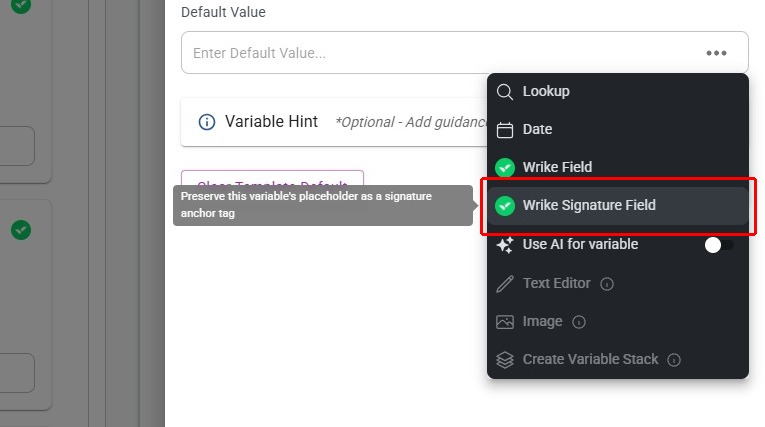
In the variable settings panel, click the ... menu button next to the Default Value field to see the available field type options.
Step 5: Select "Wrike Signature Field"
Choose Wrike Signature Field from the dropdown. This marks the variable as a TurboSign signature anchor that will be used to place signature elements in the generated document.
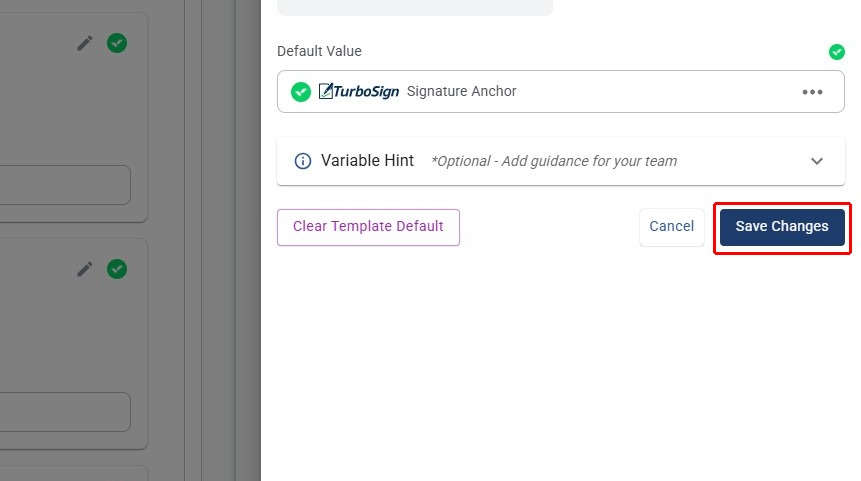
Step 6: Save Changes
The field now shows TurboSign Signature Anchor. Click Save Changes to persist the configuration.
Your signature anchor is now configured. The variable will show a Signature Anchor tag to confirm it's set up correctly.
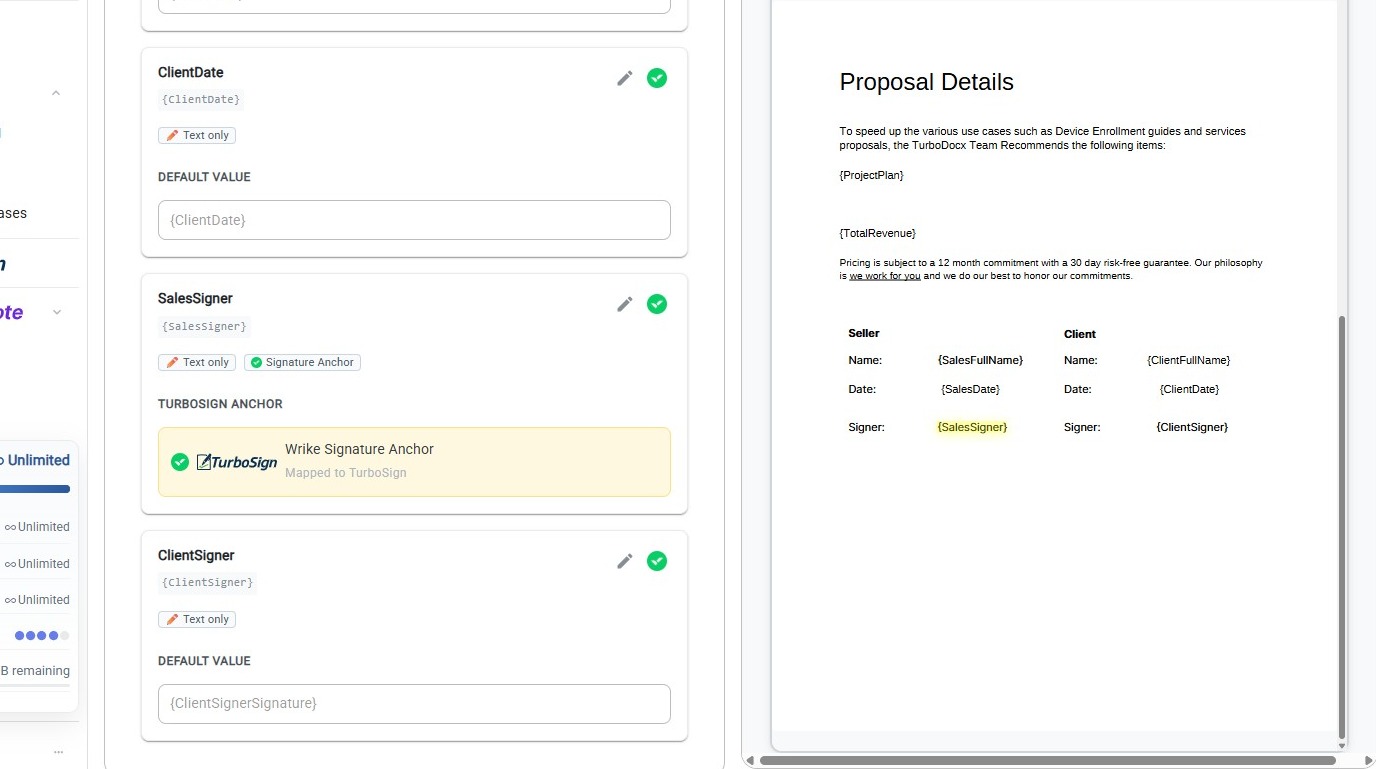
Repeat steps 3–6 for each signature variable in your template (e.g., {SalesSignerName}, {SalesSignerSignature}, {ClientSignerName}, etc.).
The signature anchor variable names you configure here must exactly match the anchor tags in your How to Setup E-Signature Automation. For example, if you set up {SalesSignerSignature} as an anchor here, the anchor tag in your e-signature automation must also be {SalesSignerSignature}. If they don't match, TurboSign won't be able to place the signature fields. See How to Setup E-Signature Automation for how to configure the anchor tags on the automation side.