How to Setup E-Signature Automation
After setting up your Wrike automation with a trigger status and folder, follow these steps to configure it to generate documents and automatically send them for e-signature.
Configure E-Signature Automation
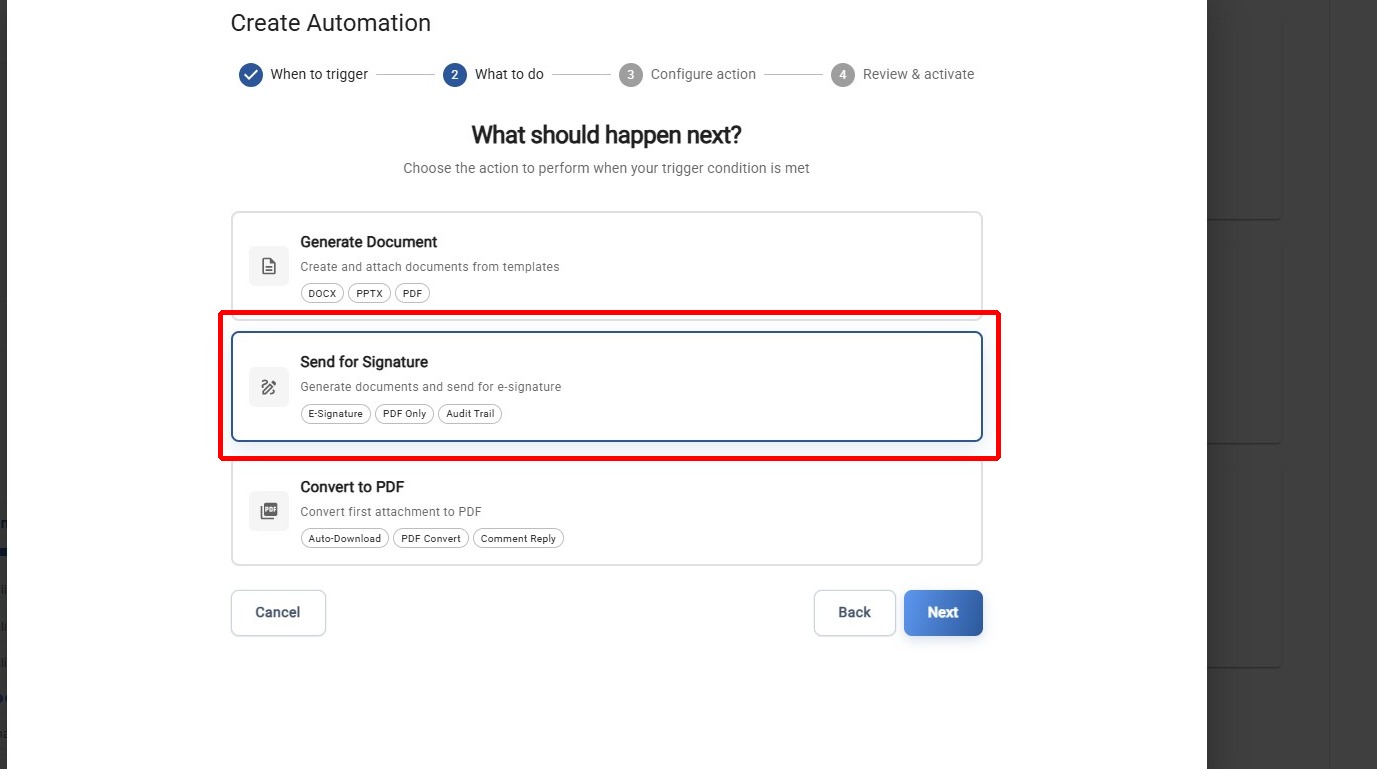
Step 1: Select Send for E-Signature
Click the Send for e-signature action card to select it as the automation action.
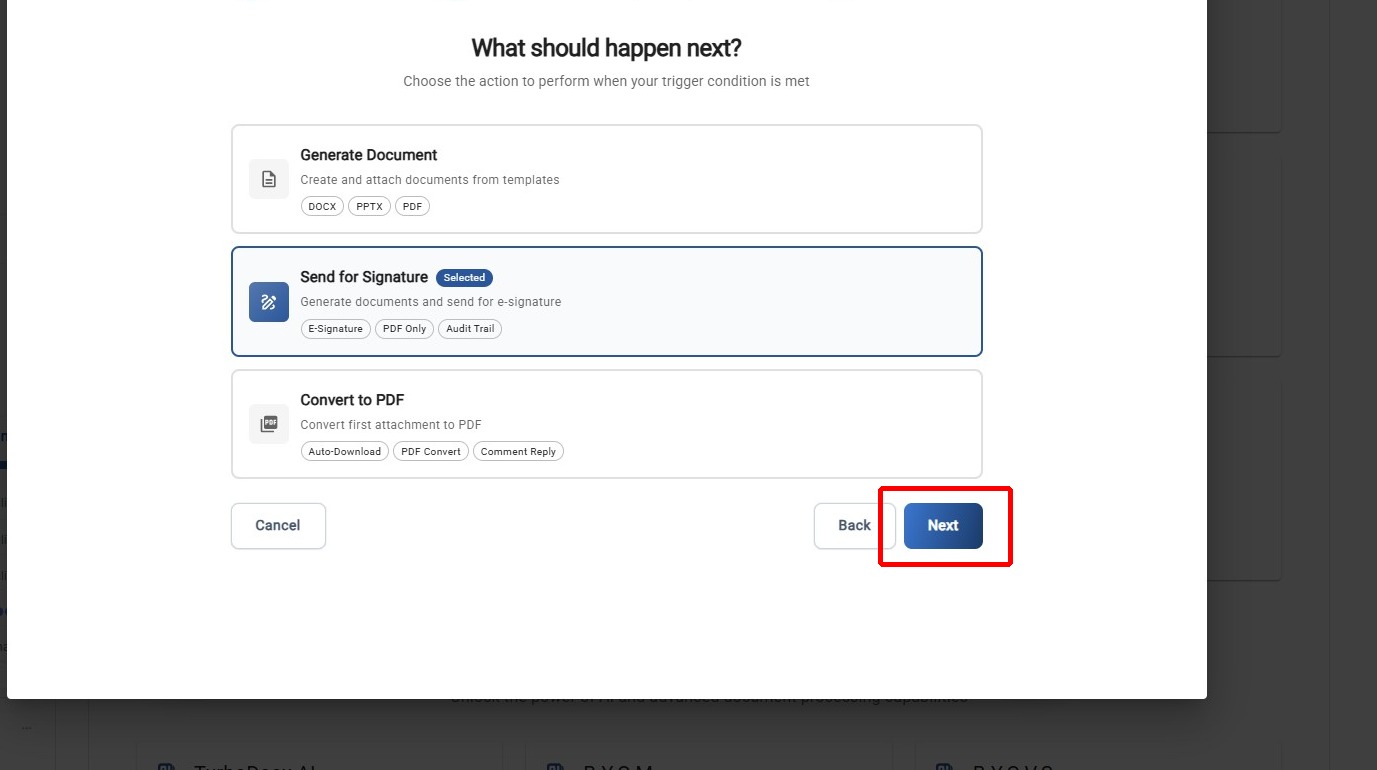
Step 2: Proceed to Signer Configuration
Click Next to continue to the signer configuration step.
Choose a Delivery Mode
Before configuring signers, choose how the automation delivers the document. This is the first section of the signature step, and it decides which of the sections below you need to fill in.
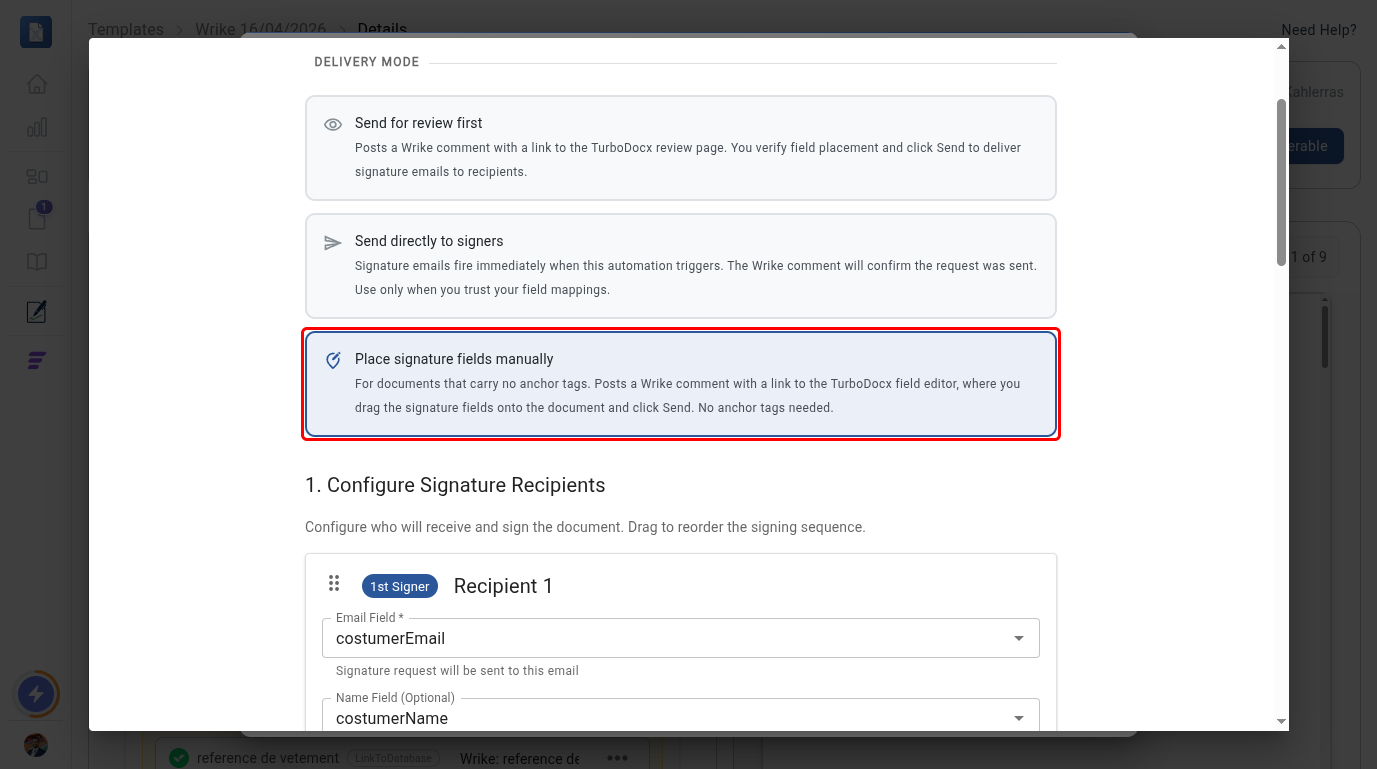
| Mode | What happens when the automation fires | Anchor tags needed? |
|---|---|---|
| Send for review first | Posts a Wrike comment linking to the TurboDocx review page. You check the field placement, then click Send to deliver the signature emails. | Yes |
| Send directly to signers | Signature emails go out immediately. The Wrike comment confirms the request was sent. | Yes |
| Place signature fields manually | Posts a Wrike comment linking to the TurboDocx field editor. You drag the signature fields onto the document, then click Send. | No |
When to use "Place signature fields manually"
Use it when your document has no anchor tags — the {CustomerSignature}-style placeholders that tell TurboDocx where each field goes.
The other two modes read those tags to position fields automatically, so a document without them can't be processed. That's common when the file is a scanned PDF, comes from a third party, or is a one-off contract nobody wants to template.
In this mode:
- The Map Document Fields section disappears — there is nothing to map, so no anchor tags are required.
- You still configure recipients below. The field editor needs to know who each field belongs to, so every recipient you add must have a Wrike email field — in this mode and in the other two.
- Nothing is sent to signers until you place the fields and press Send yourself. Even if the automation is also set to send directly, manual placement takes priority — a document with no fields would give signers nothing to sign.
Your existing field mappings are kept if you switch to this mode, so you can switch back without reconfiguring them.
In the field editor, Send stays disabled until each recipient has at least one field assigned to them. If you added three signers, place at least one field for all three — a signer with no fields has nothing to sign, so the editor won't let the document go out.
Configure Signers
The steps below apply to all three delivery modes. If you chose Place signature fields manually, complete this section and then skip ahead to Post-Signature Settings — the Map Document Fields steps won't appear.
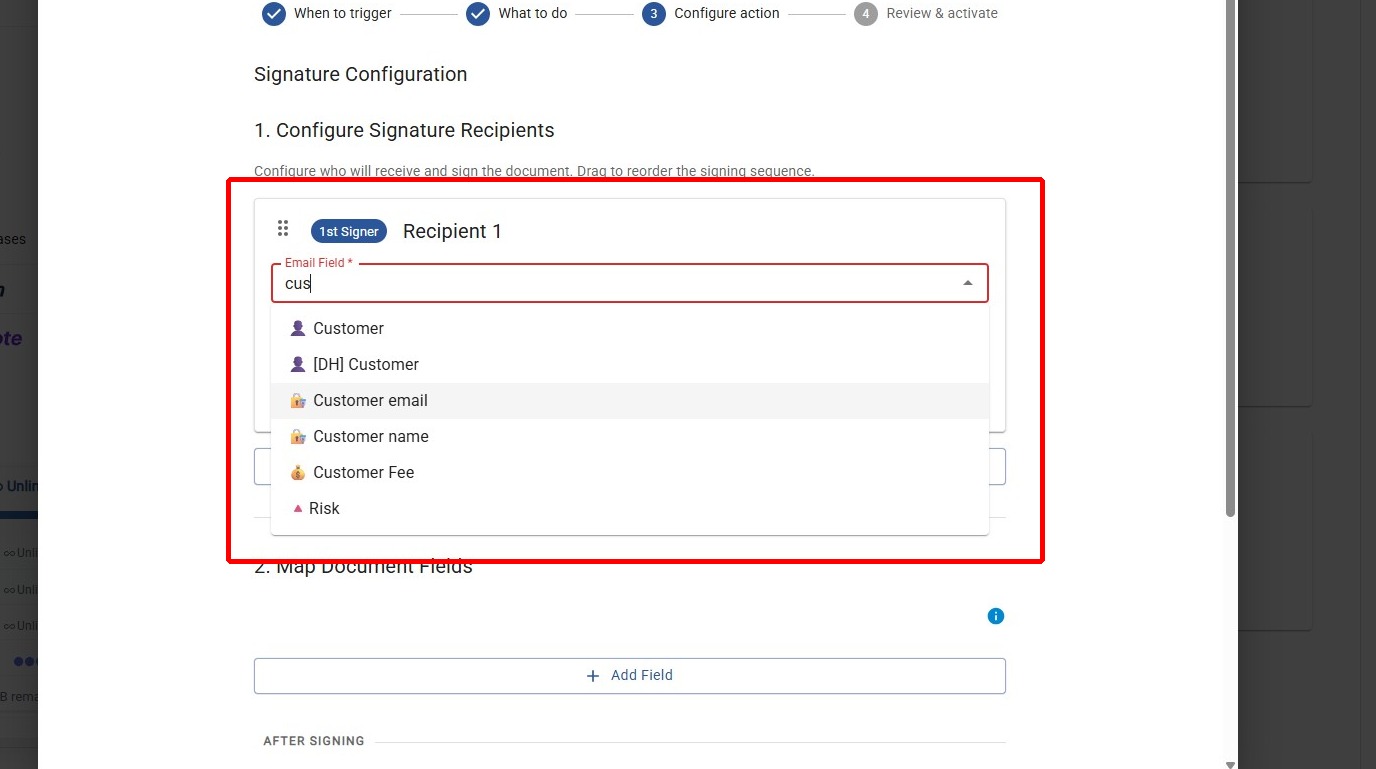
Step 3: Select the First Recipient's Email Field
Select the Wrike field that contains the first recipient's email address. This field will be read from the Wrike task to determine who receives the signature request.
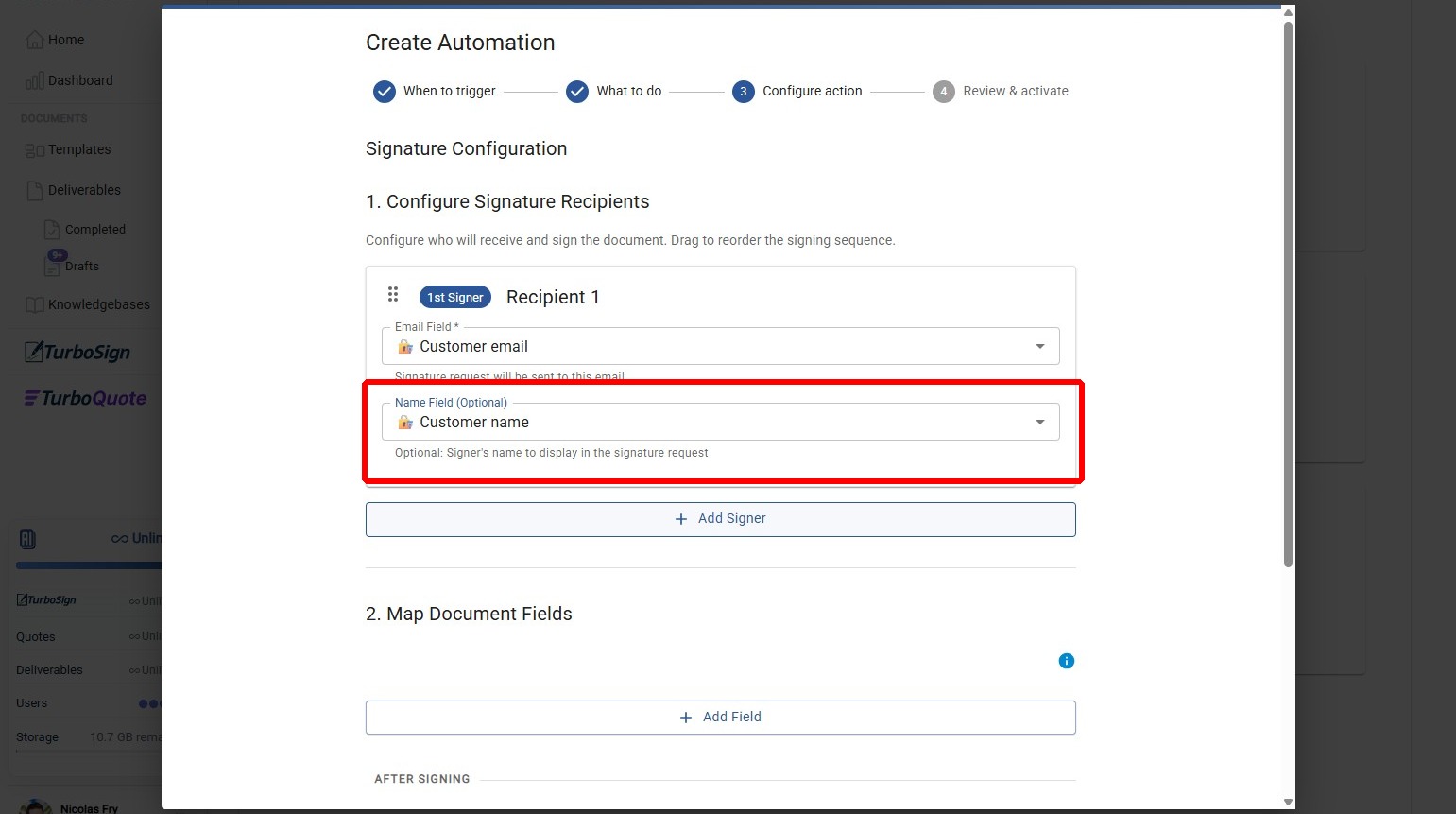
Step 4: Select the Recipient's Name Field (Optional)
Optionally, choose the field that represents the name of the recipient. This will be used in the signature request email.
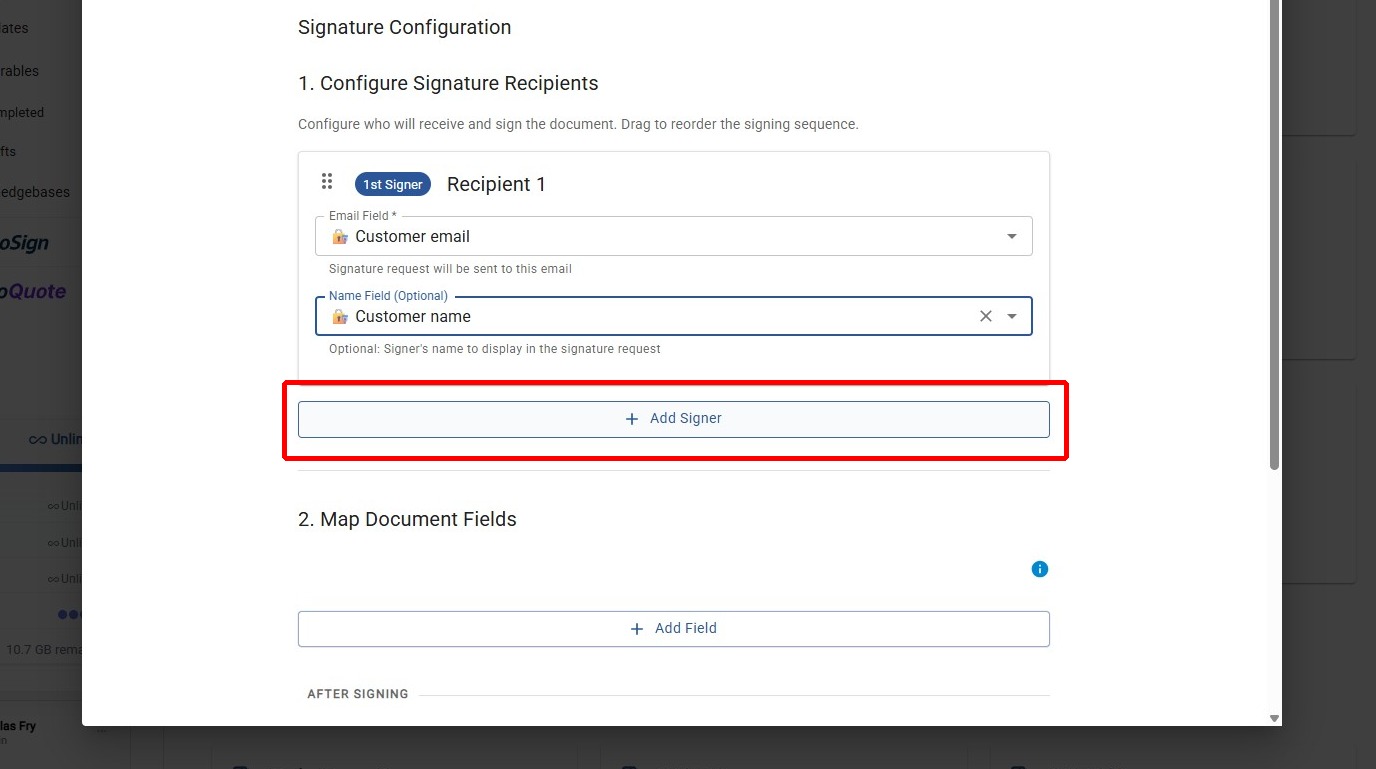
Step 5: Add Additional Signers (Optional)
Optionally, add additional signers if your document requires multiple signatures.
Map Document Fields
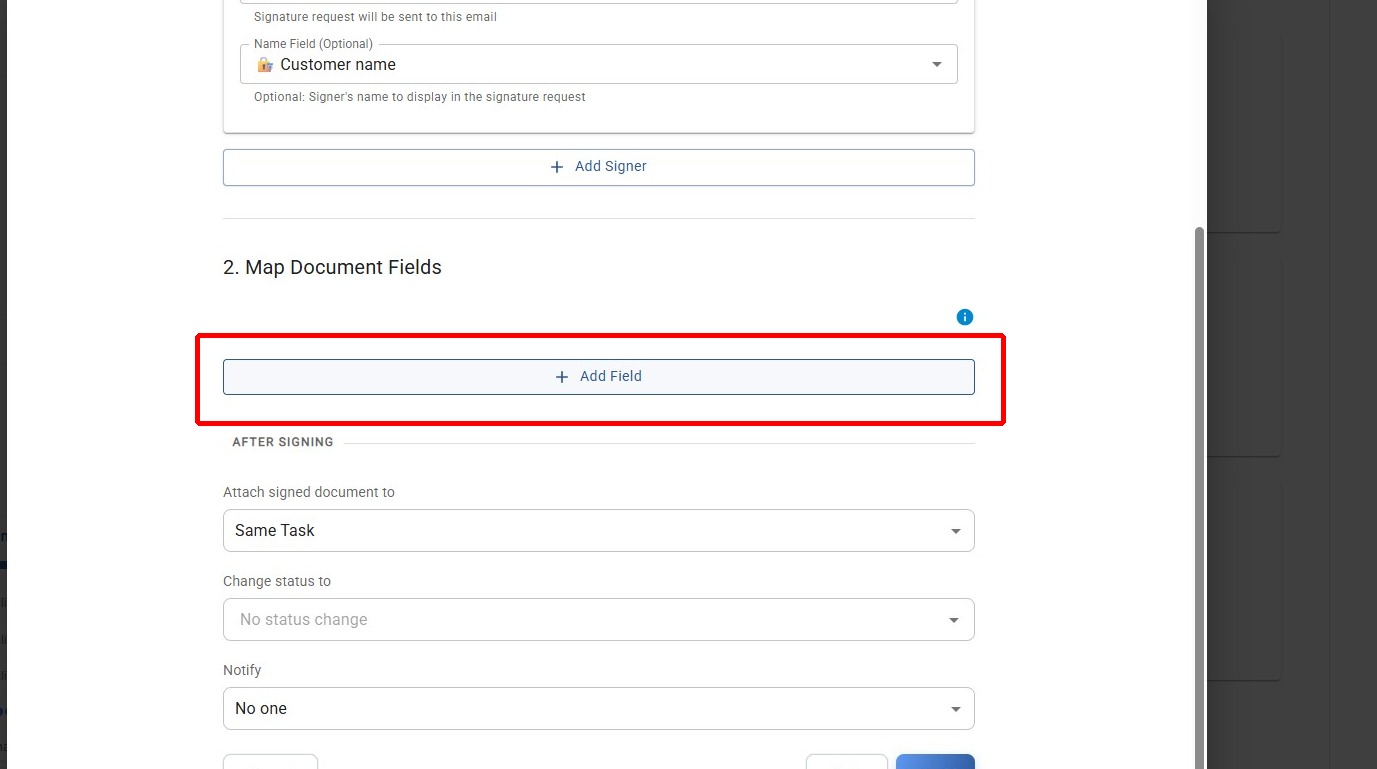
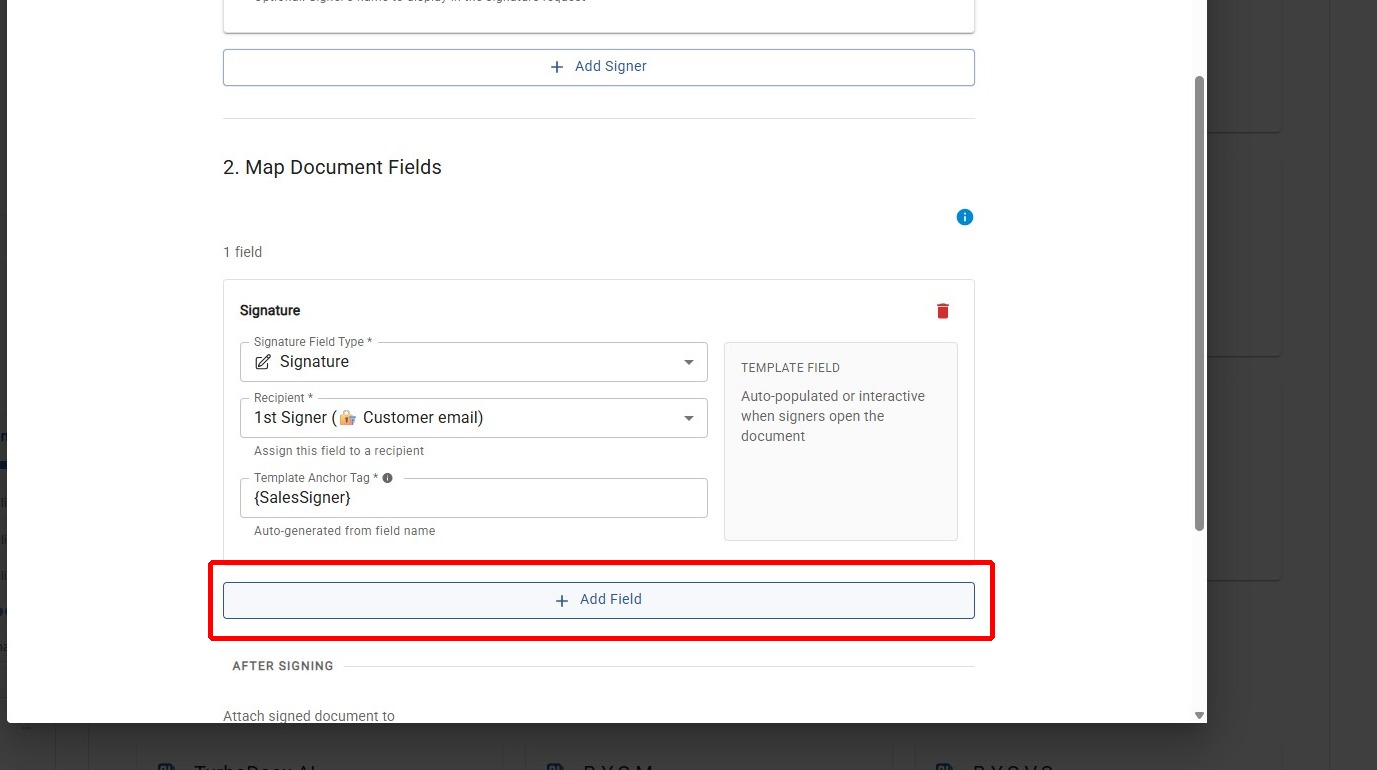
Step 6: Add a Document Field
Click Add Field to begin mapping document fields that the signer will need to fill out.
Step 7: Choose Document Fields
Click and choose the document field(s) that need to be completed by the signer.
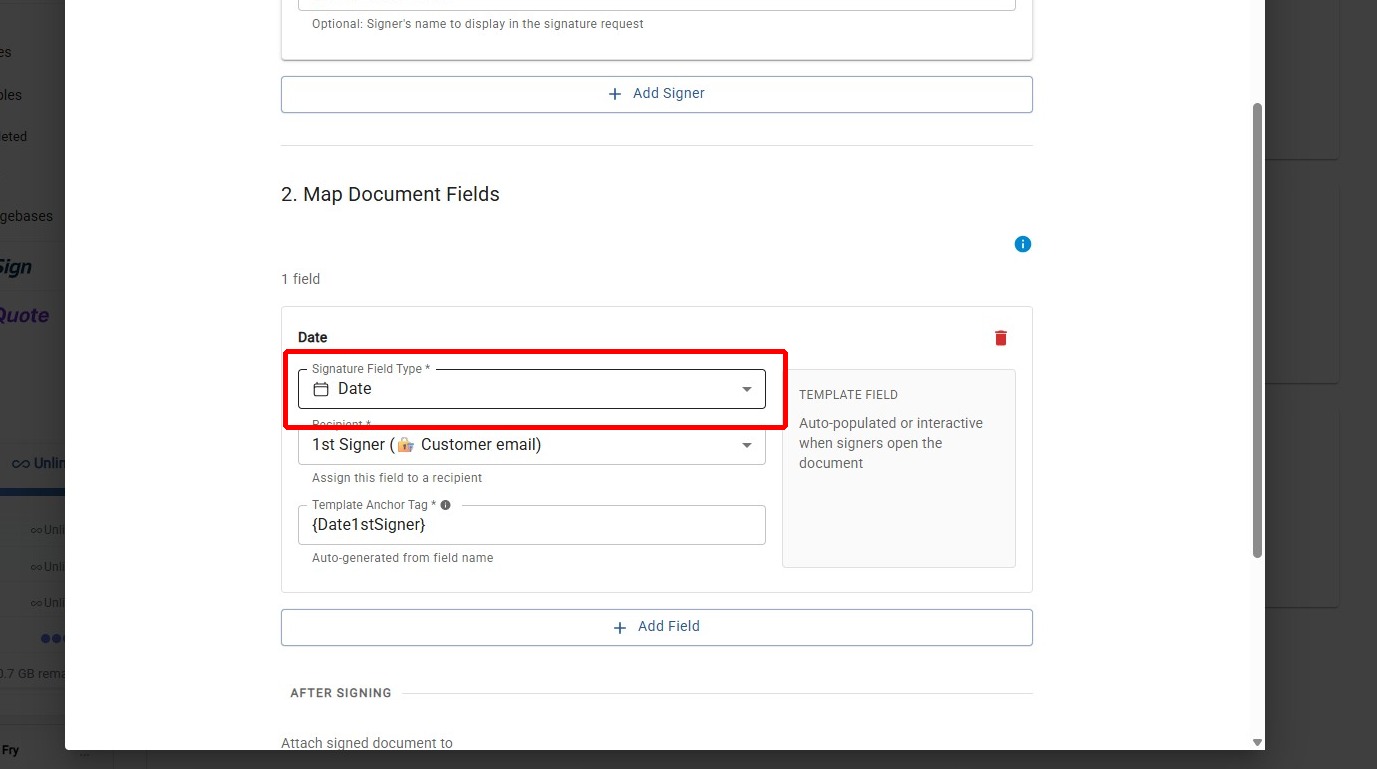
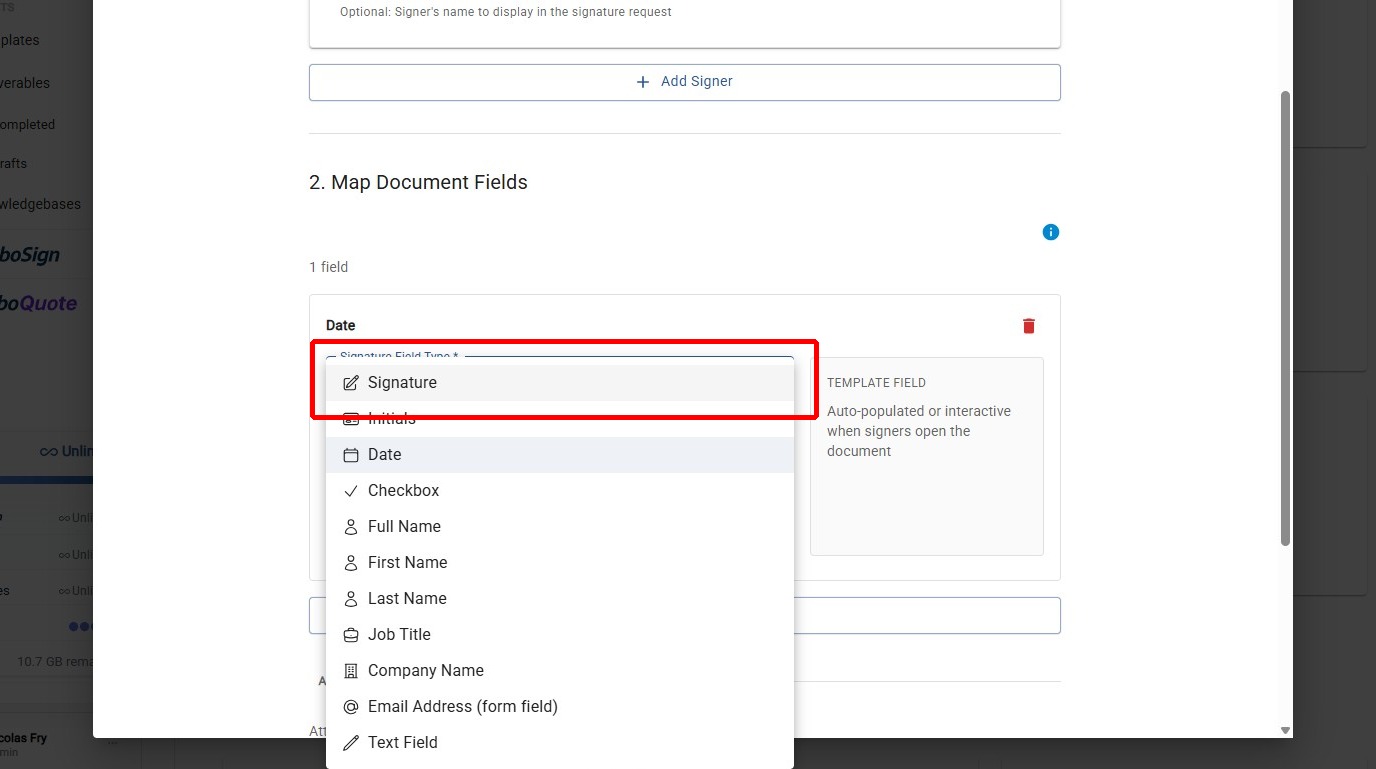
Step 8: Select the Field Type
Select the specific field type for the document field (e.g., signature, date, text).
Step 9: Set the Anchor Tag
Change the anchor tag to match the placeholder in your template (e.g., {SalesSigner}). This tells TurboSign where to place the field in the generated document.
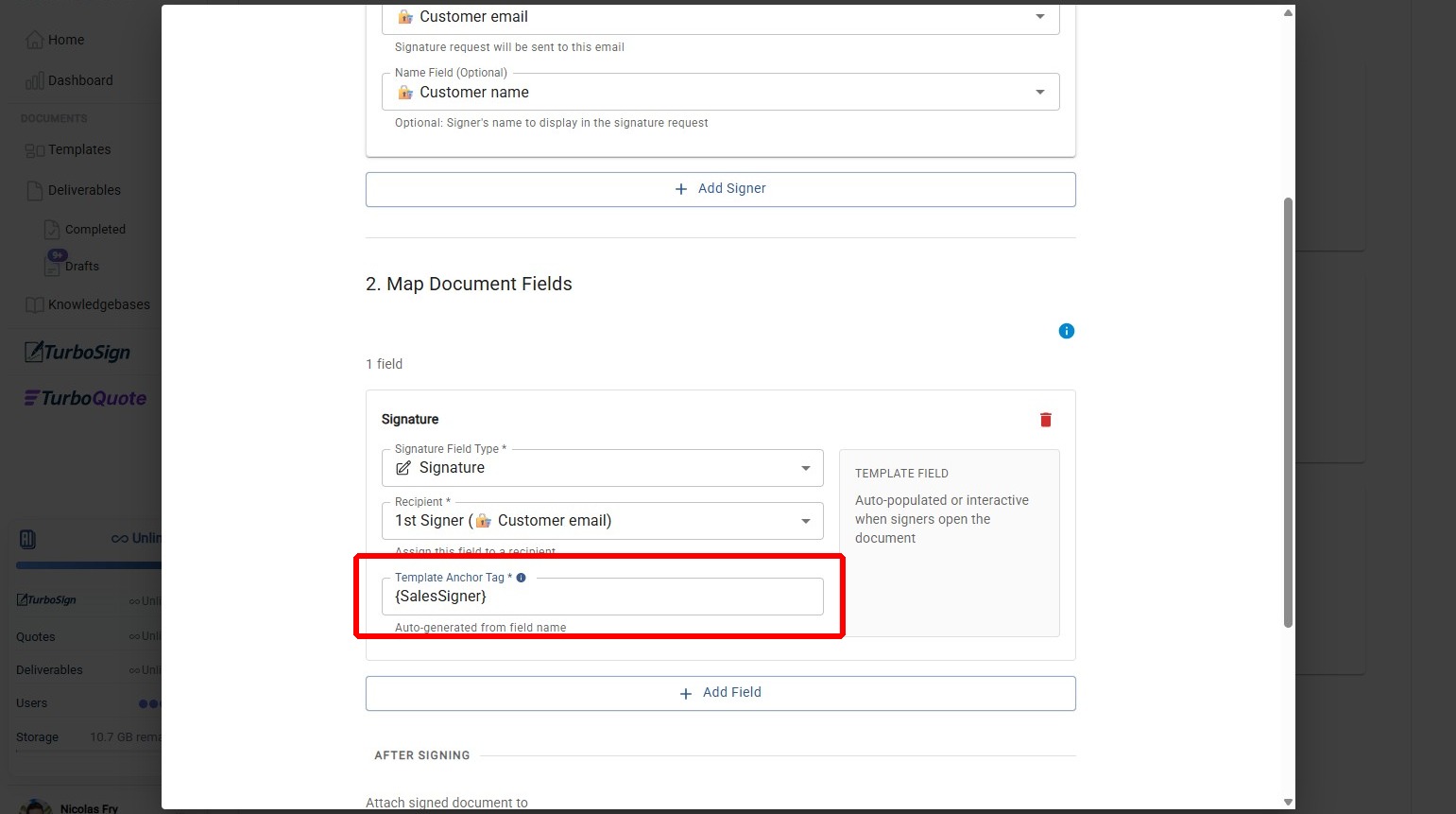
The anchor tag you set here must exactly match the corresponding variable in your document template. If they don't match, TurboSign won't be able to place the signature field. See How to Add Signature Anchors for how to configure these in your template.
Step 10: Map Additional Document Fields (Optional)
Optionally, repeat the process to map more document fields for the signer.
Post-Signature Settings
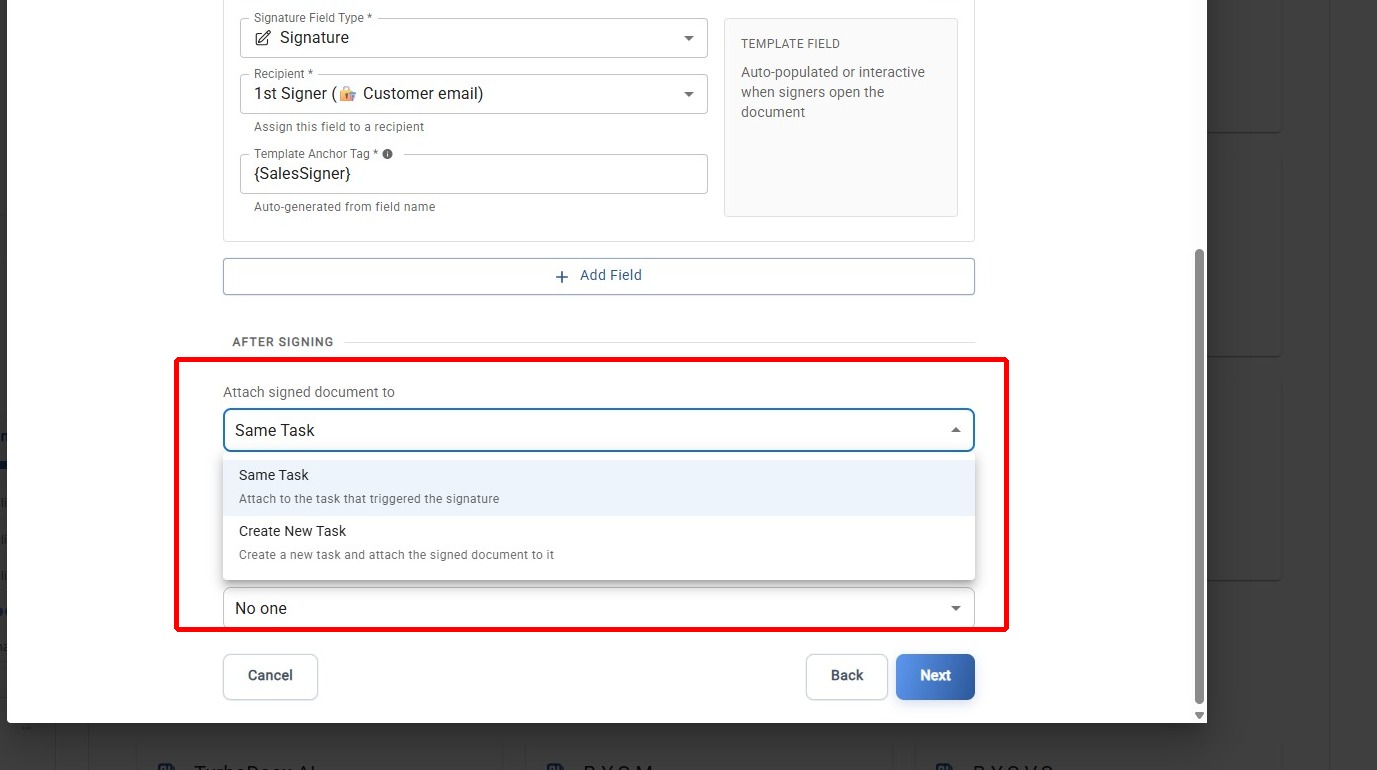
Step 11: Choose Where the Signed Document Gets Attached
Select where the signed document should be attached after all signatures are complete.
Step 12: Choose a Post-Signature Task Status (Optional)
Optionally, choose which status the triggering Wrike task should be changed to after the signature is completed.
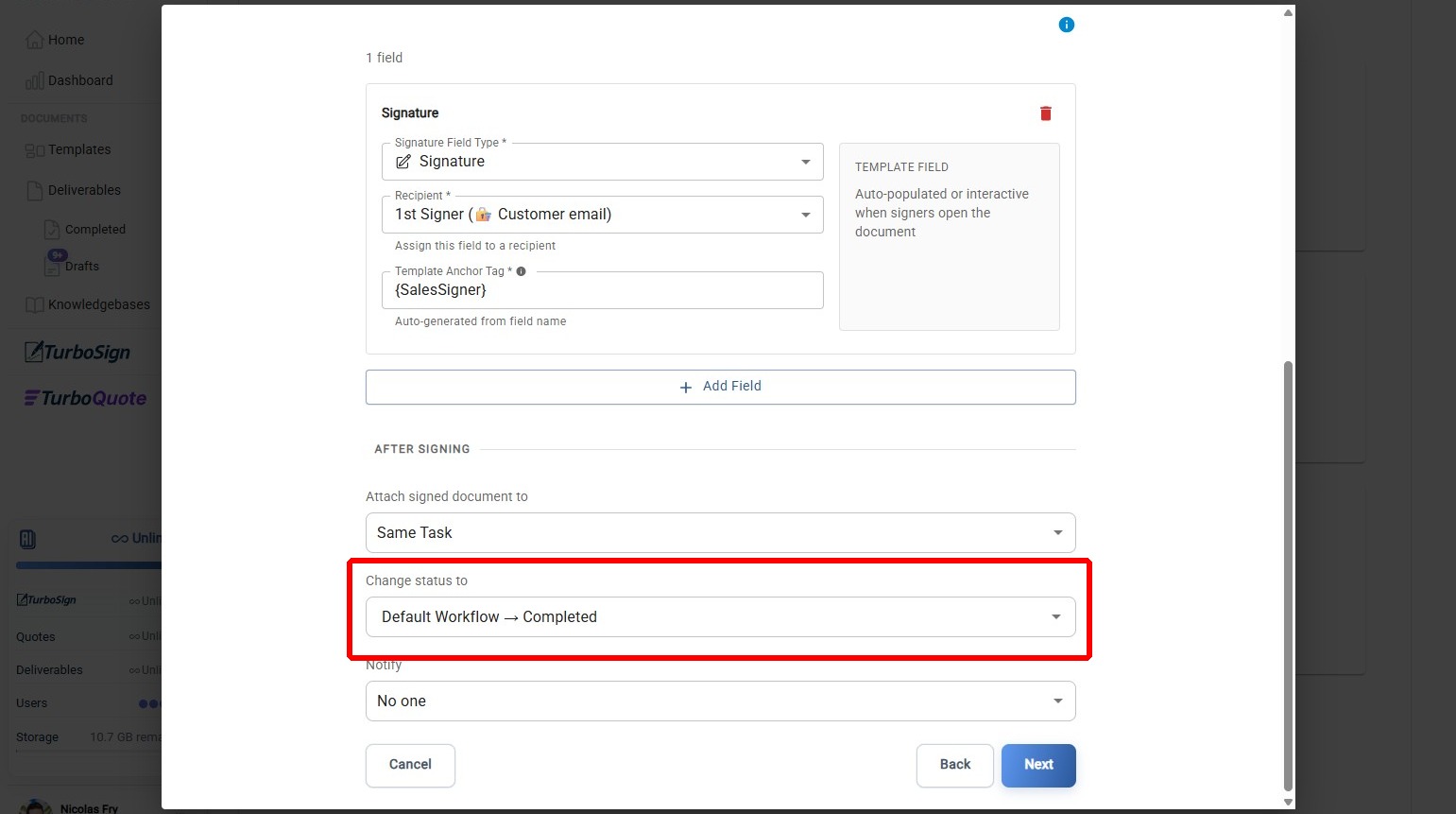
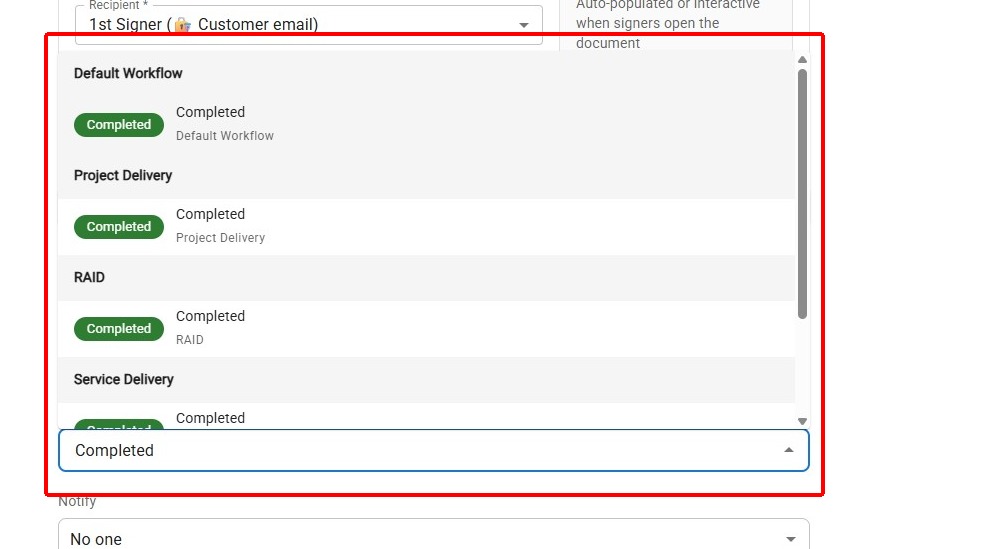
Step 13: Select the Completed Status
Select the status to apply (e.g., Completed) so your Wrike workflow advances automatically after signing.
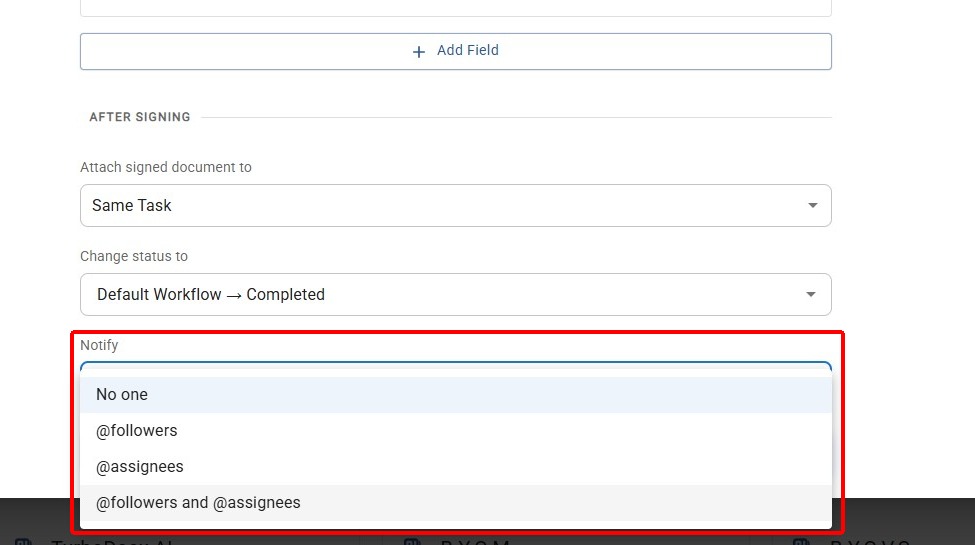
Step 14: Configure Notifications (Optional)
Optionally, choose who gets tagged or notified after a signature is completed.
Wrike Activity Updates (Optional)
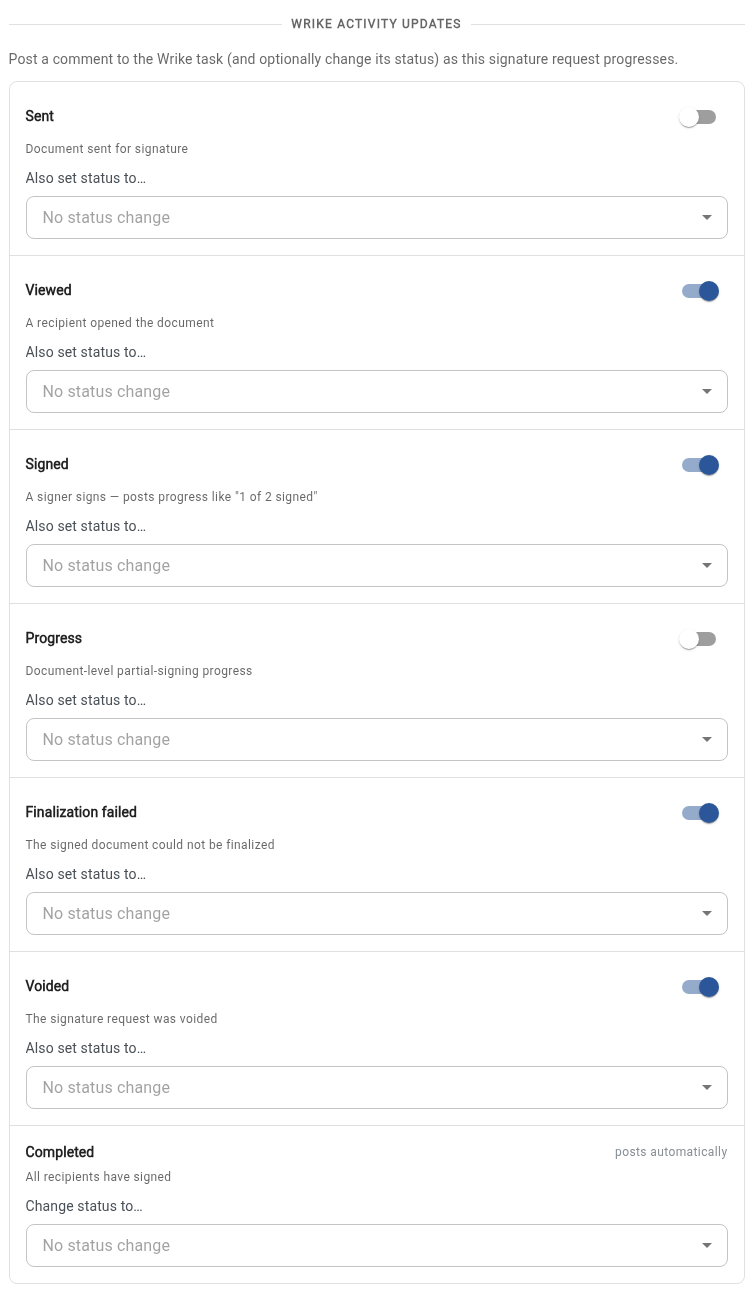
Beyond the final Completed status you set above, you can have TurboDocx mirror each step of the signature lifecycle back into the triggering Wrike item — as a comment, a status change, or both. This keeps signer activity visible in Wrike in near real time, so downstream Wrike automations can react as a document moves through signing.
In the Wrike activity updates section of the signature action step, you'll see a row for each signature event. For every event you can independently:
- Add a comment — post a readable note on the Wrike task/folder when the event fires
- Set a status — change the Wrike item's custom status when the event fires (optional per row)
Supported events
| Row | Fires when | Notes |
|---|---|---|
| Sent | The document is dispatched to recipients | e.g. Document sent for signature |
| Viewed | A recipient opens the document for the first time | e.g. Document viewed by John Doe |
| Signed | An individual signer completes their signature | Posts per-signer progress like 1 of 2 signed |
| Progress | A signer signs but the document is not yet fully complete | Document-level partial-signing progress |
| Finalization failed | The signed PDF could not be finalized (e.g. a signing error) | The document is not marked Completed |
| Voided | The signature request is voided or cancelled | e.g. Document voided |
These rows map to the same signature lifecycle events surfaced by TurboSign webhooks — see that page if you also want these events pushed to your own endpoints.
The table also shows a Completed row, but it is not configured here — it reuses the post-signature status you set in Step 12–13 above and posts automatically once all recipients have signed. Set the "all recipients signed" status there, not in this section.
Each row is independent. You can, for example, post a comment on Viewed and Signed but only change the Wrike status on Voided — leave any row's comment off and status unset to skip it entirely.
How it behaves
- Comments are off by default. A row only posts a comment if you turn it on, so existing automations don't suddenly start commenting when you save.
- Per-recipient progress. The Signed comment includes how many of the total signers have signed (
X of Y signed) so multi-signer flows read in sequence. - Non-blocking. Activity updates never interrupt the signature flow — if a Wrike comment or status change can't be applied, signing still completes and the event is logged.
- Deleted status safety. If a status you selected is later removed in Wrike, TurboDocx posts a warning comment instead of silently failing.
Finalize the Automation
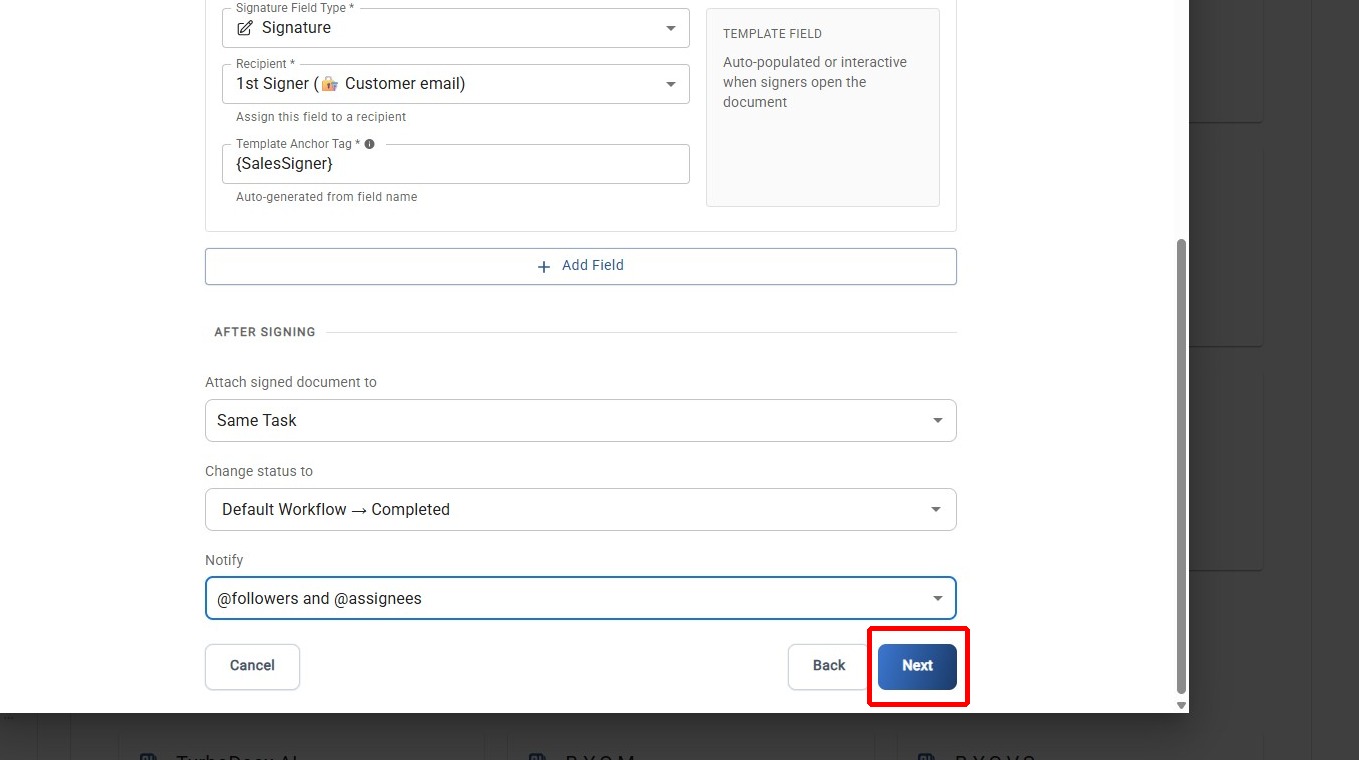
Step 15: Proceed to Final Step
Click Next to advance to the automation creation step.
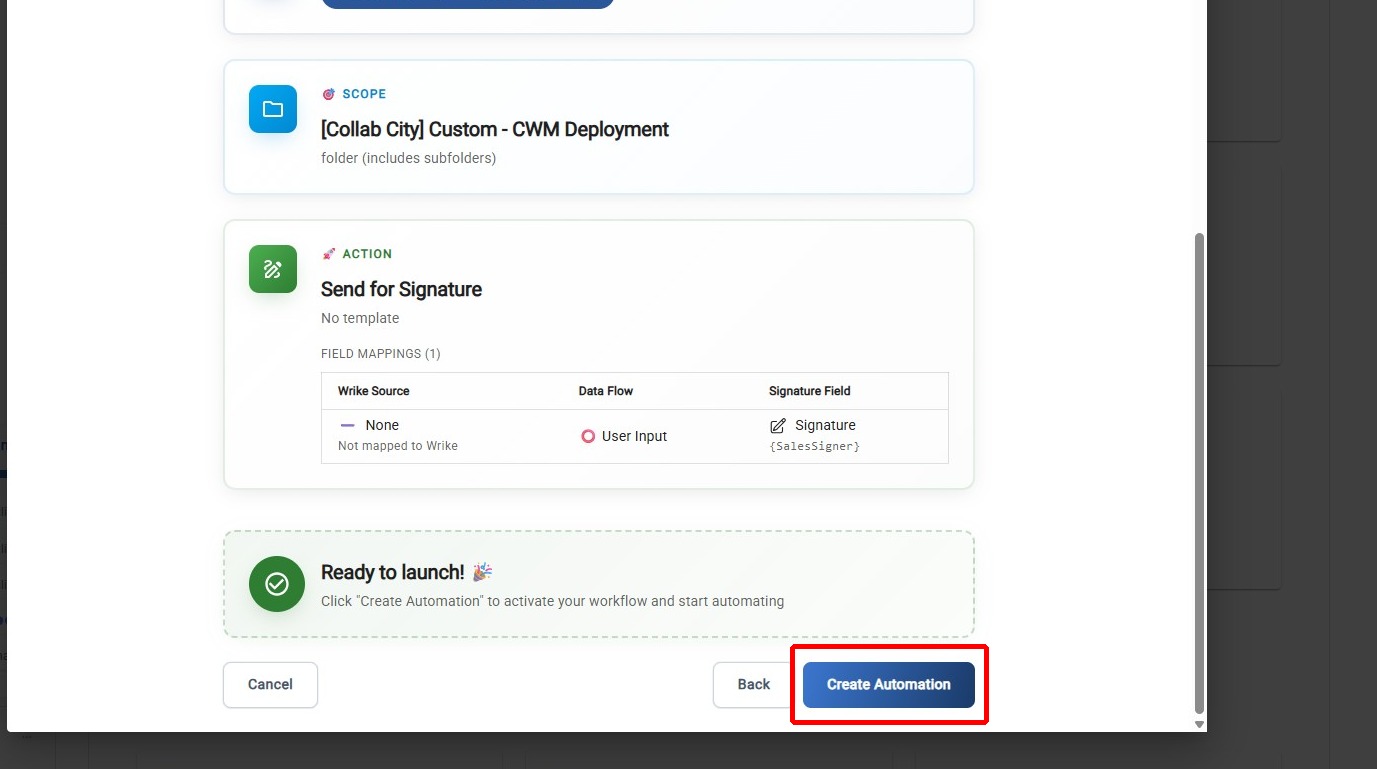
Step 16: Create the Automation
Click Create Automation to save and activate your e-signature automation workflow.
What's Next?
- How to Add Signature Anchors to your template if you haven't already
- How to Setup Static Field Mapping to template variables for static data
- If something isn't working, see Troubleshooting and FAQ