How to Add a Wrike Image
A Wrike Image variable pulls image attachments from the triggering Wrike task or folder into your document. When the Wrike automation runs, TurboDocx attaches the matching images into that variable's place in the template. You can attach all images, or filter them by file name.
This is the image counterpart to the Wrike Table variable, and it reuses the same configuration flow.
Prerequisites
- A template uploaded to TurboDocx with at least one variable that is on its own line (a rich-text variable, so injected images have room to render)
- A connected Wrike account (see Setting Up a Wrike Automation)
Configure the image variable
Step 1: Open the variable menu
On your template's Details page, find the variable you want to turn into images, open its three-dot menu, and choose Wrike Image.
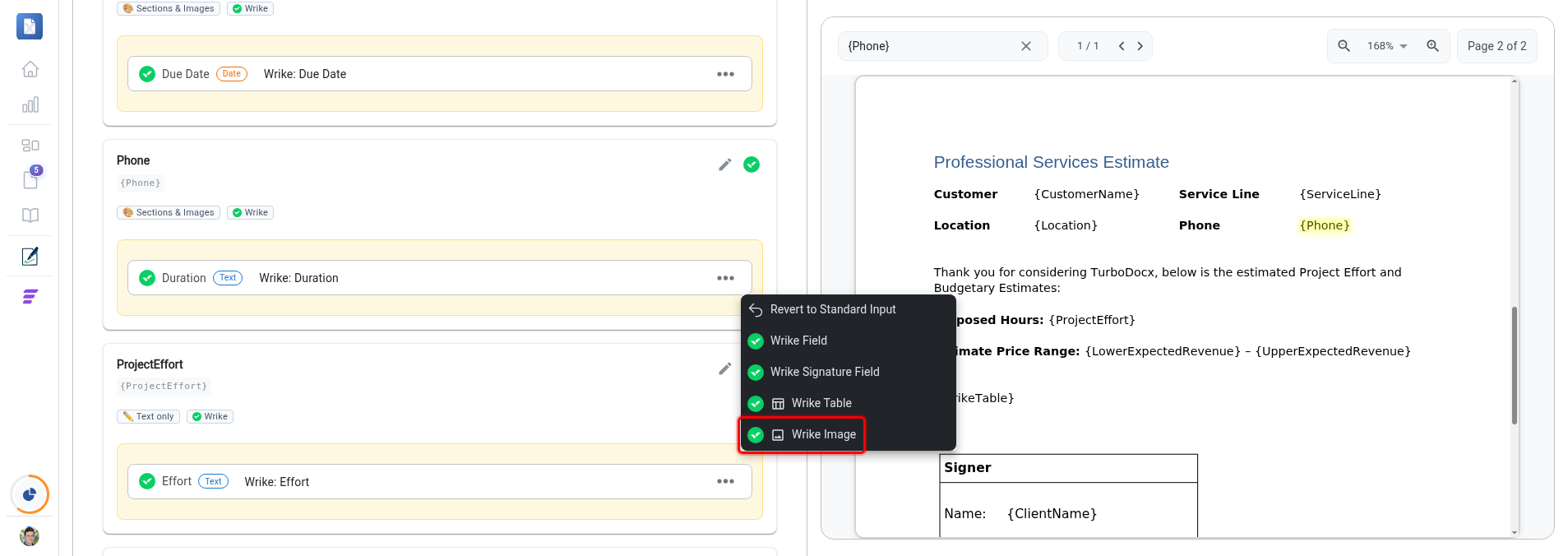
Step 2: Choose which images to attach
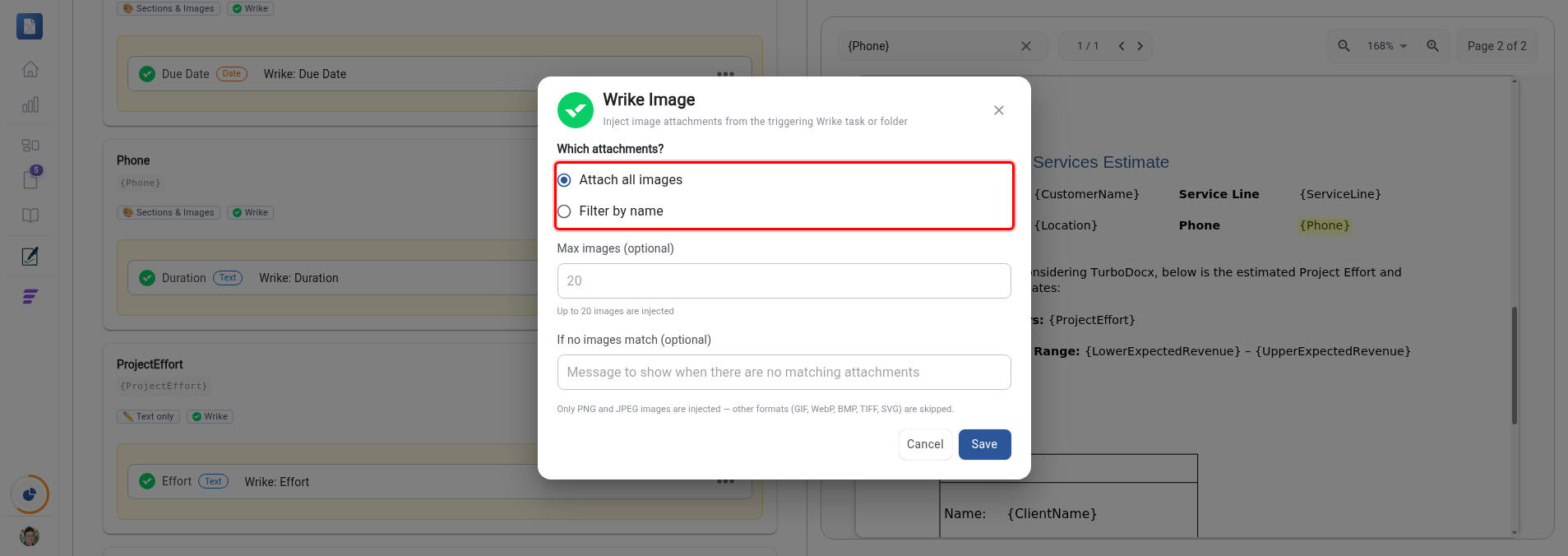
- Attach all images: every image attachment on the triggering task or folder is included.
- Filter by name: include only attachments whose file name contains one of your terms. Enter terms comma-separated; matching is case-insensitive and matches on substrings (for example
logo, headermatchescompany-logo.pngandHeader_2024.jpg).
Only PNG and JPEG images are injected; other formats (GIF, WebP, BMP, TIFF, SVG) are skipped, regardless of the output format.
Step 3: Set optional limits
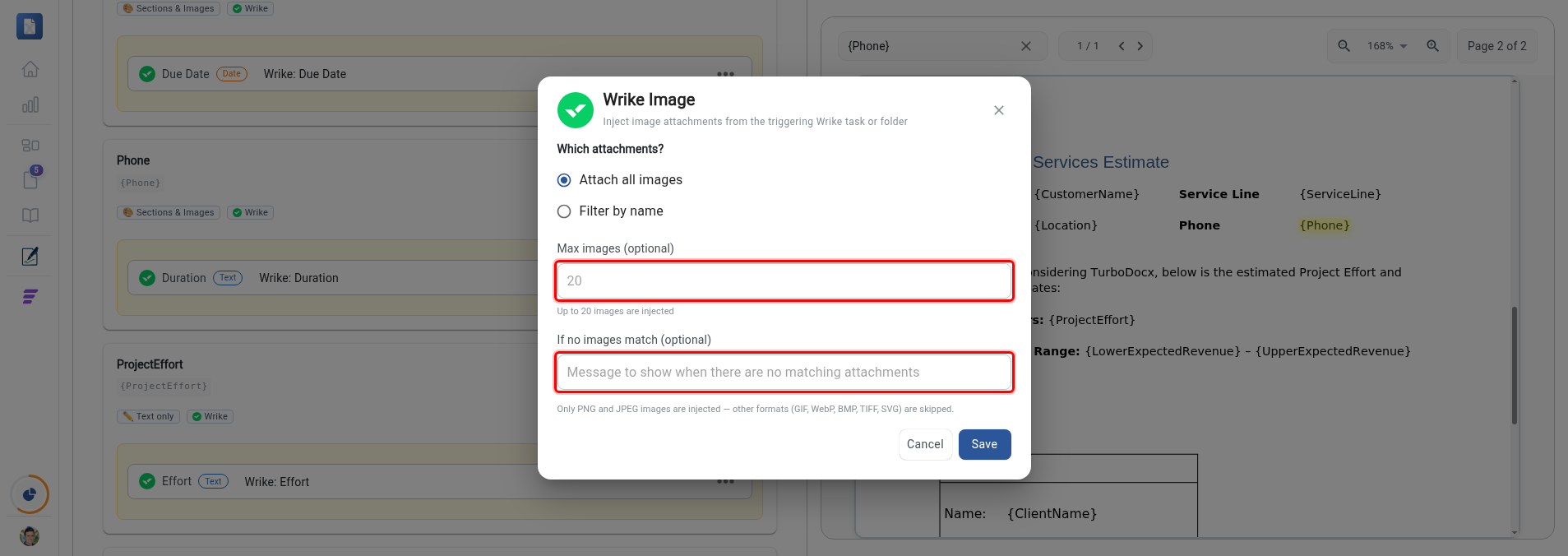
- Max images: cap how many images are attached (up to 20).
- If no images match (optional): text that renders when no matching images are found.
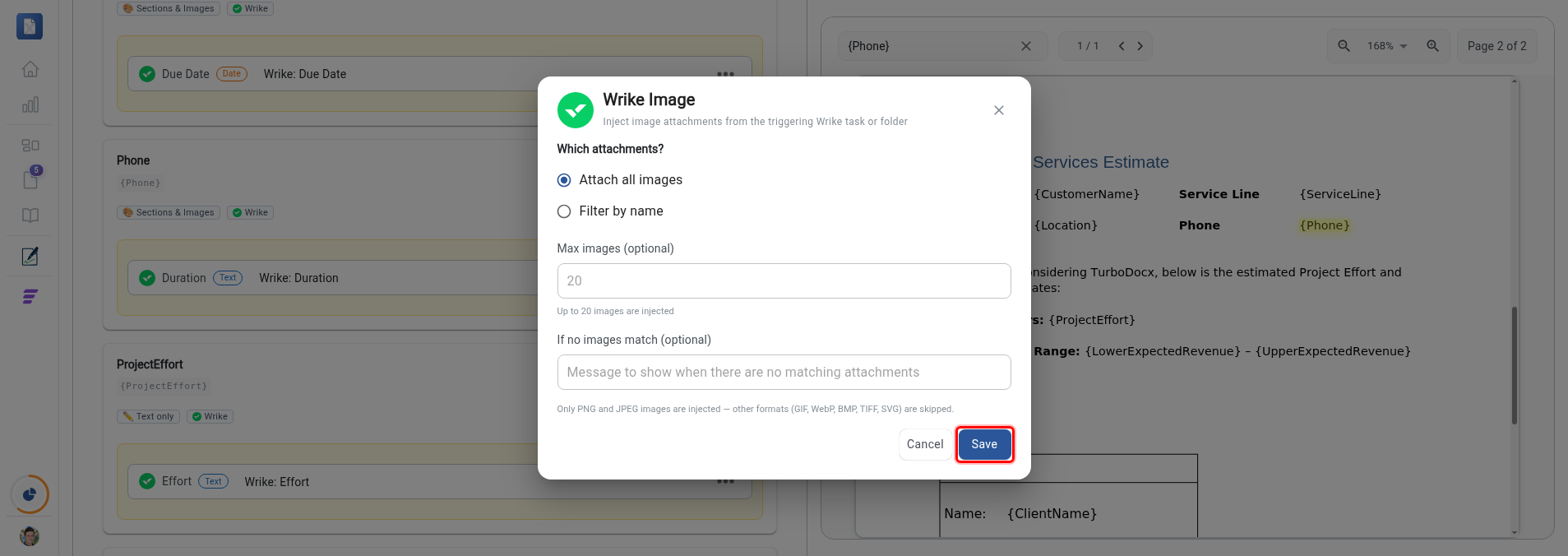
Step 4: Save
Click Save in the image dialog to apply your configuration. That is the last step. The template details page saves your variable as you go, so there is no separate save action.
What happens at generation time
Images are injected by the Wrike automation when a document is generated, so a Wrike Image variable is read-only on the generation page (it shows an informational banner instead of an input). To enter content manually instead, use Switch to manual input on the generation page.
Notes and limits
- Image cap: a maximum of 20 images are attached per variable.
- Supported formats: Only PNG and JPEG images are injected. GIF, WebP, BMP, TIFF, and SVG attachments are skipped.