One-click install links
These links install the TurboSign for Salesforce package that TurboDocx publishes. Pick the link for the kind of org you're installing into, then follow Install with a one-click link.
Version 1.1.1 (latest)
| Install into | Link |
|---|---|
| Production or Developer Edition org | Install in production or Developer Edition |
| Sandbox | Install in a sandbox |
Version 1.1.1 fixes how messages, previews and the builder show values. It installs over 1.1.0 and 1.0.0.
Version 1.1.0
| Install into | Link |
|---|---|
| Production or Developer Edition org | Install in production or Developer Edition |
| Sandbox | Install in a sandbox |
Version 1.1.0 saves the signed PDF and audit trail back to the record and adds the Document tab on the review screen. It installs over 1.0.0.
Version 1.0.0
| Install into | Link |
|---|---|
| Production or Developer Edition org | Install in production or Developer Edition |
| Sandbox | Install in a sandbox |
The two links install the same package. Production and Developer Edition orgs sign in at login.salesforce.com, and sandboxes sign in at test.salesforce.com, so each link opens the right login page.
If you have a sandbox, install there first, finish the setup, and send a test document before you install in production. To have the signed PDF saved back to the sandbox record, connect that sandbox in TurboDocx, as described in Step 4 of the setup guide.
The links go through login.salesforce.com (or test.salesforce.com), which may ask you to log in again even when you're already signed in to your org. To skip that, replace the start of the link with your org's My Domain address, the one in your browser's address bar when you're in Salesforce. For example: https://yourcompany.my.salesforce.com/packaging/installPackage.apexp?p0=04tbm000000o8LlAAI.
The link opens in whichever org you log in to. If your browser is signed in to the wrong one, log out first, or open the link in a private browser window.
Newer versions
Newer versions add features, and each one is listed with its own install links and what it adds on the TurboSign for Salesforce releases page. To upgrade, open the newer version's link in the org that already has the package. See Upgrade to a newer version.
Check which version is installed
- Open Setup.
- In Quick Find, type
Installed Packages, then click Installed Packages. - Find TurboSign for Salesforce in the list. The Version Number column shows the version you have. Versions 1.1.0 and 1.1.1 show as 1.1, and version 1.0.0 as 1.0.
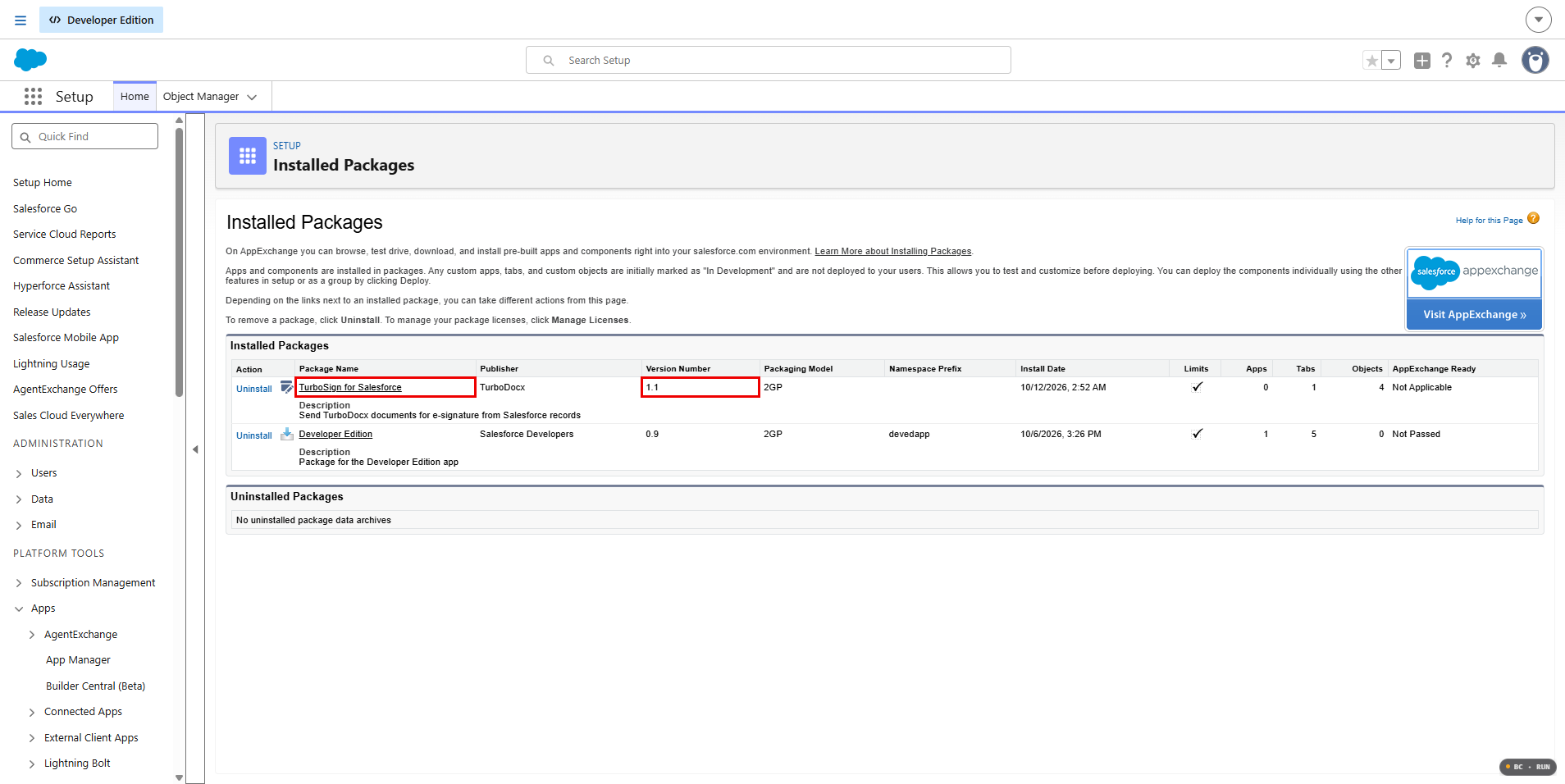
Version 1.0 sends documents and collects signatures, but does not save signed files back to your Salesforce records. Saving signed files back, and the Document tab on the review screen, need version 1.1.0 or later. Newer versions are listed on the releases page.